On this page
An indoor security camera in a shared home affects everyone who passes through its view. Home security cameras may be controlled through a camera app, a privacy mode or a physical lens shutter, but household residents still need a common routine. The practical question is how to keep the camera useful without making shared rooms feel permanently observed, and how everyone can tell when video, audio and live viewing are active.
Map People, Rooms and Purposes for Home Security Cameras
Begin with people rather than equipment. List the residents who use the home every day, then consider children, carers, cleaners, relatives and other regular visitors. Their routines may overlap without being identical. A camera that seems unobtrusive to one person may cover another person’s usual place for resting, working or making private calls.
Separate genuinely shared areas from personal spaces. An entrance hall or route between an outside door and a shared living area is different from a bedroom, a changing area or a room temporarily used for sleeping. A multipurpose room needs particular care because its privacy needs can change during the day.
Give every camera one clear purpose. Examples include seeing whether someone has arrived through a particular entrance, checking a pet’s usual area while the home is empty, or reviewing activity around a shared doorway. Avoid broad descriptions such as “general security”. A precise purpose tells you what the camera needs to see and, just as importantly, what it does not need to see.
- People: Who regularly enters the room, and who may reasonably expect private time there?
- Place: Is the area always shared, or does it sometimes become a sleeping, changing or care space?
- Purpose: What specific event or area is the camera intended to show?
- Time: Is the camera useful only when the home is empty, during certain household activities, or at all times?
If the household cannot describe a camera’s purpose in one clear sentence, its placement and recording routine are probably too broad.
Where Should Indoor Cameras Point?
Point the camera at the smallest scene that fulfils its purpose. Entrances and shared circulation areas are often easier to define than an entire living space. A view of the door and the area immediately inside it may be enough. There is usually no benefit in including a sofa, dining table or work area if those places are unrelated to the stated purpose.
Keep bedrooms, changing areas and guest sleeping spaces outside the frame. Check the edges of the image rather than concentrating only on the centre. A mirror can reveal an adjoining space, while a window can show reflections after dark. Open doors may also bring a private room into view even when the camera appears to point elsewhere.
Use narrow framing and activity zones where available, but do not treat a software zone as a substitute for physical placement. A zone may limit motion detection or notifications without removing the rest of the scene from live view or recordings. Repositioning the camera is the stronger choice when an area should not be visible at all.
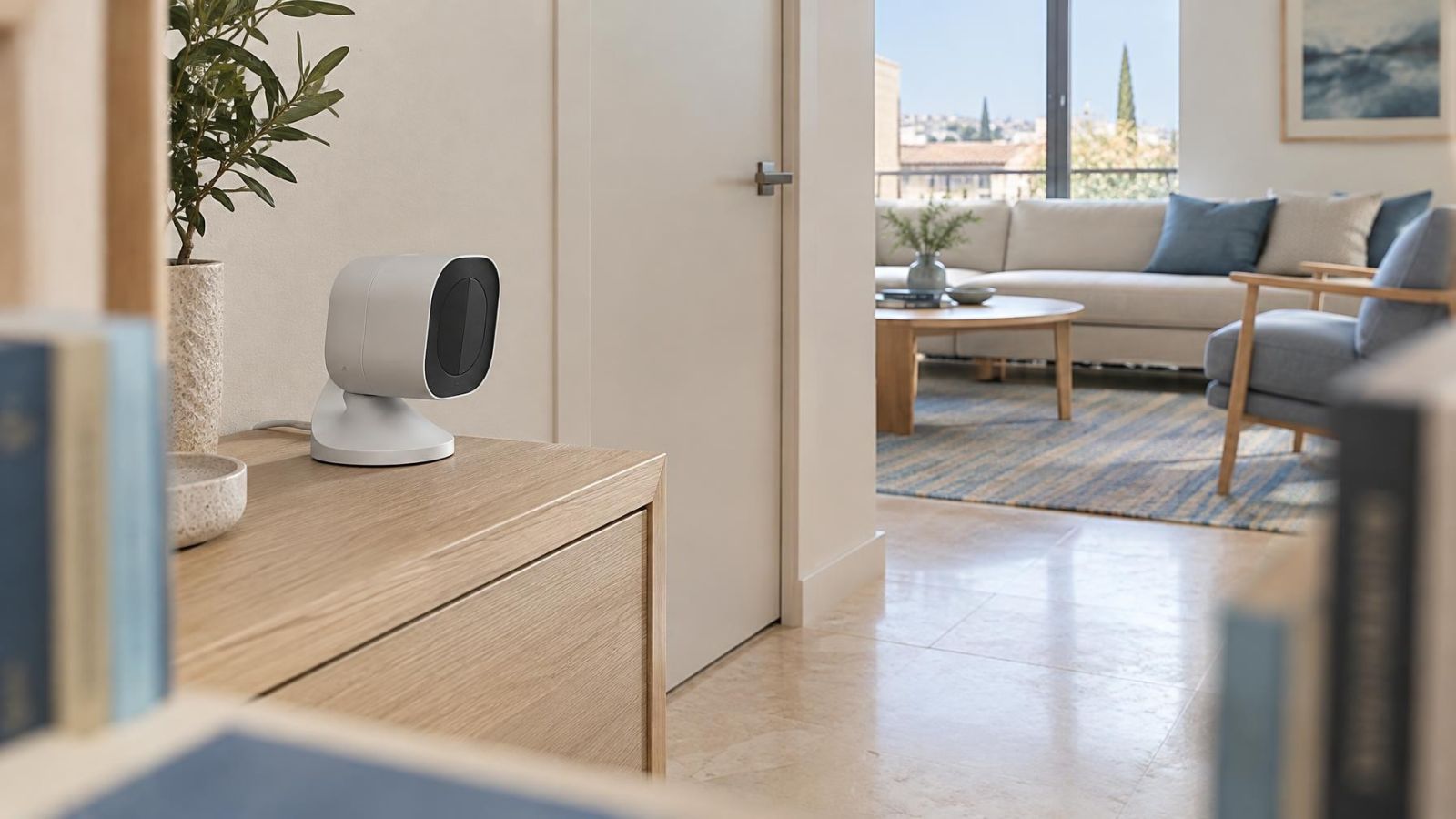
Visible placement is usually easier for a household to understand than concealment. People can see where the lens points and can ask for the camera to be paused. A hidden or ambiguous device makes the recording state harder to judge and weakens the shared routine.
Does a mini camera improve privacy?
A mini camera is not inherently more private. Its smaller body may be easier to position neatly, but it can also be difficult for residents and guests to notice. Judge it by its field of view, microphone, status indication and off controls. Small size should not become a reason to obscure its location or leave its purpose unexplained.
Is a 360 camera suitable for a shared room?
A 360 camera can capture more of a room than the purpose requires. Digital framing may show only one selected view during ordinary use, yet other parts of the scene may remain available through live control or stored footage. Use one only when the wider view has a defined purpose and private areas can be reliably excluded.
Choose a Clear Off Routine
An off routine should be easy to use and easy to verify. Privacy mode may be convenient, a physical shutter gives visible confirmation that the lens is covered, and power disconnection can provide a clear fallback. These controls are not equivalent. A shutter blocks images through the covered lens but may leave the microphone, network connection or other functions active. A software control depends on the camera, its settings and its connection state.
Automatic home and away schedules can reduce daily effort. They are most suitable when occupancy patterns are predictable and every resident understands what triggers the change. Allow for people arriving early, staying home unexpectedly or working irregular hours. Automation should never be the only way to create privacy.
What should security cameras do when people are home?
The answer depends on the agreed purpose. A camera used only to check an empty home can normally enter its off state when a resident returns. A camera covering a shared entrance may remain useful, but its frame should stay limited to that entrance. The household should also have a manual pause for guests, private conversations, care activities and any other situation not covered by the normal recording schedule.
Choose a visible confirmation that everyone understands. This may be a closed physical shutter, a clear status light whose meaning has been checked, a switched power connection or a reliable state shown in the camera app. Do not assume that an unlit indicator means the camera is inactive; indicator behaviour can often be configured separately.
Plan for app failure, a lost password or a network problem. The fallback might be closing the shutter, using an accessible power switch, unplugging the camera or removing its battery where practical. Residents should not need specialist access to make a shared room private.
Does Privacy Mode Stop Recording?
Not necessarily. Privacy mode is a product feature, not a universal operating state. On one camera it may stop video recording and live view. On another it may turn the lens away, suppress notifications or change only selected functions. Video, audio, live viewing, motion detection and notifications must be checked separately.
A physical lens shutter gives direct visual evidence that the covered lens cannot capture an image. It does not by itself confirm that audio recording has stopped. Software privacy controls can disable several functions together, but their behaviour may depend on configuration, connection status and whether footage is stored inside the camera, on another device or through an online service.
Run a simple household verification test instead of relying on the feature name:
- Place the camera in its normal active state and confirm which account can see the live view, receive motion detection alerts and play a recording.
- Enable privacy mode using the control residents will normally use.
- Walk through the framed area, speak near the camera and check whether video, audio, notifications or event entries are created.
- Try the live view from each authorised account and confirm what the user can see or hear.
- Restore the active state and verify that ordinary operation returns without changing the intended framing or permissions.
Repeat the check after meaningful camera app or settings changes. A redesigned control screen or reset configuration can alter how residents operate the feature even when the camera remains in the same place.
Limit Audio, Access and Storage
Disable the microphone unless sound serves a genuine, agreed purpose. Audio can reveal conversations taking place outside the visible scene, including speech from an adjoining room. Narrow camera framing does not limit what a sensitive microphone may pick up. If audio is useful only occasionally, keep it off by default and enable it for the specific task.
Use separate user accounts instead of sharing one login. Individual accounts make it easier to see who has live-view access, who can play or delete recordings, and whose access should be removed after a household change. Give each person only the controls needed for their role. Administrative settings should not be the default for every resident.
- Review access when someone moves in or out, a carer changes, or a shared device is replaced.
- Check which phones, tablets, browsers and displays remain signed in.
- Use the shortest practical retention period for the camera’s stated purpose.
- Understand whether deleting a clip removes it from local storage, an online camera account and exported copies.
- Make sure residents know who can preserve footage and who can remove it.
A wifi camera may continue recording to local storage when its internet connection is unavailable, while remote live viewing may stop. Another camera may depend on a remote service for recording. Disconnection is therefore not a dependable privacy control unless the household has tested the exact behaviour.
Retention should be deliberate rather than unlimited by habit. Keep footage only as long as it remains useful for the defined purpose. Residents should understand the normal deletion process, including what happens to downloaded clips and recordings saved on separate devices.
Make Guests Comfortable
Tell guests where indoor cameras are when they arrive, before they settle into the room. A simple explanation is enough: where the device points, why it is used, whether it records audio, and how the room can be made private. The explanation should match the actual settings rather than a general assumption about the camera.
Provide an easy pause option in shared rooms. Guests should not have to install an app or request an account. A resident can close a physical shutter, disconnect power or use a clearly understood control, then show the guest how the inactive state is confirmed.
Any room used for sleeping or changing should remain outside the frame while it serves that purpose. This may require moving the camera, redirecting it, closing a shutter or disconnecting it. Muting notifications alone is not enough because video or audio recording may continue.
Avoid hidden devices and vague statements such as “there may be cameras”. Clear locations and clear states are easier for everyone. Name one household member who can answer questions, pause the camera and explain access to recordings. That prevents guests from receiving different answers from different residents.
Write the Household Camera Routine
Write the routine in plain language and keep it where residents can find it. It does not need to be a technical manual. Its purpose is to remove uncertainty during ordinary situations, especially when someone wants privacy quickly or when the usual camera app is unavailable.
- Purpose and placement: State what each camera is for, where it points and which areas must remain outside the view.
- Normal state: Record when video, audio, live view, motion detection and notifications are expected to be active.
- Ordinary controls: Name the control used when someone arrives home, a guest visits, a private conversation begins or a shared room becomes a sleeping space.
- Visible confirmation: Explain how residents can verify that the lens, microphone and recording functions are inactive.
- Fallback: Describe how to stop capture if the app, network or automatic schedule fails.
- Access and retention: List who can view footage, who can change settings and how long recordings are normally kept.
Check the routine after app changes, camera resets or network changes. Review user access and stored footage as part of the same check. A camera can retain the correct physical angle while its software permissions, audio setting or recording behaviour has changed.
Revisit the routine whenever occupants or room uses change. A home office may become a guest room. A child may begin using a shared area independently. A carer may need temporary access. The strongest routine is not the most complicated one; it is the one residents understand, can operate without hesitation and can verify for themselves.
Key takeaways
- Every indoor camera should have a specific purpose that household residents can explain in plain language.
- Careful placement and narrow framing keep bedrooms, changing areas and other personal spaces outside the camera view.
- A dependable off routine combines simple controls with visible confirmation of the camera state.
- Separate accounts, restricted permissions and deliberate retention make access to recordings easier to manage.
- Residents and guests should understand where cameras are, why they are used and how shared rooms can be made private.