On this page
A security camera account sends an unfamiliar alert. The camera app shows connected devices you do not recognise, or a shared user appears to have remote viewing access. Whether the system uses individual cameras or an NVR (network video recorder), the immediate question is the same: does this indicate unauthorized camera access, and what should you change without destroying useful settings or evidence? The right response is a controlled account and system review, not an immediate factory reset.
Recognise Signs of Unauthorized Camera Access
One unusual notification is a reason to check, not proof that somebody has entered the account. Camera platforms can label the same phone differently after an app reinstall, an operating-system change or a browser update. A remote owner may also appear to log in at an unexpected hour because the activity record uses a different time zone.
Look for several pieces of information together. Useful warning signs include an unknown login or security notification, an unfamiliar connected device, a shared user nobody can identify, changed account details, or remote-viewing activity that does not match normal use. A password change or altered recovery email deserves prompt attention because it may affect who controls the account.
- Record the time shown, device name, approximate location if provided, and type of activity.
- Check whether the alert came from the camera app, the linked email account or another notification channel.
- Review changes to the account owner, recovery details, shared users and notification settings.
- Note cameras that appear disabled, renamed or newly shared, while remembering that these changes may also have an authorised explanation.
- Treat missing login history as an absence of evidence, not evidence that nothing happened. Some systems expose only limited account activity.
Verify an Unfamiliar Login
Unknown camera login?
Start with the people who could legitimately use the system. In a home, that may include a partner, adult children, a property manager or somebody checking an unoccupied property. In a small business, include current managers, staff responsible for opening or closing, and anyone who monitors the premises remotely.
Do not forget indirect access. An installer may have been given a shared account during setup. A former resident or employee may still be listed. An old phone, tablet, browser or smart display may remain connected even though nobody actively uses it. Remote owners should also check family devices in other countries, because their device names and time zones can make normal access look unfamiliar.
Ask each current user to identify their devices without circulating screenshots that reveal account or recovery information. Compare the device type, activity time and login method. Generic labels such as “mobile device” are weak evidence by themselves. A recognised device at an impossible time, however, still needs investigation because names can be duplicated or retained after a device changes hands.
Preserve the available account activity before removing users. If the event has a clear, legitimate explanation, you can still use the review to clean up old access. If nobody can explain it, proceed as though the account credentials may be exposed.
Secure the Account First
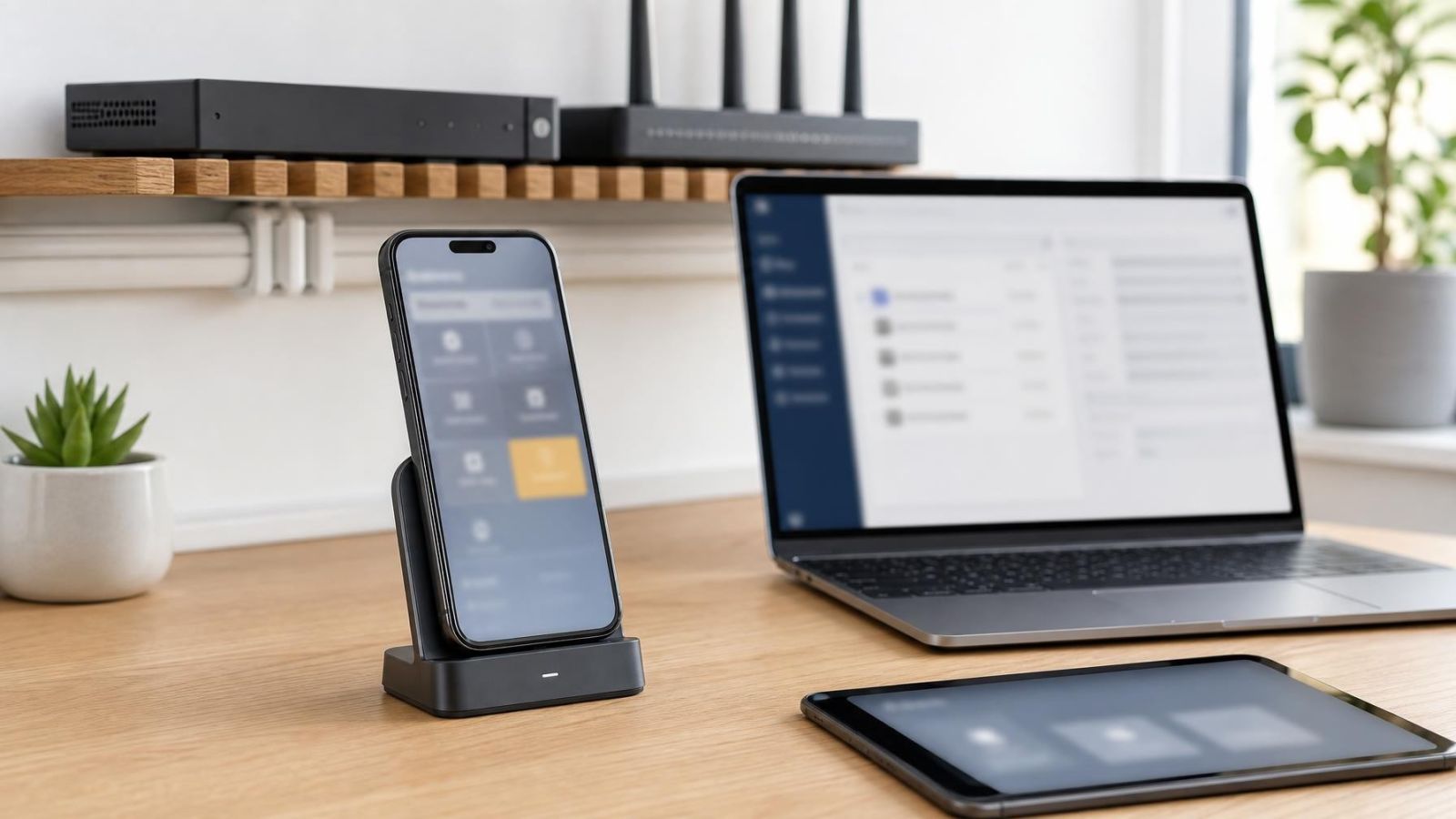
Make account changes from a device you trust, preferably while connected to a network you control. Avoid following links inside an unexpected message. Open the official app or enter the service address directly, then inspect the account from there. If the trusted phone or computer itself behaves unusually, use another known device.
Secure the linked email account before or alongside the camera account. Email commonly controls password recovery. A new camera password offers little protection if another person can use the mailbox to replace it again. Review the email account’s recovery details, connected devices and active sessions, then give it a unique password and enable multifactor authentication where available.
Next, replace the camera account password with a unique credential that is not used for email, shopping, work systems or any other service. A password manager can create and store a long credential without relying on memorable personal details. If the platform offers multifactor authentication, enable it and store recovery codes somewhere separate from the phone used for daily viewing.
Changing the password may not disconnect phones and browsers that already hold valid sessions. Use the account controls for signing out all devices, revoking active sessions or removing connected devices. The wording varies, but the aim is the same: require every legitimate user to authenticate again.
- Secure the linked email account and confirm that its recovery details belong to the current owner.
- Change the main camera account password from a trusted device.
- Revoke active sessions or sign out all connected devices.
- Enable multifactor authentication and preserve the recovery method.
- Sign in again only on approved devices, then watch for new security notifications.
Review Every Route of Access
The main app login is only one route into a camera system. Remote viewing may also be available through shared-user invitations, a browser session, VMS (video management software), an NVR account or credentials stored directly on a camera. Closing one route does not automatically close the others.
Open the shared-user list and identify every person by name and current role. Remove users who no longer need access. For those who remain, grant only the functions they use. Viewing live video, playing recordings, exporting clips, changing settings and managing other users are different responsibilities. Avoid one shared household or staff password when named user access is available.
Confirm who is shown as the account owner. The owner should be a current person responsible for the property or business, using an email address and recovery method that will remain available. An installer can have a separate service role if ongoing support requires it, but installation access should not quietly become ownership.
Check the NVR, DVR and individual camera credentials separately. Some systems have one cloud account for the app and another administrator account on the recorder. Others store camera credentials inside the recorder. Changing the cloud password may leave these local credentials untouched.
| Access route | What to review | Appropriate action |
|---|---|---|
| Main camera account | Owner, recovery details and active sessions | Replace exposed credentials and revoke sessions |
| Shared users | Names, permissions and current need | Remove obsolete users and limit remaining permissions |
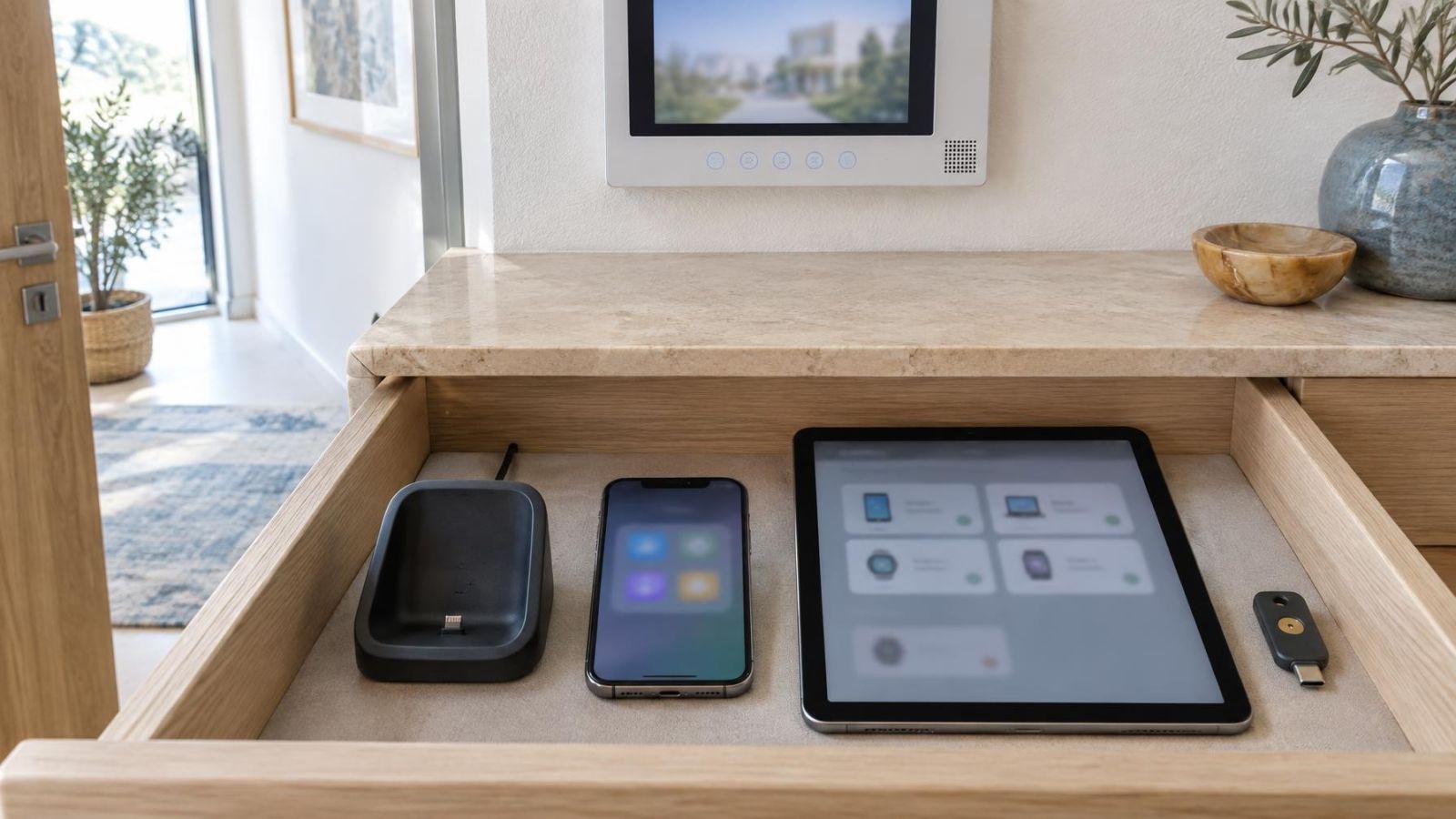
| Phones and browsers | Recognised devices and recent activity | Sign out unknown or unused devices |
| NVR or DVR | Local administrator and viewing accounts | Use unique credentials and remove old accounts |
| Individual cameras | Direct login and recorder connection | Confirm ownership and replace reused credentials |
| Remote viewing | Cloud connection, browser access and VMS users | Disable routes that are no longer required |
Check the System Around the Account
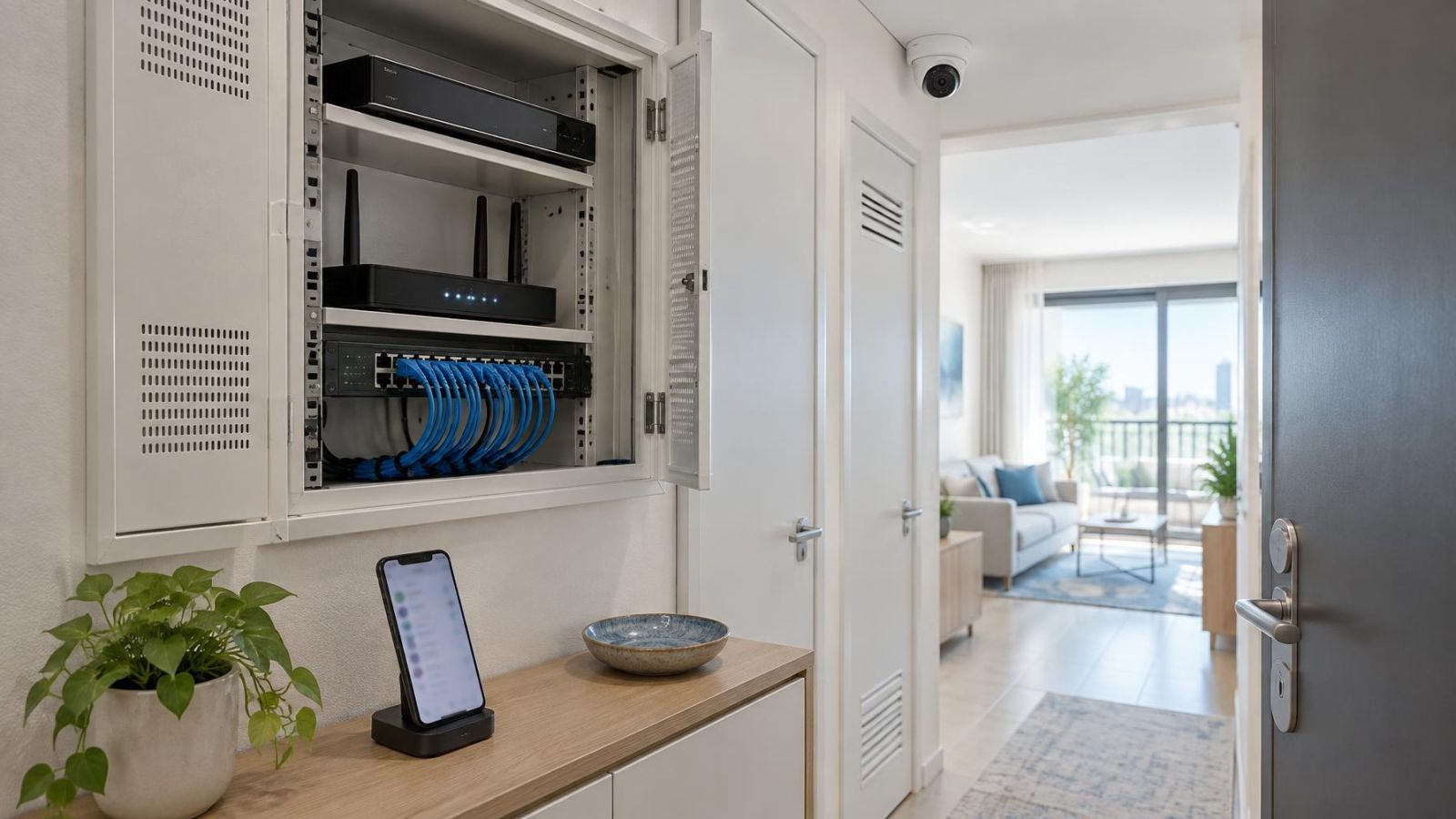
Once control of the account is stable, review the equipment and network around it. Install available camera and recorder updates through their normal management interface. Updates can correct faults and improve account handling, but do not interrupt power or connectivity while an update is running. Preserve the recorder configuration first if the system provides an export or backup function.
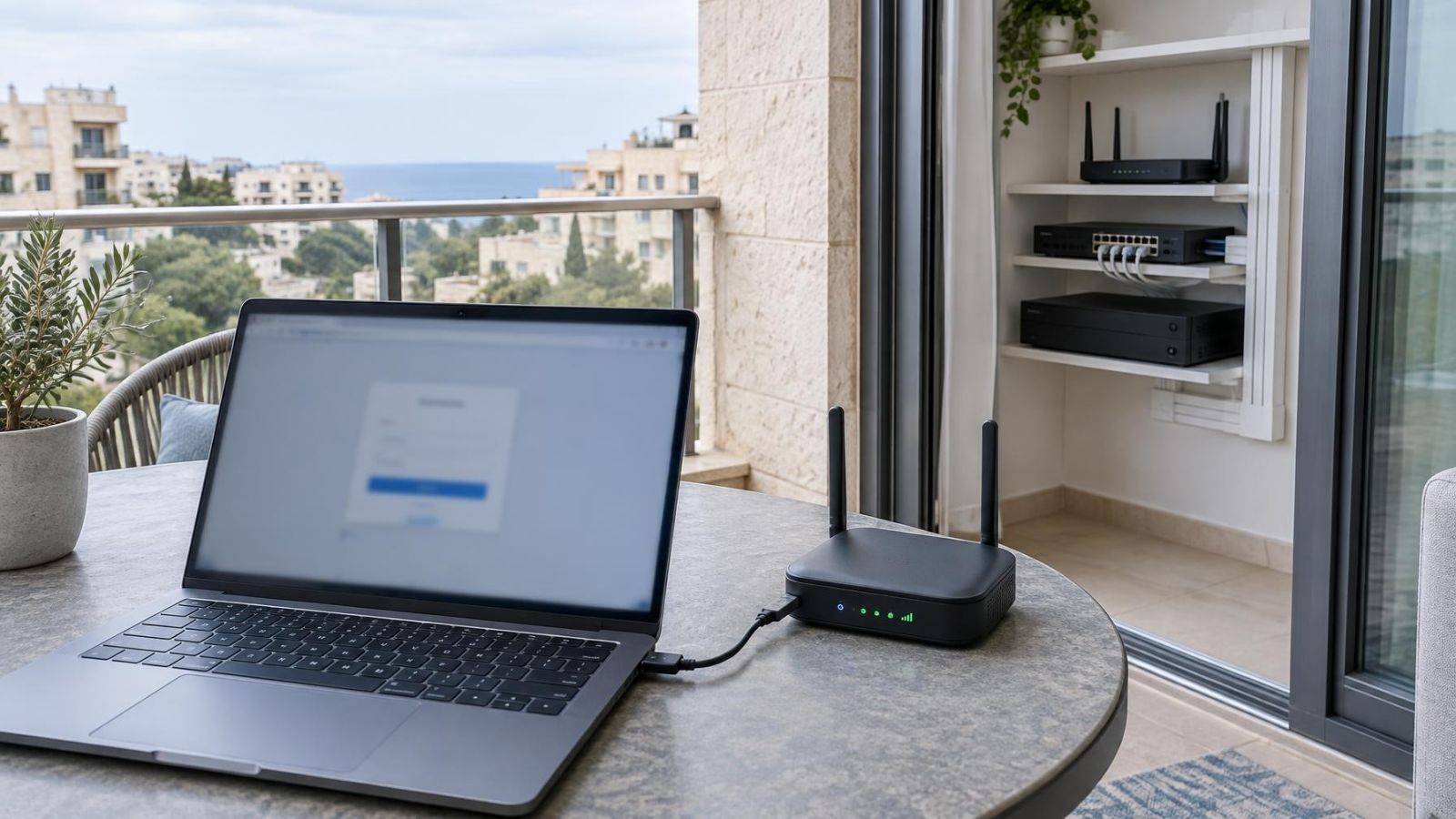
Change the router’s administration password if it is old, shared or reused elsewhere. The router administrator credential is not necessarily the same as the wireless network password; both should be reviewed. Inspect the router’s device list for equipment nobody recognises, while allowing for vague names used by televisions, phones, intercoms and other connected devices.
An unknown network entry is not automatically an intruder. Compare its hardware address, connection type and activity with devices physically present. Disconnecting equipment at random can take cameras, PoE (power over Ethernet) switches or other building systems offline. If cameras occupy a separate VLAN, confirm that the separation and remote-management rules still match the intended design.
Review security notifications after the access changes. Login alerts, password-change notices, new-user invitations and multifactor prompts are usually more useful for account monitoring than general motion detection alerts. Send them to an inbox that the responsible person actually checks.
Responsibility can be less obvious in Israel’s shared properties. A camera account for an apartment may belong to the resident, while cameras at the building entrance may be managed through the va'ad bayit or another appointed person. A shop on street frontage may have one system for the business and another for the wider building. Confirm which equipment and account you are authorised to administer before changing recorder or network settings.
Recover Access After an Unexpected Password Change
Camera password changed?
Use the official account recovery route first. Open the app or service directly rather than using a reset link from an unexpected message. Confirm that the recovery email address or other recovery method still belongs to the recognised account owner. If recovery messages do not arrive, check whether the linked email account has forwarding rules, changed recovery details or unfamiliar sessions.
Determine whether the account was created and retained by an installer, property manager, former resident or former member of staff. The system may still be functioning under credentials that were never formally transferred. Recovering control through the existing account normally preserves camera names, recording schedules, motion detection areas, shared-user permissions and remote-viewing connections.
Use a full reset only after account recovery options and ownership details have been checked. A reset can remove network settings, recorder links, recording rules, notification preferences, WDR (wide dynamic range) settings, IR behaviour and other useful configuration. It may also require physical access to each camera.
If a reset is necessary, treat the result as a fresh installation. Create a new owner account, use unique credentials, reconnect cameras deliberately, test recording and playback, review night vision, and rebuild remote access only for named users. Do not simply reproduce the old access list.
Decide Who Should Keep Access
A clean access list should reflect the people responsible for the property now, not everyone who has ever needed to see a camera. Give each current user a named account when the system supports it. Remove former staff, previous residents, temporary property managers and family members who no longer need routine access.
Keep owner and installer roles separate. The owner account should remain under the control of the person or organisation responsible for the system. An installer who provides continuing maintenance may need limited technical access, but that access should be identifiable, removable and different from the owner credential. If support is occasional, access can be granted when needed and removed afterwards.
Write down who controls the linked email account, who stores multifactor recovery details, and who can approve new users. For a remote property owner, identify someone in Israel who can reach the recorder or cameras if physical action is required. For a business, make account removal part of the same practical handover used for keys, alarm credentials and other operational access.
Review the user list whenever residents, staff, contractors or management responsibilities change. A short access review is usually less disruptive than reconstructing ownership after nobody remembers which email address created the system.
A secure camera account is not merely one with a new password. It has a known owner, named users, controlled recovery methods and no unexplained sessions.
Key takeaways
- Preserving login history, device names and notification details before making changes makes an unfamiliar login easier to investigate.
- The email account linked to a security camera account must be secured because it may control password recovery.
- Changing a password may not close existing sessions, so active sessions should be revoked and unnecessary shared users removed.
- Recorder, camera, router and wireless network credentials should be reviewed separately because they protect different access routes.
- Account ownership and recovery responsibility should remain with a clearly identified current user.