On this page
A surveillance hard drive inside an NVR (network video recorder) may be writing video from several security cameras without a pause. For continuous recording in an Israeli home or small business, the important question is not simply how large the drive is. It is whether the drive suits the recorder, the total write workload, the required retention and the physical environment in which the equipment will operate.
What continuous recording demands
Continuous recording is a sustained write task. Every active stream reaches the recorder, is processed and is written to storage. At the same time, the recorder may need to display live video, play older footage, export a clip or serve a remote user. Storage therefore has to support more than a sequence of occasional file saves.
Once configured storage is full, an NVR normally overwrites the oldest footage. The drive continues working through repeated write and overwrite cycles while preserving access to newer recordings. This behaviour is useful, but it also means that retention is a moving window. Footage outside that window will no longer remain on the recorder unless it was exported elsewhere.
Home and small-business systems can create different patterns. A home may record a gate, garden, parking area and shared approach throughout the day. A street-facing business may have several busy scenes during opening hours and quieter scenes later. Playback may be occasional in either case, but remote property owners can also generate long remote viewing or export sessions while recording continues.
- Count every stream written to the recorder, including any secondary stream recorded for a separate purpose.
- Allow for simultaneous recording, live view, playback and export rather than considering write speed alone.
- Treat the retention period as a planning requirement, not as a fixed result guaranteed by the drive label.
- Confirm that automatic overwrite is enabled and that the recorder reports storage errors clearly.
Surveillance hard drive or regular drive?
Is a CCTV recording drive different from a regular hard drive?
Yes. A CCTV recording drive is intended for sustained video writes and recorder operating patterns, while an ordinary desktop drive is generally designed around more varied, intermittent computer activity. The distinction concerns workload design, firmware behaviour and expected operating pattern. It does not mean that every recorder-oriented drive fits every NVR, or that a desktop drive immediately stops working when video is written to it.
Desktop drives can appear adequate during initial testing because the system may record and play video normally. Their limitations become more relevant during prolonged writes, repeated overwriting and concurrent playback. Power-management behaviour and recovery from read or write errors can also interact differently with recorder software. For a system intended to retain continuous footage, using a drive designed for the task avoids an unnecessary mismatch.
Which NVR hard drive suits continuous recording?
The suitable NVR hard drive is one that appears within the recorder's supported storage configuration and is rated for the combined workload. Compatibility can depend on recorder hardware, software, drive capacity, number of installed drives and the way storage bays are managed. A drive can be technically capable in isolation and still be unsuitable for a particular recorder.
Check the recorder documentation before purchase. Confirm the accepted drive type, maximum supported capacity, permitted number of drives and any installation requirements. If the recorder offers several bays, do not assume that every capacity combination or storage arrangement is supported. The recorder should also be allowed to initialise and format the drive itself unless its instructions explicitly specify another method.
How much storage is needed?
How much continuous recording storage is needed?
Storage is determined by the data actually written over the intended retention period. Start with the bitrate of each recorded camera stream, add the active streams together and apply that total across the recording time. A capacity label based only on camera count or resolution is not enough.
Resolution describes the pixel count in each frame, but it does not state how much data the camera produces. Frame rate, compression settings, image quality settings and the scene itself all influence bitrate. A quiet indoor corridor is easier to compress than foliage moving in wind, traffic at a shopfront or heavy image noise at night. Variable bitrate can therefore change as the scene changes.
Recording mode matters as well. Continuous mode writes throughout the configured schedule. Event-based mode writes when motion detection, an alarm detector or another rule triggers recording. Event recording can reduce storage use, but its retention cannot be estimated accurately without reasonable assumptions about activity. It also does not create an uninterrupted record between events.
- List every camera stream the recorder will store, including its configured bitrate and recording schedule.
- Add the bitrates to establish the total expected write rate.
- Choose the retention window required for normal review and remote access.
- Account for continuous, scheduled and event-based recording separately where the system mixes modes.
- Leave capacity for normal variation in scene activity and for planned camera additions.
- Use the recorder's own storage estimate as a check, then review actual bitrate and retention after commissioning.
Usable storage can differ from the headline capacity after formatting and recorder allocation. The practical test is the oldest footage still available after the system has reached normal operation. Review several cameras, because higher-bitrate or busier streams may consume storage differently from quieter ones.
HDD, SSD, internal or external
An internal HDD is usually the straightforward choice for long local retention. It offers substantial capacity and integrates directly with the recorder's storage management. The correct unit still needs recorder compatibility and a workload rating suited to continuous writes.
An SSD may work in a compatible NVR, but compatibility alone is not the whole decision. Write endurance, usable capacity, heat management and the recorder's ability to report drive condition all need evaluation. An SSD has no moving parts and may suit particular installation constraints, yet sustained overwriting can consume its write endurance. It should not be selected only because it is faster than an HDD in a computer.
| Storage option | Typical use | Main advantage | Important check |
|---|---|---|---|
| Internal HDD | Long local retention | High capacity for sustained recording | Recorder support and workload rating |
| Internal SSD | Compatible specialist installations | No moving parts and quiet operation | Write endurance and usable capacity |
| External direct-attached storage | Expansion where explicitly supported | Storage outside the internal bay | Recording support, interface stability and power |
| External backup destination | Exported clips or separate copies | Separation from recorder storage | Not necessarily usable for primary recording |
External ports on a recorder are often intended for a mouse, configuration transfer or video export. Their presence does not prove that an external drive can hold the primary recording database. Network storage also requires explicit recorder support. Confirm how the recorder behaves after a cable interruption, power loss or storage reconnection.
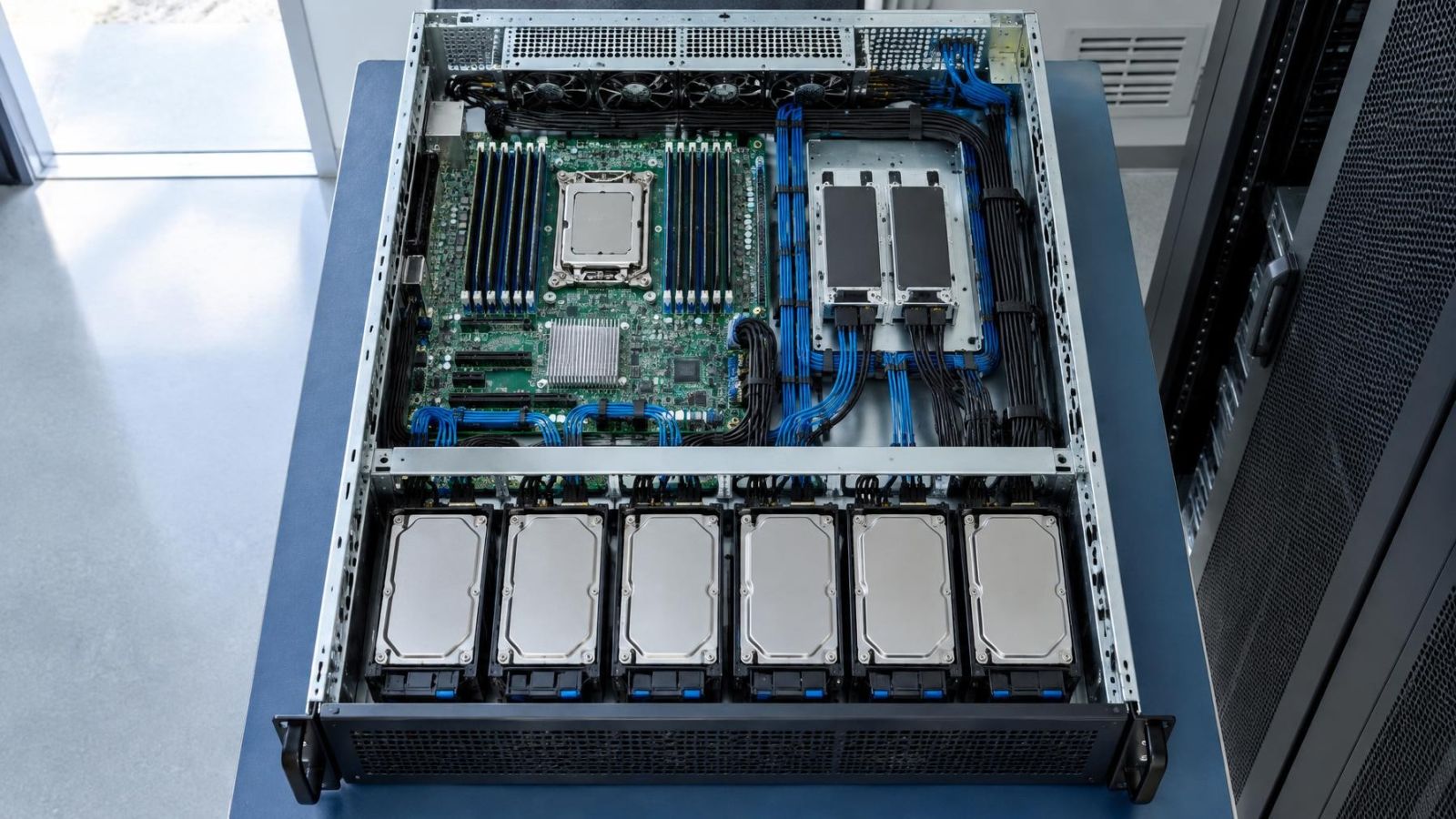
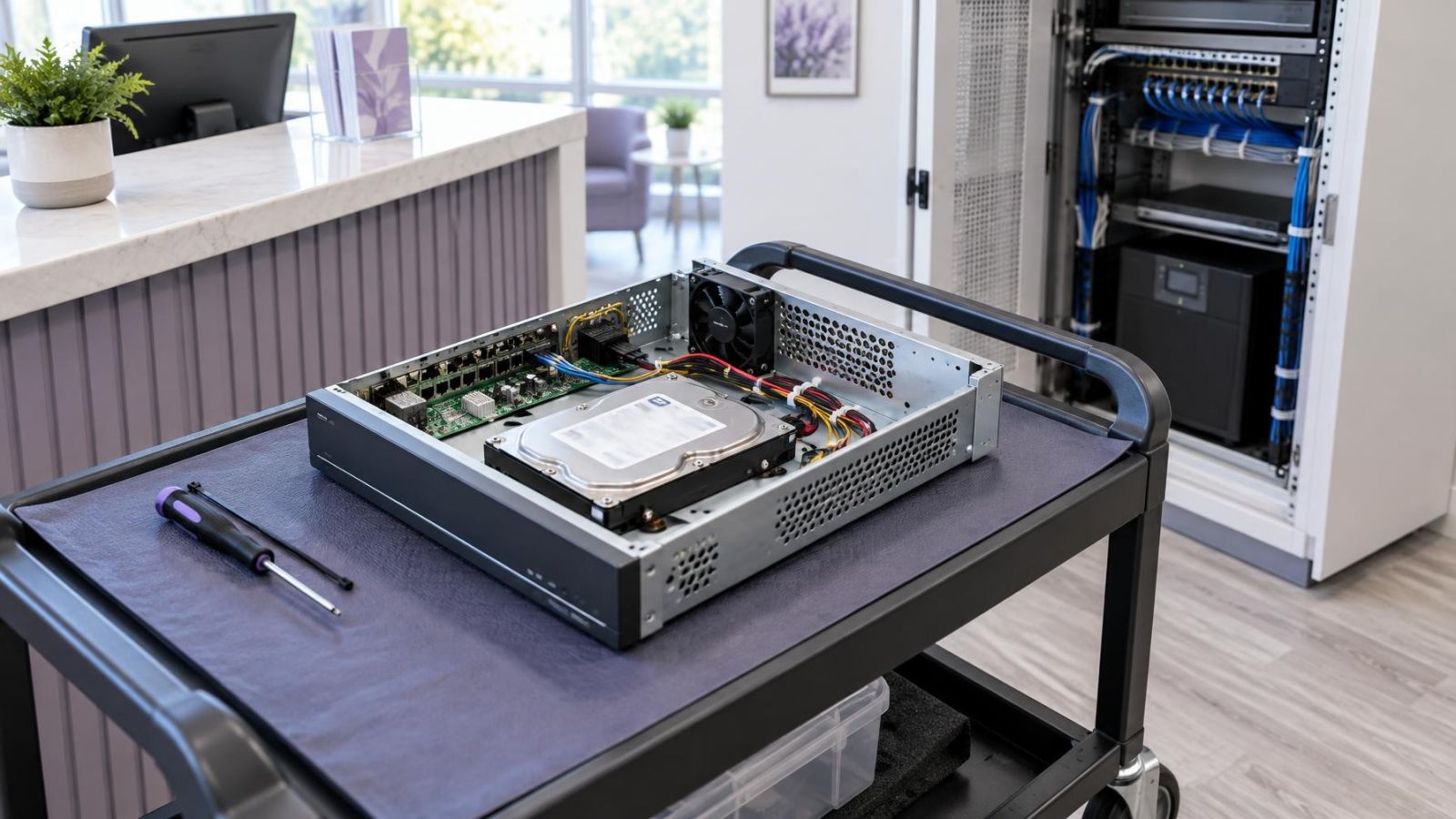
Physical limits matter. A compact recorder may have only one bay, restricted drive dimensions or a maximum supported capacity. A larger chassis may accept several drives, but extra bays do not automatically provide duplication or additional resilience. Only supported storage modes should be used.
Heat, dust and recorder placement
Drive selection cannot compensate for poor recorder placement. The drive, processor and power components all release heat. A recorder pushed against the back of a sealed cabinet can recirculate warm air even when the room itself feels comfortable. Indoor spaces in Israel can become very warm during summer, particularly utility cupboards, roof spaces and rooms where cooling is not left on continuously.
Leave clear space around the ventilation openings and keep cables from blocking them. Dust gradually collects at intakes, fan grilles and internal surfaces, reducing airflow. Placement close to a workshop, open window or dusty storage area requires more frequent inspection. Cleaning should be carried out without driving dust further into the recorder.
Near the coast, avoid locations exposed to humid outdoor air, condensation or salt-laden airflow. An indoor recorder and its drive are not outdoor equipment. A stable, dry interior position is preferable to a balcony cupboard or poorly sealed external store, even if the latter appears convenient for cable routes.
A mamad, the reinforced safe room found in many Israeli homes, may be considered because it is internal and often has useful wall space. Its reinforced construction can weaken Wi-Fi links, however, and a closed cabinet inside it can still trap heat. Wired camera connections and a wired network path are more predictable. If any part of the system depends on wireless communication, test it with the door in normal positions before settling on the recorder location.
Choose the complete storage setup
The drive is only one part of the storage decision. Recorder compatibility, workload, retention, overwrite behaviour, monitoring and future expansion have to work together. Buying the largest drive the connector appears to accept is not a storage plan.
- Confirm the recorder's supported drive types, capacities, bay count and storage arrangements.
- Define the required retention for each group of cameras and decide which streams need continuous recording.
- Calculate the combined write workload from configured bitrates rather than resolution labels.
- Confirm what happens when storage becomes full and which recordings are overwritten first.
- Enable available drive health and storage error notifications, then decide who will review them.
- Reserve supported capacity and recorder channels for camera additions that are reasonably expected.
Health monitoring is useful, but it cannot predict every storage fault. Check that cameras are still recording, that the oldest available footage matches the intended retention and that playback works while new video is being written. Remote owners should also decide who can inspect the recorder locally if storage disappears from the interface or the unit reports a hardware issue.
Finally, distinguish retention from backup. Automatic overwrite maintains a rolling recording window; it does not preserve selected footage indefinitely. Clips that must be kept need a deliberate export or supported secondary-copy process. Once compatibility, workload, capacity, environment and monitoring are considered together, the storage system becomes easier to operate and easier to expand without guesswork.
Key takeaways
- Recorder compatibility must be confirmed before any recording drive is purchased.
- Storage capacity should be calculated from total camera bitrate, recording mode and required retention.
- A drive designed for recorder workloads is the appropriate default for sustained security camera recording.
- Recorder ventilation directly affects the operating environment of the drive and other internal components.
- Automatic overwrite and drive health monitoring should be configured and checked rather than assumed.