On this page
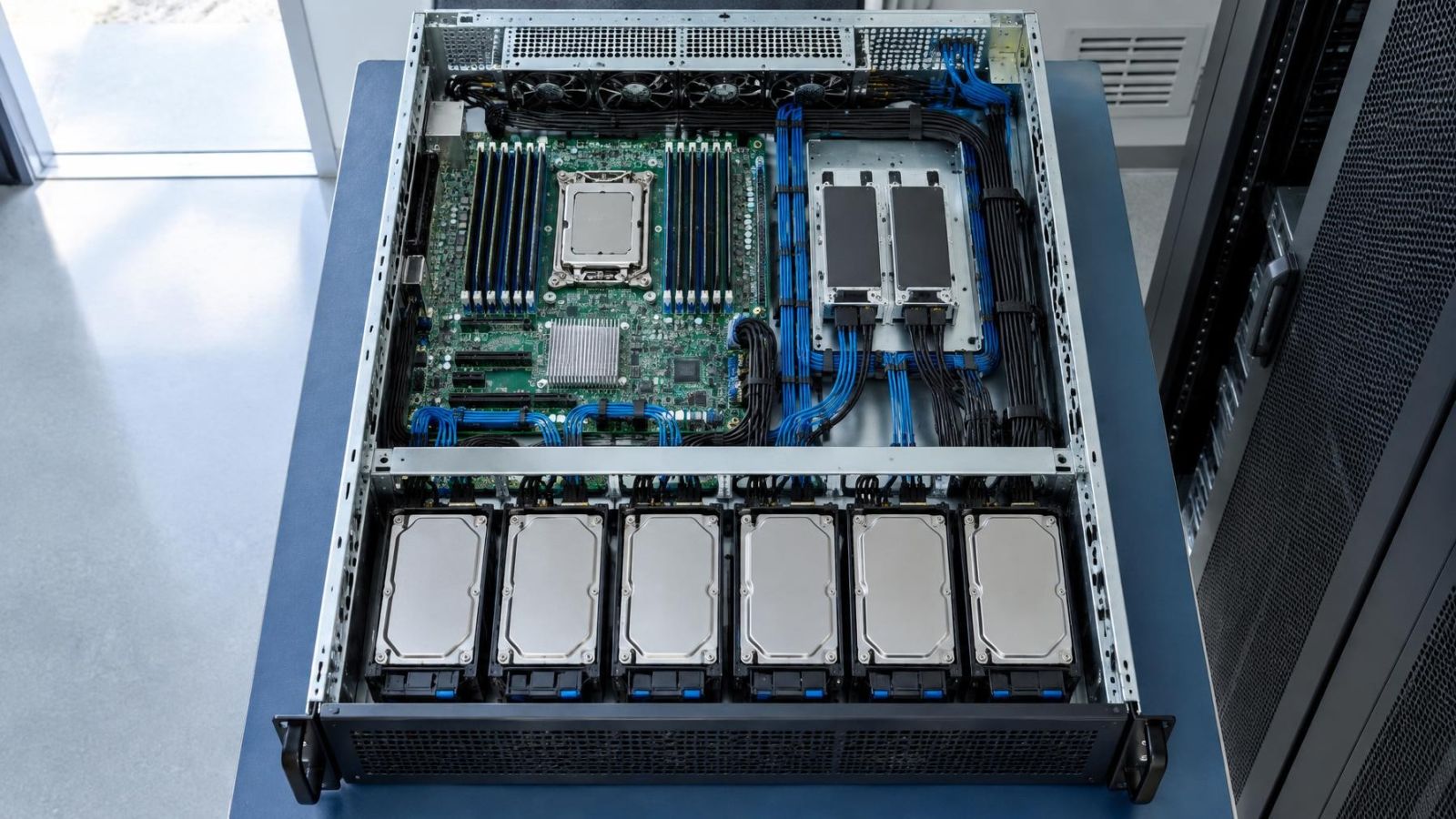
A VMS server receives video from IP cameras, runs its operating system and video management software, and maintains a video archive. The system drive and video recording drive therefore do very different jobs. A sound VMS server disk layout answers a practical installation question: should the software and recordings share storage, use partitions, or sit on separate physical drives?
What Each Drive Does in a VMS Server Disk Layout
What is a VMS system drive?
The VMS system drive holds the operating system and the VMS (video management software). It also commonly holds services, application files, logs and at least some configuration data. The exact location of databases and indexes depends on how the software is configured, but the system drive remains the place from which the server starts and runs.
Its workload changes throughout the day. The operating system starts services, writes logs, installs approved updates, uses temporary space and performs background tasks. Operators may also search footage, export clips or change camera settings through the same server. These activities are not identical to the steady workload created by recording cameras.
What is VMS video storage?
VMS video storage is the destination for the camera archive. With continuous recording, it receives an ongoing stream of writes from every active camera. With motion detection or event-based recording, the write rate varies as scenes become active. Playback, clip export and archive checks add reads while recording continues in the background.
The archive normally needs far more capacity than the operating system. It is also managed differently. Old footage is typically overwritten according to the configured retention policy, while system and configuration files are expected to remain. Recordings are not a substitute for a configuration backup, and a configuration backup is not a copy of the archive.
| Storage role | Main contents | Typical activity | Planning priority |
|---|---|---|---|
| System drive | Operating system, VMS software, services, logs and configuration data | Mixed reads and writes, startup activity and background tasks | Stable operation, serviceability and configuration backup |
| Video drive | Recorded camera footage and associated archive data | Sustained writes with playback and export reads | Write suitability, capacity, retention and drive-health monitoring |
This separation of roles matters even when both volumes appear as ordinary disks inside the server. Capacity alone does not describe the requirement. A drive intended for a camera archive must cope with repeated recording activity, while the system volume must support responsive software and predictable startup and repair.
Why Separate Recording Drives?
Why use a separate recording drive?
A separate recording drive gives the archive its own physical storage resources. Continuous IP camera recording creates a sustained write workload. If the operating system, VMS services and archive all use the same physical disk, each activity competes for the same device. The server may still operate, but performance and fault diagnosis become less predictable.
Physical separation also makes storage monitoring clearer. Heavy activity on the archive drive is expected. Similar activity on the system drive may point to logs, temporary files, database work or another service. When each disk has one defined role, an installer can interpret capacity warnings, drive-health alerts and performance symptoms with less guesswork.
- Workload isolation: camera writes do not use the same physical device as routine operating-system activity.
- Clear capacity boundaries: archive growth is visible without being confused with system files or temporary space.
- Simpler diagnosis: a storage warning can be traced to the system role or recording role more directly.
- Independent maintenance: one drive can be serviced without automatically treating the other as part of the same replacement task.
Separation is not a backup and does not make a drive immune to failure. It is an architectural boundary. It limits how many unrelated functions depend on one physical disk and gives maintenance work a clearer scope.
A separate archive drive does not remove storage risk; it makes that risk easier to see, contain and manage.
Partition or Separate Physical Drive?
A partition divides one physical drive into logical volumes. The operating system may show one volume for software and another for recordings, but both still depend on the same hardware, connection and drive electronics. Logical separation can help organise files. It does not provide physical isolation.
Is a separate partition the same as a separate physical drive?
No. If the physical drive beneath the partitions fails, both the system partition and video partition are affected. They also share the drive's read and write capability. A partition cannot give the archive an independent replacement path or protect it from a fault in the shared device.
| Layout | Hardware isolation | Replacement path | Sizing flexibility |
|---|---|---|---|
| Separate partitions on one drive | None between volumes | Replacing the drive affects both roles | Volumes can be resized only within the same physical capacity |
| Separate physical drives | System and archive use different devices | Each role can be replaced independently | Each drive can be selected and expanded for its own workload |
Separate physical drives also allow distinct sizing decisions. The system drive can be selected for the operating system and software, while archive storage can be sized around cameras, recording mode and retention. Expansion is then directed at the part that needs it rather than forcing a redesign of an artificial partition boundary.
The distinction should be documented clearly. A volume name or drive letter is not proof of physical separation. During installation, the mapping from physical drive to operating-system volume and VMS storage path should be recorded. This avoids confusion when a future technician sees several apparently separate volumes.
How Separation Simplifies Maintenance
Independent drives let maintenance follow the failed or constrained component. If an archive drive needs replacement, the operating-system drive does not automatically need to be rebuilt. The VMS may need recording to be stopped, the storage path may need to be recreated, and old footage on the failed device may be unavailable, but the system installation remains a separate asset.
The reverse is also important. A system-drive repair can be approached as an operating-system and application task rather than as a direct rewrite of the recording volume. Existing footage may remain physically present on the archive drive. Access to it still depends on restoring a compatible VMS configuration, storage mapping and any required archive database information.
A practical archive-drive replacement path
- Confirm which physical drive serves the archive and check whether recording is still active.
- Preserve the VMS configuration and document the current storage path before changing hardware.
- Stop the relevant recording service or follow the system's safe storage-removal process.
- Replace or add the archive storage without altering the system drive unnecessarily.
- Reassign the recording path, confirm available capacity and verify that fresh footage is being written.
- Test playback from the new archive and review recording-status alerts.
Clear separation also narrows fault diagnosis. A server that starts normally but no longer records suggests a different investigation from a server that cannot load its operating system. The cause may still be software, networking, permissions or storage configuration, but known drive roles provide a sensible place to begin.
Expansion becomes more predictable as well. Additional archive capacity can be planned around recording requirements without moving system files simply to create room. The storage arrangement must still be supported by the server chassis, power provision, cooling and VMS configuration. Adding disks without checking those conditions can exchange a capacity problem for a reliability problem.
Plan Recording Server Storage for Real Conditions
Archive sizing should begin with how the cameras will actually record. Camera count is only one input. Continuous recording creates a different storage pattern from motion detection. Resolution affects the amount of image information in each frame, while frame rate, compression settings and scene detail also change the data written to disk.
Scene activity matters particularly at Israeli street frontage. Passing vehicles, pedestrians, moving tree shadows and strong changes between sun and shade can keep a motion-based recording rule active for long periods. At a private home, a garden camera may react to foliage or insects near the infrared illuminator. At a shop, headlights and evening foot traffic can create a very different archive load from quiet indoor cameras.
- Camera count: include every stream that the server will record, not only cameras shown on the main monitor.
- Recording mode: distinguish continuous, scheduled, motion-based and event-triggered recording.
- Image settings: account for resolution, frame rate, compression and any secondary streams retained by the VMS.
- Scene activity: allow for traffic, moving vegetation, changing sunlight and busy entrances.
- Retention period: define how far back operators genuinely need to search, then verify the result under normal use.
A calculated retention period is an estimate, not a permanent property of the drive. Changes to camera settings, new cameras or more active scenes can shorten it. After commissioning, the oldest available recording should be checked over time. That observation shows whether the installed capacity and actual write rate match the intended archive window.
The room around the server matters too. Heat, dust and poor ventilation can reduce storage reliability. A closed communications cabinet, utility cupboard or mamad used as an equipment room may retain heat when the door is shut. Near the coast, humid or salty air makes clean placement and controlled airflow especially important. Ventilation should move heat away without drawing unnecessary dust directly across the drives.
Choose the Disk Layout Before Installation
Disk roles should be decided before the operating system and VMS are installed. Retrofitting separation later may require moving an active archive, changing paths and confirming that historical footage remains associated with the VMS. A planned layout is easier to document and leaves fewer assumptions for future maintenance.
- Dedicated system drive: allocate storage for the operating system, VMS software, logs and expected application growth.
- Dedicated video storage: assign the camera archive to physically separate disks rather than another partition on the system disk.
- Capacity for change: consider likely camera additions, revised recording settings and a longer archive requirement.
- Drive-health monitoring: enable available alerts and review them rather than waiting for missing footage to reveal a problem.
- Recording-status checks: verify that each expected camera is writing current footage; drive health alone cannot confirm this.
- Documented replacement procedure: record physical bay roles, volume names, storage paths and the checks required after replacement.
Remote property owners need this documentation to be understandable without standing in front of the server. A local technician should be able to identify the system disk, archive disks and current recording path without relying on memory. Business owners should also know who reviews storage warnings and who confirms that archive retention remains suitable after camera settings change.
Drive separation is a foundation, not the entire storage plan. The final arrangement must combine suitable physical disks, adequate cooling, clear monitoring, configuration backups and routine recording checks. When those parts are designed together, system software and recorded footage can be maintained according to their different purposes.
Key takeaways
- System files and camera archives create different storage workloads and should be planned accordingly.
- Separate physical drives provide maintenance isolation that partitions on one drive cannot provide.
- Archive capacity must reflect the actual recording settings, scene activity and required retention period.
- Storage health and recording status require separate routine checks because a healthy drive does not prove that cameras are recording.