On this page
Security cameras may be powered all week while the video recorder saves footage only during selected periods. For a small business, a useful CCTV recording schedule must account for the full working day, including motion detection after closing, rather than simply copying the opening hours displayed to customers. The question settled here is how to turn those activities into a reliable weekly recording schedule without leaving unnoticed gaps.
Map the Real Business Day
Begin with people and tasks, not with the recorder menu. Public business hours describe when customers are expected. They rarely describe when the premises are active. Someone may unlock the door, switch on equipment, prepare a counter or receive stock well before opening. At the other end of the day, staff may reconcile payments, clean, move goods and close shutters after the last customer has gone.
Write down when each type of activity normally begins and ends. Include staff arrival and departure, opening and closing routines, deliveries, cleaning, maintenance and stock work. Then identify which entrances and internal areas are involved. This creates an activity map that can be translated into recorder settings later.
What should business camera recording times include?
Recording times should include every routine period when the business is occupied or operational, even if the front door is closed to customers. A street-facing shop may need to account for a delivery at the kerb, an employee entering through a side door and cleaning behind a lowered shutter. An office may have early staff arrivals, visitors through a shared lobby and work continuing after reception closes.
- Record the earliest routine staff arrival and the latest routine departure.
- Include preparation, stock handling, cleaning and shutdown tasks.
- Map deliveries by the entrance, loading point or internal route they use.
- Distinguish a public entrance from a staff door or service entrance.
- Note any shared-building door, lobby, lift or corridor that affects access to the premises.
In an Israeli apartment or mixed-use building, the business entrance may sit beyond a shared street door controlled with the va’ad bayit. The recorder schedule for cameras inside the business should still reflect when staff actually pass through their own controlled areas. If a camera also sees a shared space, keep its purpose and field of view clear when planning the schedule.
Which Recording Mode Fits Each Period?
The choice is not simply between recording everything and recording only after closing. A recorder can apply different modes at different times, and many systems can apply a separate plan to each channel. The correct choice depends on what each camera sees and what a missed detection would mean for useful playback.
| Mode | How it behaves | Where it often fits |
|---|---|---|
| Continuous recording | Saves video throughout the scheduled period, whether or not motion detection is triggered | Entrances, tills, service counters and busy working areas during active hours |
| Motion-triggered recording | Saves video when configured detection rules respond to visible scene changes | Quieter areas after closing, subject to careful setup and testing |
| No scheduled recording | Keeps the channel outside its recording period; live viewing may still remain available | Only periods deliberately excluded after the operational need has been reviewed |
Continuous recording provides a complete timeline during its active period. It does not depend on a person crossing a detection zone or creating enough visible change to trigger an event. It is therefore usually the simpler option for busy scenes where customers, staff, doors, screens and changing light generate frequent activity.
Motion-triggered recording can reduce unnecessary stored video in a quiet scene, but it depends on detection settings and the scene itself. Sensitivity, detection zones, object size, shadows, reflections, vehicle lights and movement outside a window can all affect the result. After dark, the camera may also behave differently when its IR illuminator switches on or when exterior lighting changes.
When can scheduled CCTV recording create gaps?
Gaps appear when the permitted recording period is narrower than the actual working period. A camera can remain powered, show a normal live picture in the app or VMS (video management software), and still save nothing because the recorder schedule says not to record. This distinction is easy to miss during a quick live-view check.
Avoid assigning one timetable to every camera without considering its role. A front entrance, stock room, rear door and street-facing camera do not necessarily need the same combination of continuous and motion-triggered recording. An NVR (network video recorder) or DVR can often maintain separate channel schedules, so use that flexibility where it makes the plan clearer rather than more complicated.
Add Time Around Opening and Closing
Opening time is not the beginning of the working day. Before customers arrive, staff may disable the alarm, open shutters, prepare cash drawers, switch on systems, arrange displays or bring stock from another area. Closing time has the same problem in reverse. Customer access may end while cash-up, cleaning and shutdown continue inside.
Add a deliberate buffer before the earliest expected arrival and after the latest expected departure. The buffer should cover normal variation rather than one ideal routine. Staff do not always arrive at precisely the same minute, and a delivery or maintenance visit may begin earlier than expected.
- Allow for preparation before the published opening time.
- Include cash-up, equipment shutdown and final door checks after closing.
- Account for staff who finish later than the main team.
- Cover routine early deliveries, cleaning visits and stock work.
- Consider how an unexpected early arrival will be recorded.
A buffer should not be used to hide an incomplete activity map. If cleaning regularly happens long after the business closes, treat it as a real operating period. The same applies to a bakery preparing before public opening, a clinic completing administrative work after appointments, or a shop receiving goods while closed to customers.
The useful boundary is the first person in and the last person out, not the wording on the opening-hours sign.
Build a Practical Weekly Schedule
Once the activity periods are known, place them into a weekly timetable. Do not assume every trading day is identical. A business may close earlier on one day, remain closed during a regular weekly rest period, or use certain mornings for stock work rather than customer service. The timetable should express those differences without becoming so fragmented that nobody can maintain it.
Separate public areas from staff areas where their operating patterns differ. A reception camera may need continuous recording while visitors are present, followed by motion-triggered recording after closing. A stock-room camera may need continuous recording during deliveries and staff work even when the public area is closed. A rear entrance may require its own schedule because cleaners or suppliers use it at different times.
What belongs in an NVR recording timetable?
The timetable should state, for each camera or clearly defined camera group, when continuous recording applies, when motion-triggered recording applies and when no recording is intended. Use camera names that describe location and view, such as “rear staff door” rather than an unexplained channel number. Clear naming makes later playback and schedule review much easier.
- List the normal activity periods for each trading day.
- Group cameras only when they genuinely serve the same area and follow the same routine.
- Assign a recording mode to each active and after-hours period.
- Add opening and closing buffers to the relevant camera groups.
- Mark regular closure periods and decide explicitly what should happen during them.
- Save a plain-language copy of the timetable outside the recorder interface.
Special closures need deliberate handling. Some recorders provide temporary or holiday schedules, while others require the normal timetable to be edited. Whichever method is used, avoid making a temporary change without noting what must later be restored. A written baseline is especially useful for a remote property owner or a business where several people have access to the system.
Keep the plan readable. A timetable made from many short periods may technically match every task, but it is difficult to audit and easy to misconfigure. Where operationally sensible, use broader recording windows and let camera-specific modes handle the difference between active and quiet scenes.
Check Clock, Storage, and Playback
A recording schedule follows the video recorder’s system clock. If the recorder shows the wrong local time, the schedule will start and stop at the wrong moments. Recorded timestamps will also be misleading during playback. Confirm the time zone, displayed local time and automatic seasonal clock handling, particularly after setup, network changes or a prolonged power interruption.
Clock drift can occur when a recorder cannot maintain time correctly or loses access to its configured time source. Cameras may also show their own on-screen time. If the camera timestamp and recorder timeline disagree, searching for an event becomes needlessly difficult. The recorder, connected cameras and viewing software should present a consistent timeline.
Schedule design also affects the retention period. More hours of continuous recording use more storage capacity. Motion-triggered recording usually stores less in a genuinely quiet scene, but a camera facing a busy road, moving trees, strong sunlight, reflections or changing shop displays may trigger frequently. Resolution, frame rate, compression settings, camera count and scene activity also influence how far playback history extends.
Do not estimate retention from the schedule alone. Open the oldest available recording and note how far back the usable archive currently reaches. Repeat the check after the system has operated under the revised timetable. Storage behaviour varies with actual scene content, especially when motion-triggered recording is used.
How should schedule changes be tested?
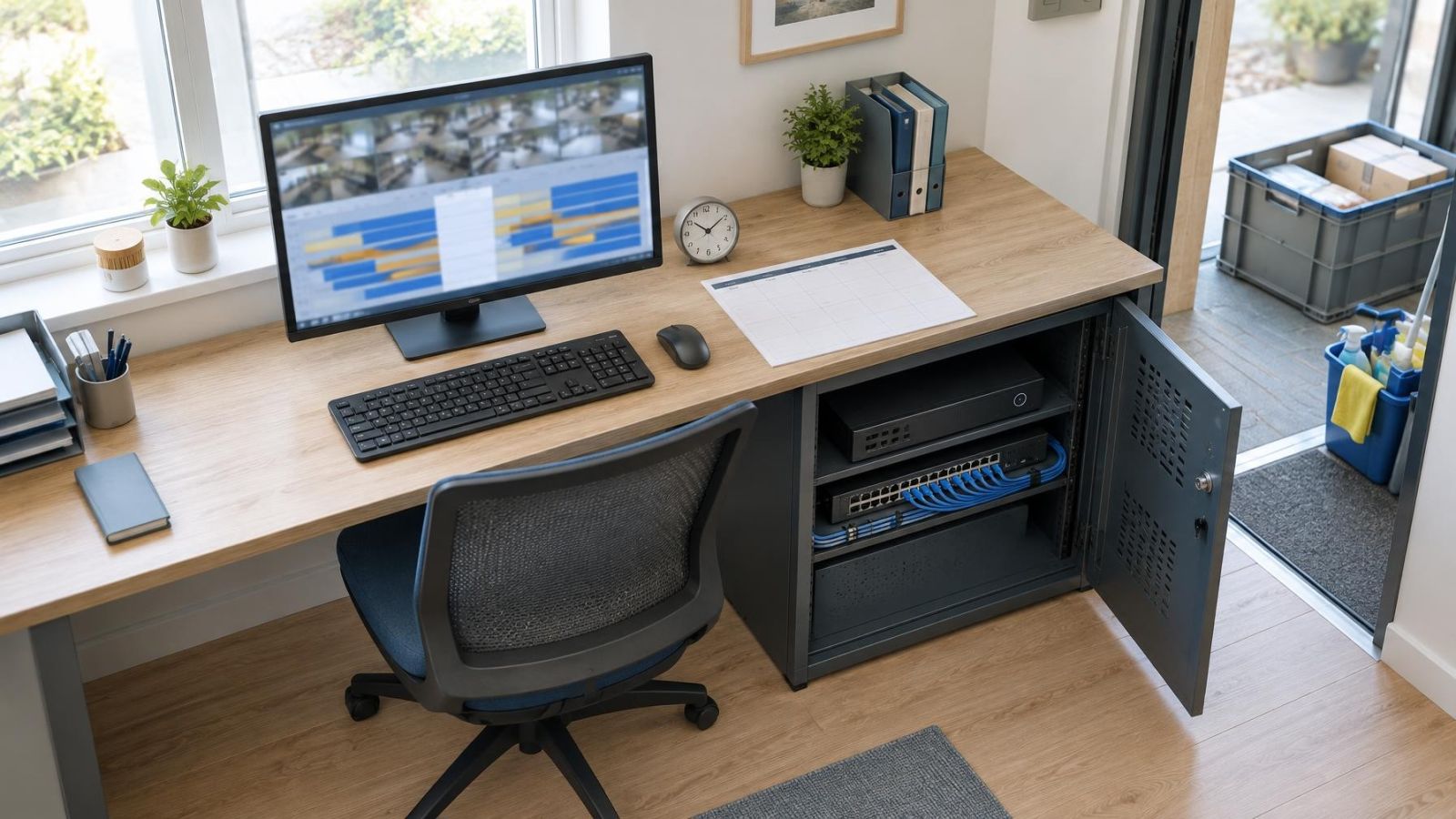
Test through playback, not only through the settings screen. A coloured schedule grid may show the intended configuration without proving that video was saved. Check a period before opening, the transition into continuous recording, the closing buffer, the change to motion-triggered recording and a period that should contain no recording.
- Confirm that the recorder displays the correct local time.
- Walk through each motion detection zone in daylight and after dark.
- Check that an event produces recorded video, not only a notification.
- Review playback on both sides of every schedule transition.
- Check the earliest available footage after storage usage has stabilised.
- Repeat the test after clock, power, network or schedule changes.
Power over Ethernet (PoE) keeps compatible network cameras powered through their data cable, but it does not override the recording timetable. Similarly, a VLAN may organise or isolate camera traffic without deciding when the NVR records. Power, network availability, live view and recording are related parts of the system, but they are not the same status.
What CCTV Recording Schedule Should You Choose?
Choose the simplest schedule that covers the complete working pattern of the business and gives each camera an appropriate recording mode. For many premises, that means continuous recording through active staff periods, a reasonable buffer around opening and closing, and motion-triggered recording in selected quiet areas after closing. It does not mean forcing every camera into the same plan.
Use a short decision process. First, map actual staff, delivery, cleaning and customer activity. Second, decide which views need an uninterrupted timeline and which can rely on tested motion detection. Third, add buffers for normal variation. Finally, document the weekly plan and prove it through playback.
Review each camera by purpose. An entrance camera may have to handle strong sunlight outside and a darker interior in the same view, where WDR (wide dynamic range) can support a more usable image. A street-facing camera may see constant movement after closing. An internal corridor may remain quiet. These scene differences affect whether motion-triggered recording is dependable and how much storage the schedule consumes.
Treat schedule changes as controlled configuration work. Record what changed, keep the previous timetable available, and test the result across the relevant transition periods. If business routines change, update the activity map first. The recorder settings should follow operations, not force staff routines into an outdated grid.
Key takeaways
- Recording periods should follow real staff activity rather than only public opening hours.
- Continuous and motion-triggered recording should be assigned separately according to each camera’s role.
- Opening, closing, deliveries, cleaning and stock work need recording time beyond the published business hours.
- The recorder clock and recorded playback should be checked after every schedule change.
- A documented weekly timetable makes routine opening periods and planned closures easier to manage.