On this page
After a power disturbance, the alarm panel may still be running from its backup battery while the security cameras, video recorder or network router remain offline. A surge protector may show a fault, or everything may appear normal at first glance. The correct way to check a security system after a power surge is to begin with physical safety, restore each dependency in order, and then test recording, alarm functions, timestamps and remote access as separate systems.
Start with a safe visual check
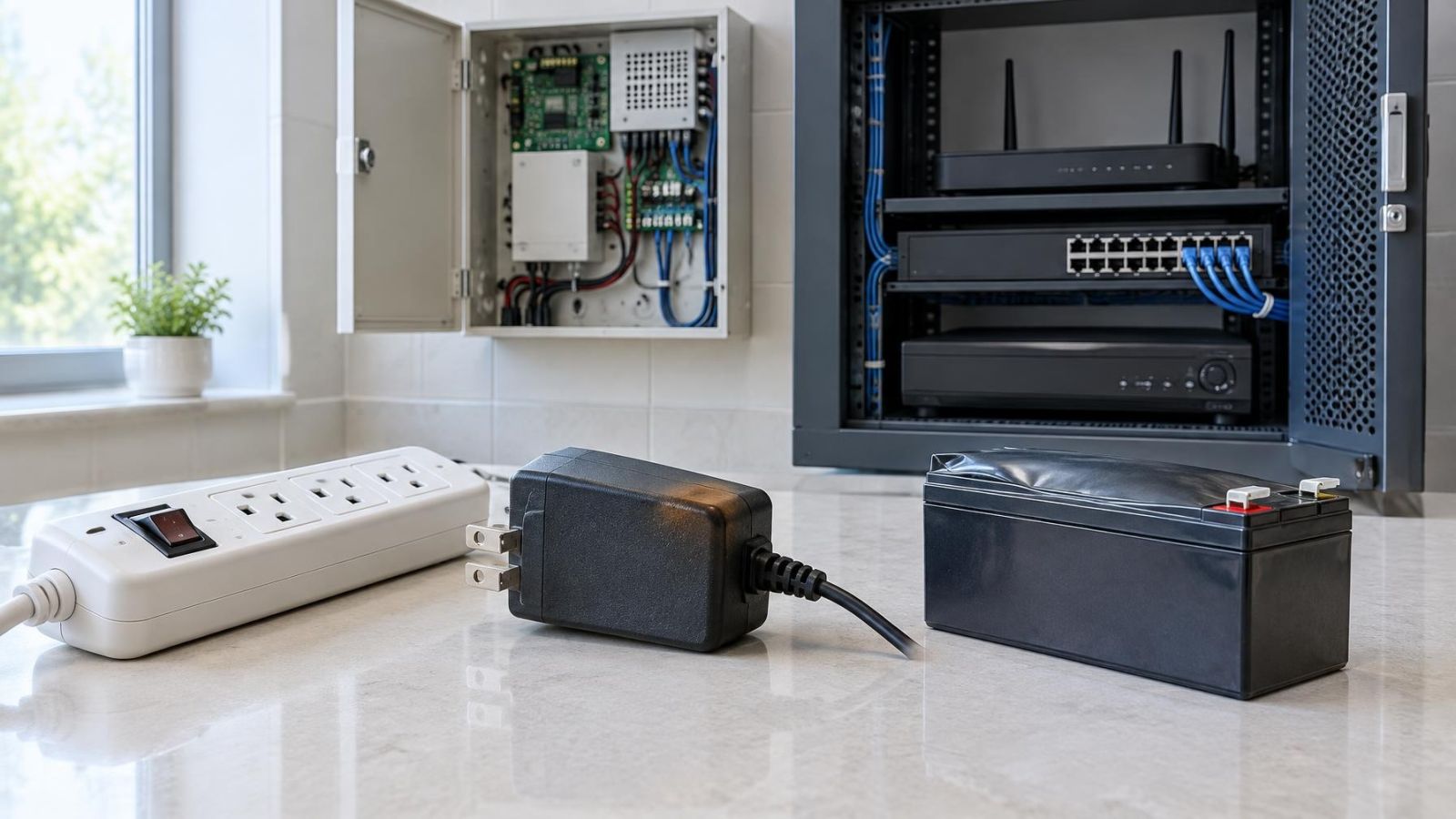
Do not begin by pressing reset buttons. Look, listen and smell before touching the equipment. Check the visible power supplies, plugs, socket connections, backup units, router, switches and recorder. A brief interruption may simply have stopped a device from restarting correctly. Heat or physical damage is a different situation.
- Stop testing if you notice smoke, unusual heat, a burnt smell, discolouration, melted plastic or a damaged cable.
- Check external power adapters for swelling, cracking, buzzing or unstable status lights.
- Look at the surge protector and uninterruptible power supply, if fitted, for fault indicators or an alarm condition.
- Note the current status lights before disconnecting or restarting anything. A quick photograph can preserve useful information for the installer.
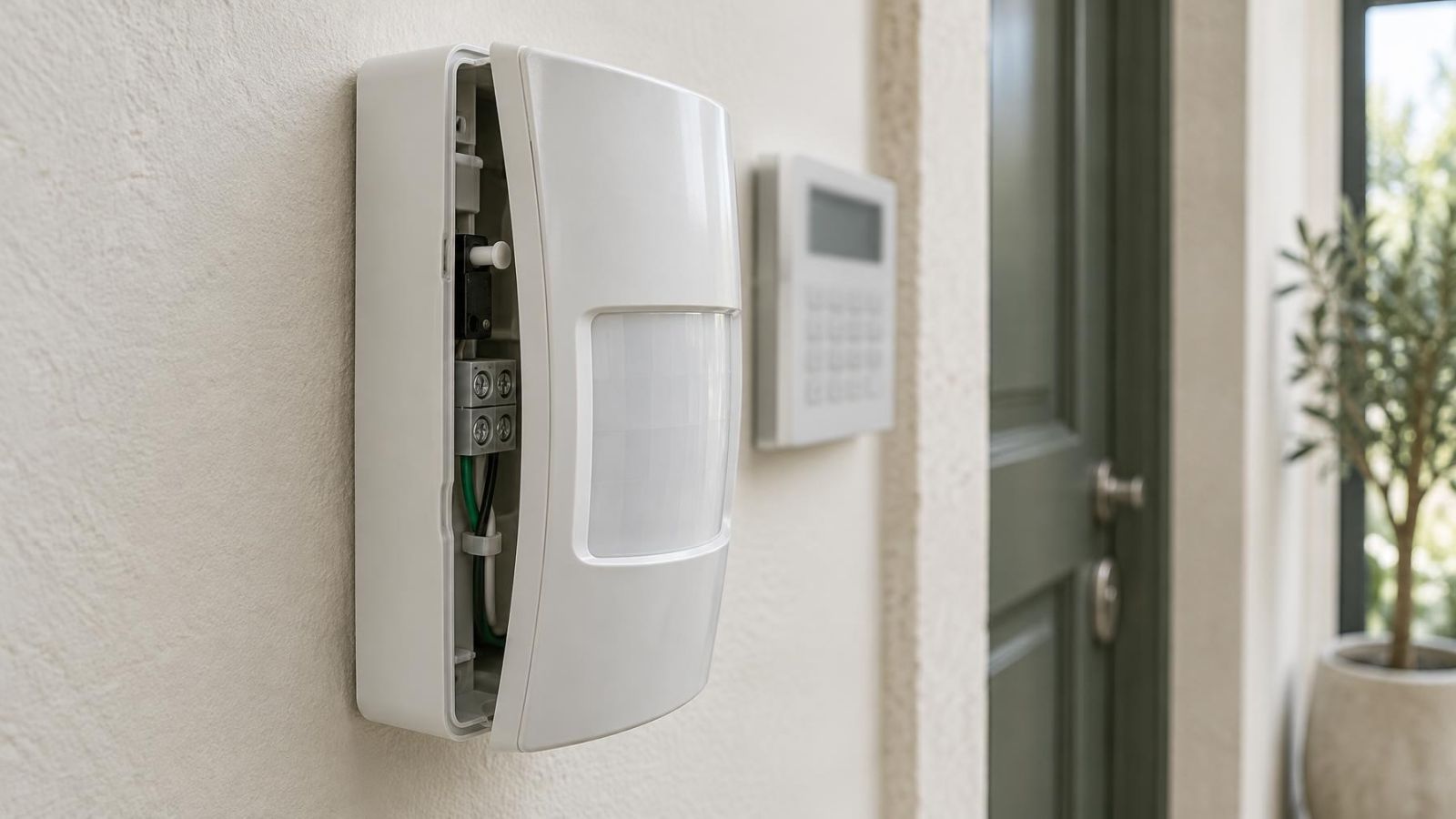
- Do not open an alarm panel, recorder, power supply or other mains-powered enclosure. Internal components can remain hazardous even when the device appears off.
If damaged equipment can be isolated without touching exposed wiring or a hot enclosure, disconnect it safely. If there is any doubt, leave it alone. Continuing to test a hot or damaged power supply can make diagnosis harder and place connected equipment under further stress.
What failed: power or connectivity?
What does a security system power surge affect?
A surge and a power interruption can produce similar symptoms. A device may have no power, may be powered but unable to communicate, or may be working locally while internet-dependent functions remain unavailable. Separating these conditions avoids unnecessary resets.
Start by establishing the scope. Is utility power available elsewhere in the property? Is only one local circuit affected? Are ordinary network services working? A recorder with lights but no camera channels may have a network problem rather than a recorder power problem.
An alarm panel can continue operating from its backup battery while reporting a mains power fault. That means the panel has temporary operating power; it does not mean that its mains supply, charging circuit or battery charging state is normal. Read the keypad message rather than judging the system only by whether the keypad is illuminated.
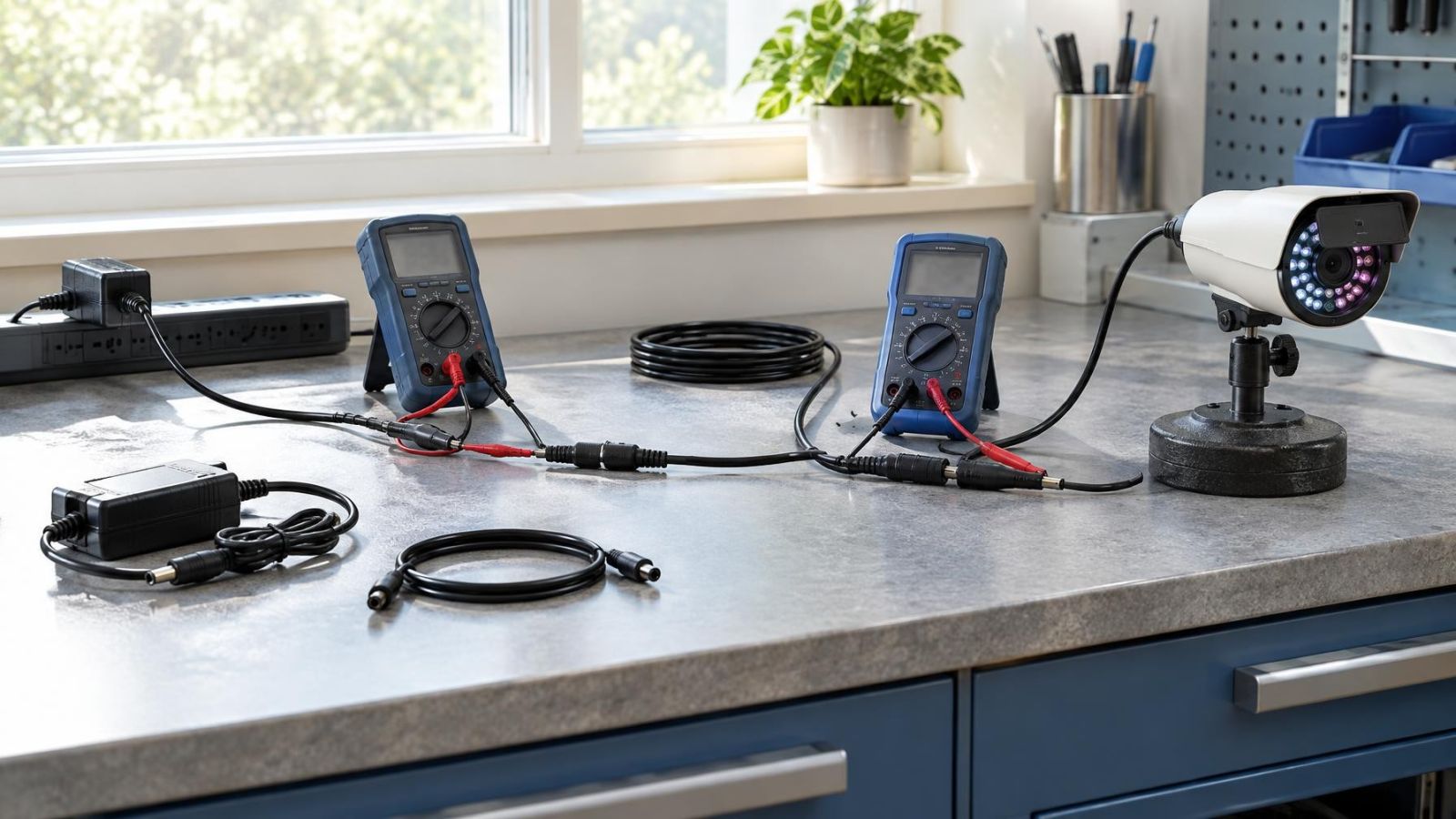
For network cameras, the path normally includes a router, one or more network switches and an NVR (network video recorder) or VMS (video management software). Cameras using PoE (power over Ethernet) also depend on the switch or PoE power supply. If the router or switch fails to restart correctly, several cameras may stay offline even though the cameras themselves are undamaged.
In an apartment building, some functions may depend on equipment outside the apartment. Shared internet cabinets, entrance equipment, gate controls or building network links can have separate power arrangements. A private apartment system can therefore appear partly faulty while the dependency is in a common area managed through the va'ad bayit. Establish what is private and what is shared before changing settings.
Restore devices in dependency order
Once the visual check is clear, restart only what needs to be restarted. Repeatedly switching the entire system off and on can hide the original symptom. It also places additional stress on a power supply or backup unit that is already unstable.
- Confirm that the relevant socket supply, surge protection and backup power unit appear stable. Do not continue if an indicator shows a power fault you cannot identify.
- Restore the network router and allow it to complete its normal startup. Confirm local internet or network access before moving on.
- Restore the main network switch and any PoE switches. Allow time for network links and powered cameras to reconnect.
- Start or check the NVR, DVR or VMS host. Wait for its normal interface and storage status to become available.
- Review the connected cameras and alarm communication devices. Restart an individual endpoint only when it remains offline after its upstream equipment is stable.
The exact startup time varies by equipment, so watch the normal indicators rather than rushing through the sequence. A router that is still starting may not assign network connections correctly. A PoE switch may bring camera ports online gradually. A recorder may show live channels before its storage checks are complete.
One controlled restart preserves useful evidence. Repeated cycling replaces a clear fault with several uncertain symptoms.
Check cameras and recording
What should you check in CCTV after a power surge?
Check every security camera individually, not just the multi-camera overview. Confirm that the live view is current, stable and from the correct camera. Look for missing channels, frozen images, intermittent video, unexpected colour changes and repeated reconnect messages.
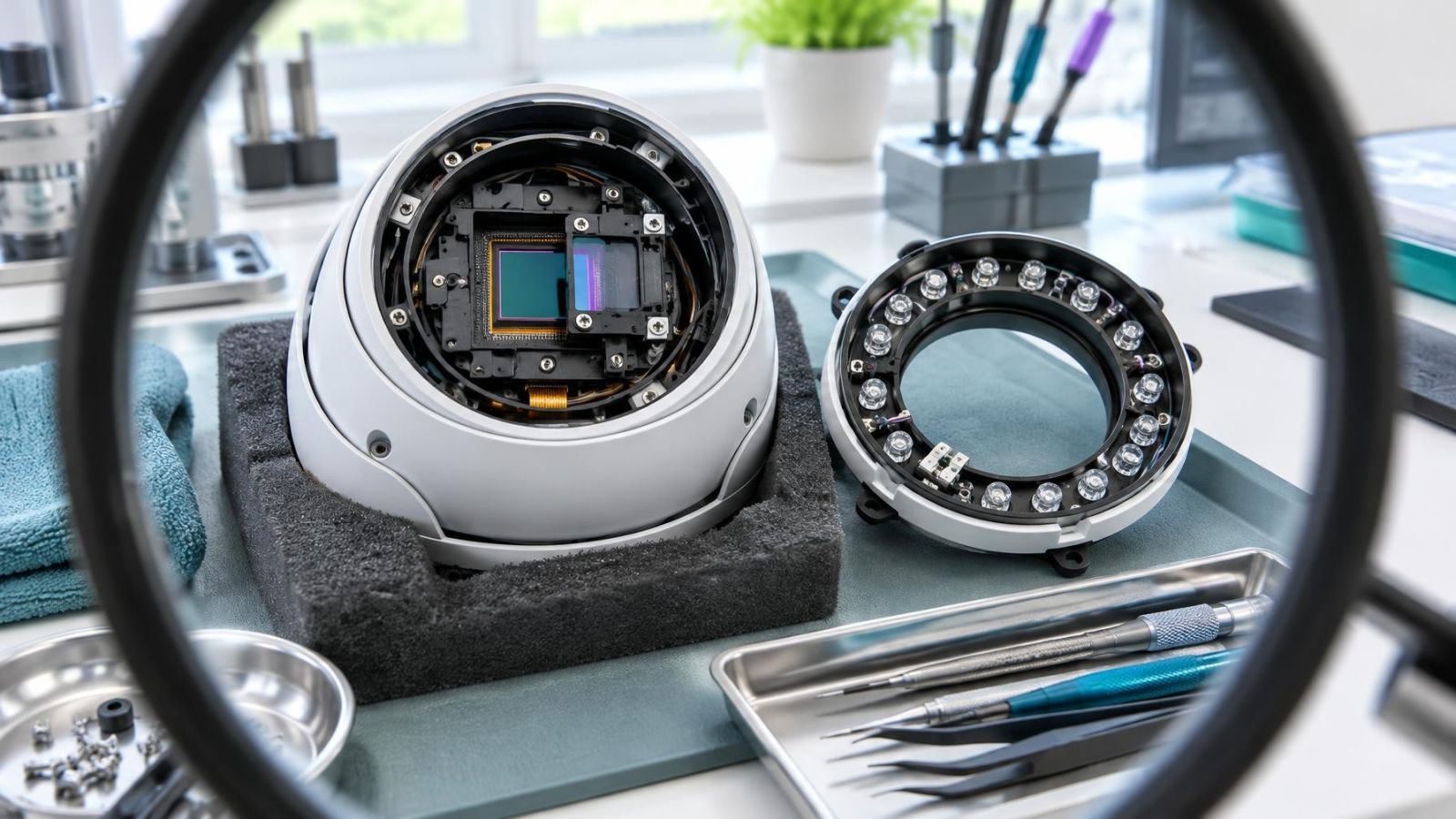
For outdoor cameras, check both ordinary daylight scenes and difficult areas with strong Israeli sunlight. A camera facing a bright gate, glass frontage or shaded entrance may need WDR (wide dynamic range) to produce a useful image. After dark, confirm that IR or other lighting switches correctly and that dust, insects or reflection from a nearby wall are not overwhelming the night vision image.
A live image does not prove that recording is working. Open playback and select a period after power returned. Confirm that recent video can be found, opened and played continuously. Move through the timeline and check more than one channel. If motion detection controls recording, create a fresh movement event and then find it in playback.
Review the recorder interface for storage warnings, disk faults or a recording-disabled state. Do not open the recorder to inspect the storage drive. A system can display cameras normally while failing to save footage because storage has not mounted correctly or recording schedules have changed.
- Confirm live video from every camera.
- Verify fresh recording playback from every important channel.
- Check whether event markers correspond to actual motion.
- Look for channels that connect and disconnect repeatedly.
- Review recorder storage and recording status indicators.
- Check camera names and channel positions if settings appear to have reset.
If several network cameras fail together, investigate their common switch, PoE supply or network link before treating them as separate camera failures. If one camera alone is unstable, note its channel, location and behaviour for further diagnosis.
Test the alarm end to end
How do you check an alarm after a power outage?
Begin at the alarm keypad. Read every fault message and note whether it refers to mains power, backup battery, communication, a detector or tamper status. Do not clear messages before recording them. An acknowledged message can disappear from the main display while the underlying condition remains.
Use the system's normal user test functions where available. Check door and window sensors by opening each protected point and confirming that the correct zone changes state. Test motion sensors by walking through their intended detection areas while observing the keypad or app. Test other fitted detectors through their supported user procedure rather than improvising with heat, smoke or physical force.
Confirm that keypads respond consistently and do not restart, dim unexpectedly or report intermittent communication. A siren test should be planned so that people in the home, neighbouring apartments or business premises know it is a test. For a monitored system, use the established test process for its communication service.
Finally, check the backup battery indication. The panel may take time to reassess charging after mains power returns. A persistent mains fault, battery fault or repeated keypad restart needs investigation even when the alarm can still be armed.
Are time and remote alerts correct?
Power loss can reset the clock in an alarm panel, recorder or camera. Automatic time synchronisation may also fail until the router and internet connection are available. A wrong system clock does not necessarily stop recording, but it can make an event difficult to locate and can place notifications in the wrong order.
Compare the displayed time on the recorder and alarm panel with a reliable current clock. Then create a simple test event, such as walking through a camera view or opening a protected door. Find that event in playback or the alarm log and confirm that its timestamp matches when the test occurred.
Remote access needs a separate test because it follows a different path from local operation. Disconnect the testing phone from the property's Wi-Fi and use mobile data. Open the security app, request live video, check recent playback if available, and review the alarm state. Local recording can continue even when remote access is unavailable; equally, a thumbnail in an app may not prove that fresh footage is being stored.
Generate a new test notification rather than relying on an older alert already shown on the phone. Confirm that the notification arrives, identifies the correct camera or alarm zone, and carries a sensible time. Internet-dependent notifications may be delayed or absent while the local camera and alarm functions continue normally.
Decide what needs professional attention
Professional attention is appropriate when a fault remains after one controlled restart, when equipment becomes hot or noisy, or when a device repeatedly drops offline. Do not keep cycling power in the hope that an unstable device will settle. Intermittent faults are often more informative when their original pattern is preserved.
- Stop using a power supply, backup unit or surge protector that is hot, damaged, buzzing unusually or producing a burnt smell.
- Escalate a recurring mains, battery, storage or communication fault even if the system appears to recover temporarily.
- Request diagnosis when cameras repeatedly disconnect, playback contains unexplained gaps, or the recorder reports storage faults.
- Record which devices work locally, which work remotely, and which fail only under particular conditions.
- Note the order in which equipment was restarted and copy the exact wording of panel or recorder messages.
- Preserve relevant photographs of indicators and screenshots of fault messages.
A clear symptom list lets the installer test the correct part of the chain: incoming power, surge protection, uninterruptible power supply, low-voltage power supply, router, VLAN, network switch, recorder, camera or alarm component. It also helps distinguish a single failed device from a shared dependency affecting several devices.
After the immediate fault is understood, review the protection arrangement as a whole. Check which security devices are connected to surge protection or backup power, how long essential equipment can remain operating during an interruption, and whether outdoor cables or shared-building links introduce additional paths. The aim is not to assume that every failure came through the mains supply, but to understand the complete route between power, network and security equipment.
Key takeaways
- Safety checks must come before any attempt to restart security equipment after a power disturbance.
- Power supplies, the router, network switches and the recorder should be restored in dependency order.
- A live security camera view does not confirm that the recorder is saving usable footage.
- Alarm detectors, timestamps and remote alerts require separate tests because each can fail independently.
- Persistent, heat-related or unstable faults require professional attention rather than repeated power cycling.