On this page
In a small business or multi-site business, a camera management system may be used by owners, managers, reception staff, security personnel and external support. Each person may need an individual user account, while only a few should use an administrator account. The access log should show who did what. The practical question is how to manage employee camera access as people join, move between roles or sites, and leave the organisation.
Why Individual Accounts Matter for Employee Camera Access
A named account gives the system one clear identity for each user. Permissions can be assigned to that identity, adjusted when the job changes and deactivated when access is no longer required. The same principle applies whether the interface belongs to an NVR (network video recorder), a cloud-connected camera system or VMS (video management software).
Shared credentials appear convenient because several people can sign in without additional setup. In practice, they create uncertainty. An access log may show that the shared account viewed footage or exported a file, but it cannot show which person used it. When one member of the team leaves, changing the shared password also interrupts everyone who still needs access. Connected phones, browsers and desktop applications may then need to be updated individually.
Named accounts also make mistakes easier to contain. A reception employee can lose access to recorded footage without affecting a branch manager. A manager can move to another location without forcing a password change across the business. Deactivating a departing person's account stops future use of that identity without removing the identity already attached to existing activity records.
Keep routine use separate from administration
An administrator account can usually create users, alter permissions and change important system settings. Those functions are not needed for ordinary live viewing or playback. Even when the same person performs both duties, a separate everyday account is preferable for routine work. The administrator identity can then be reserved for configuration changes.
Who Should Have Employee Camera Access?
Access should follow job duties rather than seniority alone. A person needs access when viewing or handling camera footage is part of a defined responsibility. A senior title does not automatically require every function, and a remote owner does not necessarily need unrestricted administration rights merely because they connect from outside the premises.
Start by separating the actions available in the system. Live viewing, recorded footage, video export and administration serve different purposes. Treating them as one permission usually grants more capability than the role requires.
| Permission | Typical operational purpose | Main boundary to set |
|---|---|---|
| Live view | Monitoring current activity or checking an entrance | Only the cameras and sites required for the task |
| Recorded footage | Reviewing an event that has already happened | Relevant cameras, sites and available playback functions |
| Video export | Creating a copy outside the camera system | Limited to roles responsible for handling exported footage |
| Administration | Managing users, permissions and system configuration | Reserved for named people with a genuine technical or management duty |
Site boundaries matter as much as feature boundaries. A manager responsible for one street-front shop may need all operational views at that shop but no access to another branch. A regional manager may need playback across several sites without permission to create users. In an office or shop inside a shared building, distinguish the business's own cameras from any separate system covering a shared lobby, car park or entrance.
Write the access decision in plain operational language: who needs access, which sites and cameras they can reach, what they may do, and why the role requires it. This short description becomes the reference point when duties change.
Setting Up New Staff Access
Account creation should follow approval, not precede it. The approver should understand the employee's duties and the camera system well enough to choose appropriate boundaries. Technical staff or an installer can implement the decision, but they should not have to guess whether a new employee needs playback, exports or access to another branch.
- Record the employee's name, role, assigned site and the operational purpose of access.
- Choose an existing permission group that matches the role, or define the minimum set of functions and cameras required.
- Create a named account rather than adding the person to a shared login.
- Require a strong, unique credential and enable an additional verification step where the system supports one.
- Test the account from the interface the employee will actually use, confirming both permitted and blocked functions.
- Record who approved the account and who is responsible for changing or removing it later.
Testing matters because permission labels are not always self-explanatory. A setting that appears to allow playback may also expose additional cameras. Export permission may be available through one interface but not another. Check the actual user experience instead of relying only on the configuration screen.
Avoid copying a colleague's account without examining the role. Two people with similar job titles may cover different branches or tasks. Permission groups are useful, but they should represent genuine responsibilities rather than become a shortcut for granting broad access.
Use stronger verification for remote access
Remote access deserves particular care because the account can be used away from the business network. Use a unique password, an additional verification factor where available and a personal recovery method controlled by the account owner. Avoid recovery details tied to a former employee, a general mailbox that many people read or a personal device belonging to someone else.
How Does CCTV User Management Work?
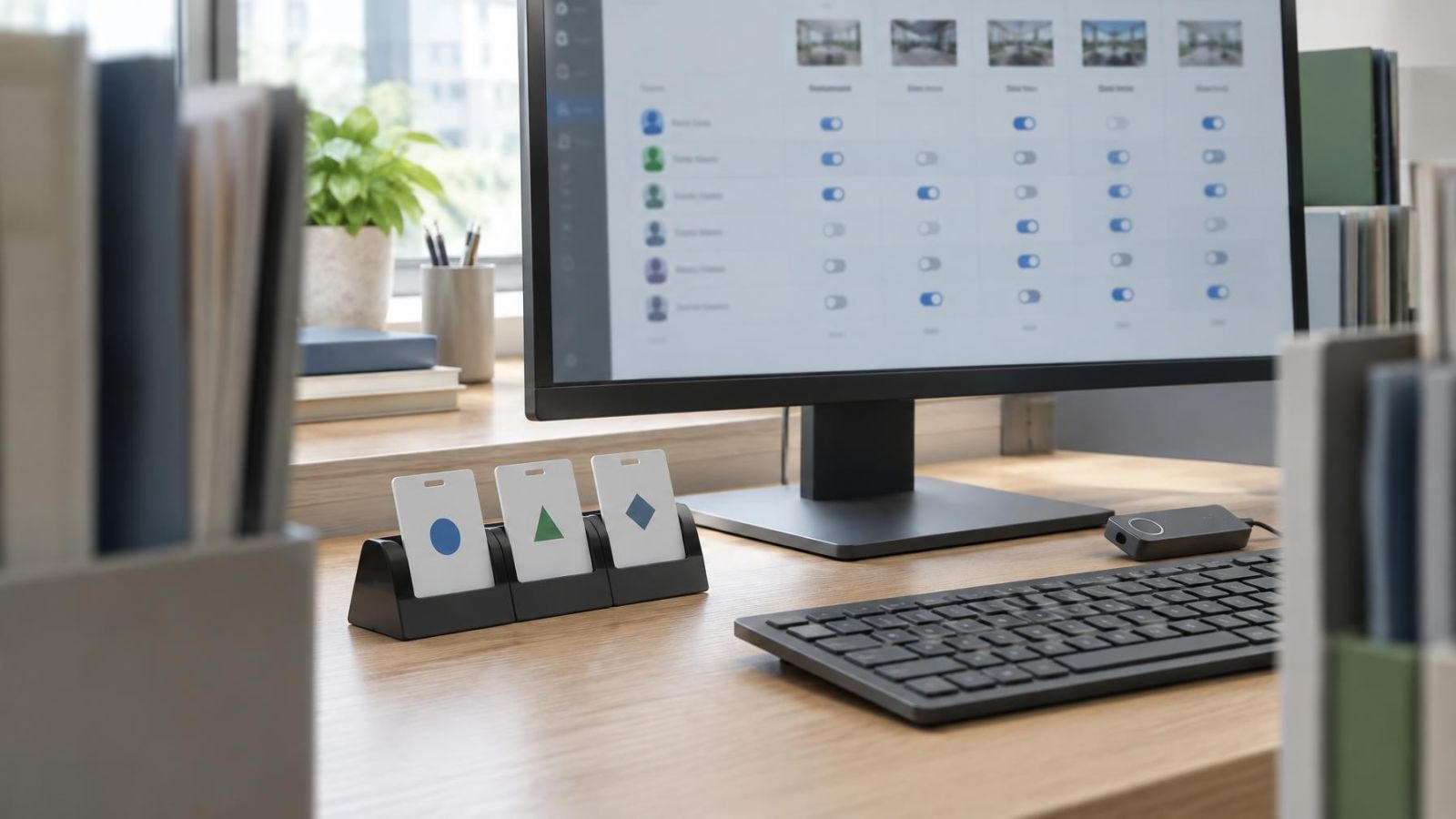
CCTV user management works by connecting each named user to one or more permission groups. The group defines available functions, camera views and sites. Individual exceptions can sometimes be added, but a clear group structure is easier to understand and review than many one-off settings.
Useful groups describe responsibility. Examples include reception live view, branch manager playback, authorised export user and system administrator. In a multi-site business, permissions can combine function and location. A person might receive live view for several branches, recorded footage for one operational area and no administrative access anywhere.
A staff move is an access event even when employment continues. Promotion can add responsibilities, but it can also remove the need for previous access. A transfer between branches usually requires new site permissions and removal of the old ones. Do not simply add the new group and leave every earlier permission in place.
How do I change camera permissions after an employee moves roles?
Compare the old role with the new one, remove permissions that no longer have a purpose, and then add the minimum access required for the new duties. Check direct permissions as well as group membership; otherwise, an old exception may remain after the main role changes. Finish by testing the account and recording the reason for the change.
Temporary and external users
Temporary access should have a defined purpose and a planned end point. This applies to temporary staff, cover managers, contractors and external technical support. A named account is still appropriate, even when access will be brief. The account can be restricted to the necessary site and functions, then deactivated without affecting permanent users.
Where the system supports automatic expiry, configure it when the account is created. Where it does not, assign a named person to close the access task. An account described only as “temporary” can remain active because nobody owns the final step.
A permission should explain three things clearly: who needs it, what work it supports and when it should end.
Removing Access When Staff Leave
Account deactivation should be part of the same operational process used for keys, alarm credentials, email and other business systems. The camera-system task needs a named owner and a clear trigger. It should not depend on someone remembering later that the departing person had access.
Deactivate the individual account rather than deleting its identity from the system. Deactivation removes future access while preserving the account name associated with existing access-log entries, subject to the system's normal record handling. Keeping that link makes later review more intelligible.
The account screen is only the starting point. Review active sessions in browsers, mobile applications and desktop software. If the platform provides a command to sign out connected devices, use it. Remove saved access from business-owned devices that will be reassigned. Also check whether the person had separate accounts for different sites or interfaces.
Remove video export privileges as part of the departure process. Deactivation stops future system use, but it does not retrieve footage that was already exported to another location. Business procedures for stored files therefore need to sit alongside account management.
Finally, review administrator access. With properly named administrator accounts, only the departing person's account should need deactivation. If an administrator credential was shared, replace it and update the small number of authorised users and devices that still require it. Shared administration is precisely where offboarding becomes unnecessarily disruptive.
Run a Repeatable Access Review
Joiner, mover and leaver tasks handle known staff changes. A repeatable review catches the quieter mismatches: an old temporary account, a transferred manager who still sees the former branch, or an export permission that remained after duties changed.
Begin with a current user list from every part of the camera environment. A business may have users on an NVR, separate remote-access accounts and a VMS covering several sites. Review the complete path rather than assuming one console contains every identity.
- Match each named user to a current employee, contractor or approved external support person.
- Compare the user's role and assigned sites with actual permissions, including direct exceptions outside normal groups.
- Identify inactive, unused and temporary accounts, then confirm whether their purpose still exists.
- Check who has live view, recorded-footage, video-export and administration permissions separately.
- Review access logs for unexpected account use, remembering that a log records system activity rather than the user's intention.
- Confirm that every open access task has a named owner responsible for completion.
Access logs become far more useful when each person has a named account. They can show sign-ins, playback, exports or configuration activity where the system records those actions. They cannot explain why an action occurred, so review them alongside role information and operational context.
The review does not need to become a large technical exercise. A simple comparison of people, roles, sites and permissions is usually the core of it. The important point is consistency. Use the same checklist when someone joins, changes duties, covers another site temporarily or leaves.
Business camera permissions remain manageable when ownership is explicit. Managers approve the operational need. The system administrator applies and tests the setting. A named person closes temporary access and departure tasks. With those responsibilities separated, the camera system reflects the way the business currently works rather than the way it was configured in the past.
Key takeaways
- Named accounts are easier to change and deactivate than a shared password, while keeping activity linked to the correct user.
- Camera permissions should match each person's role, required functions and assigned sites.
- Every staff move should trigger an access review, even when the person remains employed by the same business.
- Temporary camera access should have a defined purpose, a named owner and a planned end point.
- Routine comparison of user accounts, current roles and access logs keeps permissions aligned with operational needs.