On this page
You may already have IP cameras producing RTSP streams, with ONVIF discovery available on an Israeli home or small business network. The question is whether NVR software for IP cameras can turn an ordinary PC into a dependable PC recorder, keeping continuous footage on local storage rather than tying each camera to a cloud recording plan. It can, provided the software supports the cameras, the streams are tested, and the PC, network and storage are planned as recording infrastructure.
What Makes NVR Software for IP Cameras a Real Recorder?
A live viewer displays video while someone is watching. A recorder does more. It receives each configured stream, writes footage continuously or according to recording rules, maintains an archive, and provides tools for finding and exporting a useful section later. The software itself is the recorder. It is not merely a cloud subscription associated with each camera.
The core PC software described here is free NVR software for monitoring and recording compatible IP cameras. It runs on the PC, records continuously to attached or network-accessible storage, and does not require a subscription for core local operation. A sign-in is reserved for optional additional services, such as remote access or extended analysis features; it is not required simply to maintain the local archive.
RTSP provides the video stream that the recorder receives. ONVIF can help the software discover compatible cameras and obtain connection information. Neither protocol guarantees full compatibility by itself. A camera may be discoverable but expose a codec, audio format or stream profile that the recorder cannot use correctly. Testing comes before regular recording.
During core local operation, footage is written to storage at the property and does not need to leave the home or business. That distinction matters for remote property owners: local recording and remote viewing are separate functions. Enabling remote viewing creates a network path beyond the property, even though the primary archive remains on the PC.
A recorder is defined by the archive it maintains and the footage it can retrieve, not by the presence of a live camera grid.
Discover and Add Existing Cameras
The practical starting point is a local network scan. A Scan Network function looks for cameras that advertise compatible services, identifies likely connection details and tests available streams. After a successful verification, the camera can be added without manually reconstructing every setting.
How do you find cameras on network connections?
Run discovery from the recorder PC while it is connected to the same local network as the cameras. Discovery works best when the PC and cameras can communicate directly, without guest-network isolation or an incorrectly configured VLAN between them. Record the IP address assigned to each camera. Stable addressing prevents a camera from appearing at a different address after equipment restarts.
ONVIF discovery does not bypass authentication. The recorder still needs valid camera credentials. Use a camera account intended for recording rather than relying on a temporary installer login. If credentials change later, update the recorder as well; otherwise the camera may remain visible on the network while recording stops.
How do you test camera stream compatibility?
Automatic testing should confirm that video opens, remains stable and uses a supported video codec. Check the main stream intended for recording and any secondary stream intended for a multi-camera live grid. If audio is required, test it separately. Audio support can differ from video support even when both come from the same camera.
- Confirm that the picture opens without repeated connection errors.
- Check whether the camera keeps the same stream available after a restart.
- Verify that timestamps and the recorder PC clock agree.
- Test daytime glare and infrared night vision rather than judging only an indoor daytime image.
- Confirm that the intended recording and live-view streams can run together.
How do you add IP camera feeds?
After discovery and stream verification, use one-click addition to create the camera entry. Give it a clear location label, choose the recording stream and decide whether audio should be enabled. If automatic discovery fails, enter the camera IP address, credentials and RTSP stream URL manually. A manual RTSP URL is a useful fallback, but it still needs a proper stability test.
Build a Practical Live View
A live grid should reflect how the property is actually monitored. In an apartment, that may mean the private entrance and interior circulation areas. In a house, the gate, garden path and main doors may deserve the larger tiles. A street-front business may prioritise the entrance, customer area and delivery point. Shared apartment-building entrances should not be treated as if they belong to one private flat.
Draggable mosaic layouts let the user make important views larger while keeping contextual cameras visible. Different mosaics can be placed across multiple monitors. One screen might show the entrance and public-facing areas, while another shows storage or service areas. Full-screen viewing remains useful when checking detail or adjusting a camera.
Optional labels help people identify similar-looking corridors, doors and gates. Keep labels short and location-based. Optional audio should be enabled only where it has a clear operational purpose, because it adds another stream to process and review. Muting audio in the live wall does not necessarily mean the recorder has stopped storing it, so recording settings should be checked separately.
When assessing NVR software for Windows, look beyond the maximum number of grid tiles. The better test is whether the PC can decode the selected streams smoothly while also writing recordings. Secondary camera streams can reduce live-view load, while the recorder keeps the main stream for the archive.
How Do You Find Footage?
Continuous recording is useful only when the relevant moment can be found without watching an entire day. A daily timeline provides the structure. Recorded periods appear along the day, while motion, sound, speech and configured detection events appear as markers. These markers are navigation aids; they do not replace the surrounding continuous video.
Timeline scrubbing lets the user move quickly through the archive. A direct jump opens a selected time, and playback at up to 16× speed shortens long reviews. Faster playback is useful for broad movement, but ordinary speed is better when speech, brief actions or exact timing matter.
- Choose the camera and recording day.
- Use motion, sound, speech or detection markers to narrow the search.
- Jump to a point shortly before the event rather than opening exactly on the marker.
- Scrub or increase playback speed while keeping the wider sequence in view.
- Select the required start and end points, then export the clip.
Export should create a practical clip that can be opened away from the recorder. Include enough time before and after the event to preserve context. Keep the original archive unchanged until the exported file has been opened and checked. A clip that exists only as an untested export is not yet a useful copy.
Local Alerts and Optional Analysis
Motion detection reacts to changes in the image. In Israeli conditions, strong sunlight, moving shadows, garden plants and headlights can create more motion than expected. User-drawn zones make the rule more specific. A zone can cover a gate opening, doorway or defined path while excluding a road, tree or reflective surface.
A crossing rule can generate a messaging alert with a snapshot when someone crosses a configured zone. The snapshot helps the recipient judge whether opening the recorder is worthwhile. Alert delivery is an additional service beyond local recording, so it requires connectivity outside the property even when analysis and the main archive remain on the PC.
Local object analysis can classify detected activity as a person, vehicle or animal without sending the video to a cloud analysis service. Classification makes event markers more useful, but it should be treated as a filtering tool rather than an infallible decision. Camera angle, glare, partial views and night illumination all affect what the software can classify.
Optional advanced analysis can recognise faces and licence plates. Galleries organise recognised items, watch lists identify entries selected for attention, and links from a result open the associated recording. These features need suitable camera placement. A wide overview camera may record the scene well while providing too little detail for a useful face or plate view.
View the Recorder from a Phone
The companion phone application provides live and archived video from the PC through a secure relay. The recording remains on the PC, while requested video is delivered for remote viewing. This is useful for remote property owners and business owners who are away from the premises, but it is not the same as fully local operation.
For the optional remote service, the PC initiates outward connections only. The design avoids requiring a direct unsolicited connection from the public internet to the recorder. A sign-in associates the phone application with the additional remote service. Core local monitoring and recording do not require that sign-in.
Remote viewing still depends on the recorder PC, the property's internet connection and the phone's connection. If any part is unavailable, the phone may not reach the archive. Local recording can continue during an internet interruption if the PC, cameras, local network and storage remain available.
| Function | Where footage is handled | External connection |
|---|---|---|
| Local live view | Camera network and recorder PC | Not required |
| Local recording | Recorder PC and configured storage | Not required |
| Remote live view | Requested video passes from the PC through a relay | Required |
| Remote archive playback | Archive remains on the PC while selected video is relayed | Required |
| Local object classification | Recorder PC | Not required for analysis |
Plan the PC Before Switching
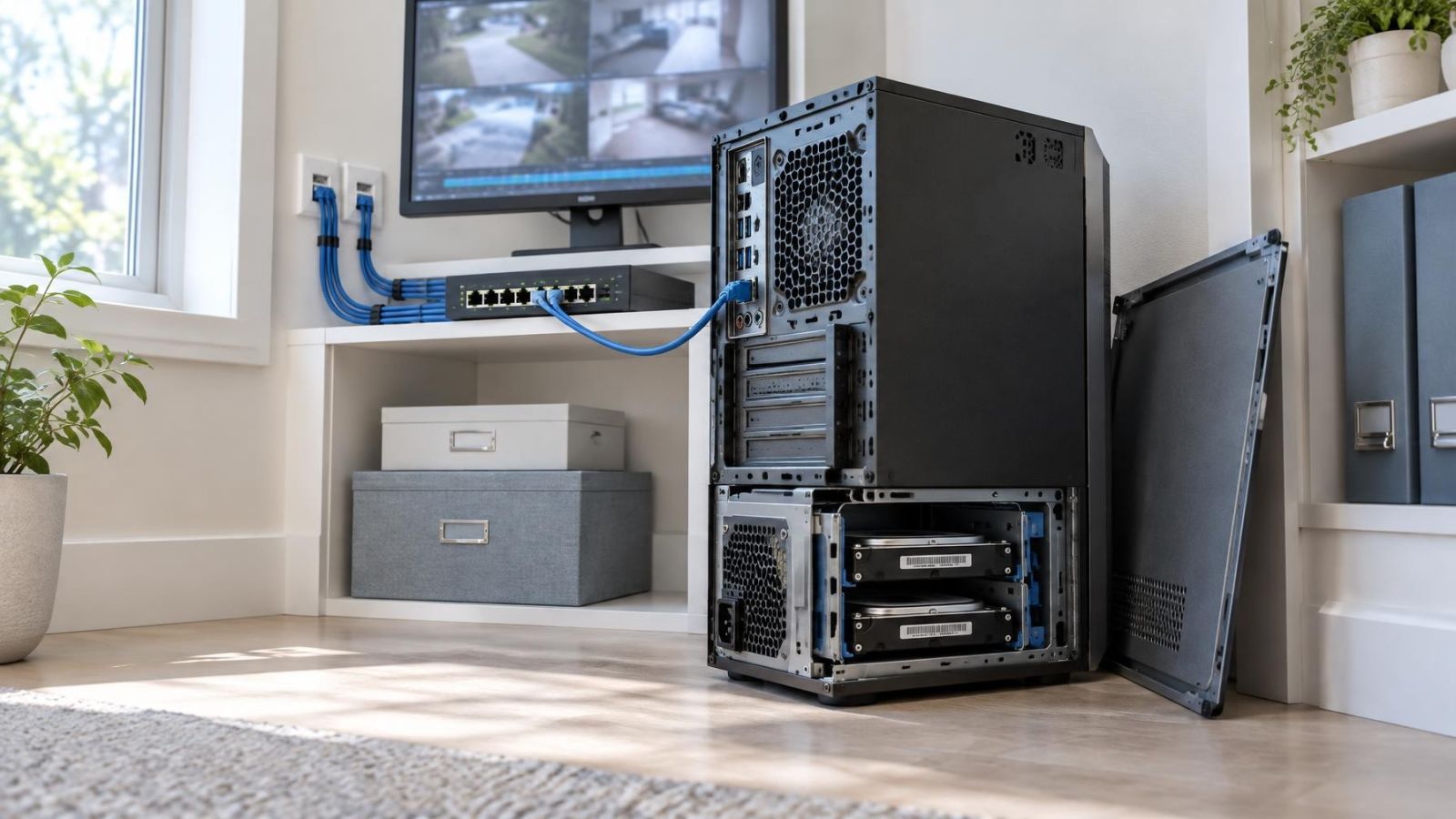
Do not move existing cameras to a new recorder in one step. First establish camera compatibility, storage capacity and restart behaviour. Free NVR software for Windows still relies on physical infrastructure. The absence of a software subscription does not make the PC, storage drive, network or power arrangement optional.
- Streams and codecs: Test every intended camera stream, including audio where needed.
- Storage health: Use a suitable storage drive and monitor its condition. Decide how much history the property genuinely needs.
- Recording mode: Continuous recording gives an uninterrupted archive, while motion recording reduces stored material but depends more heavily on detection settings.
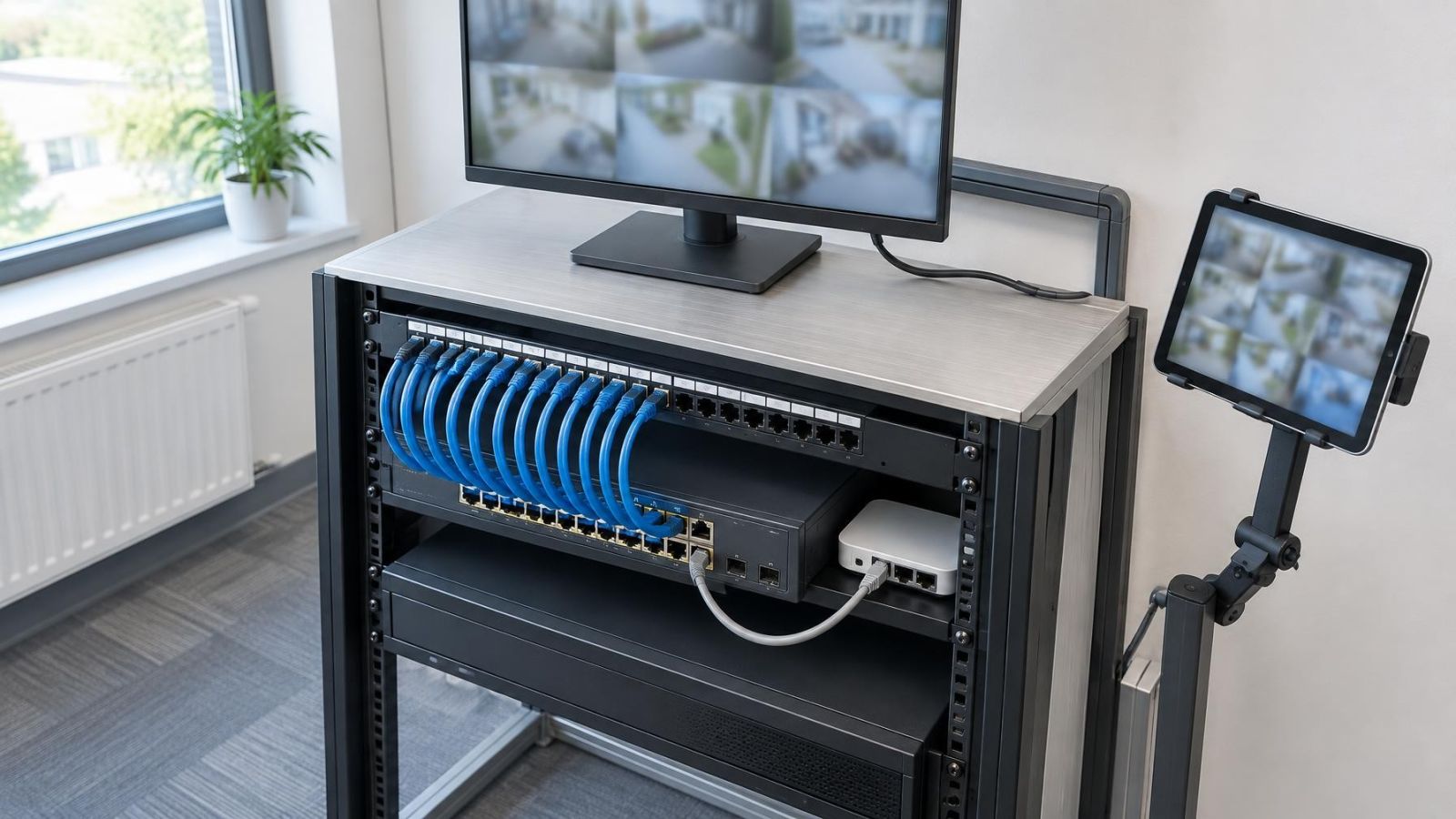
- Network: Prefer wired Ethernet for fixed cameras and the recorder. PoE can simplify camera power, but the switch and its power source become part of the recording path.
- Restart behaviour: Confirm that the PC starts the recorder software automatically and that cameras reconnect after a power or network interruption.
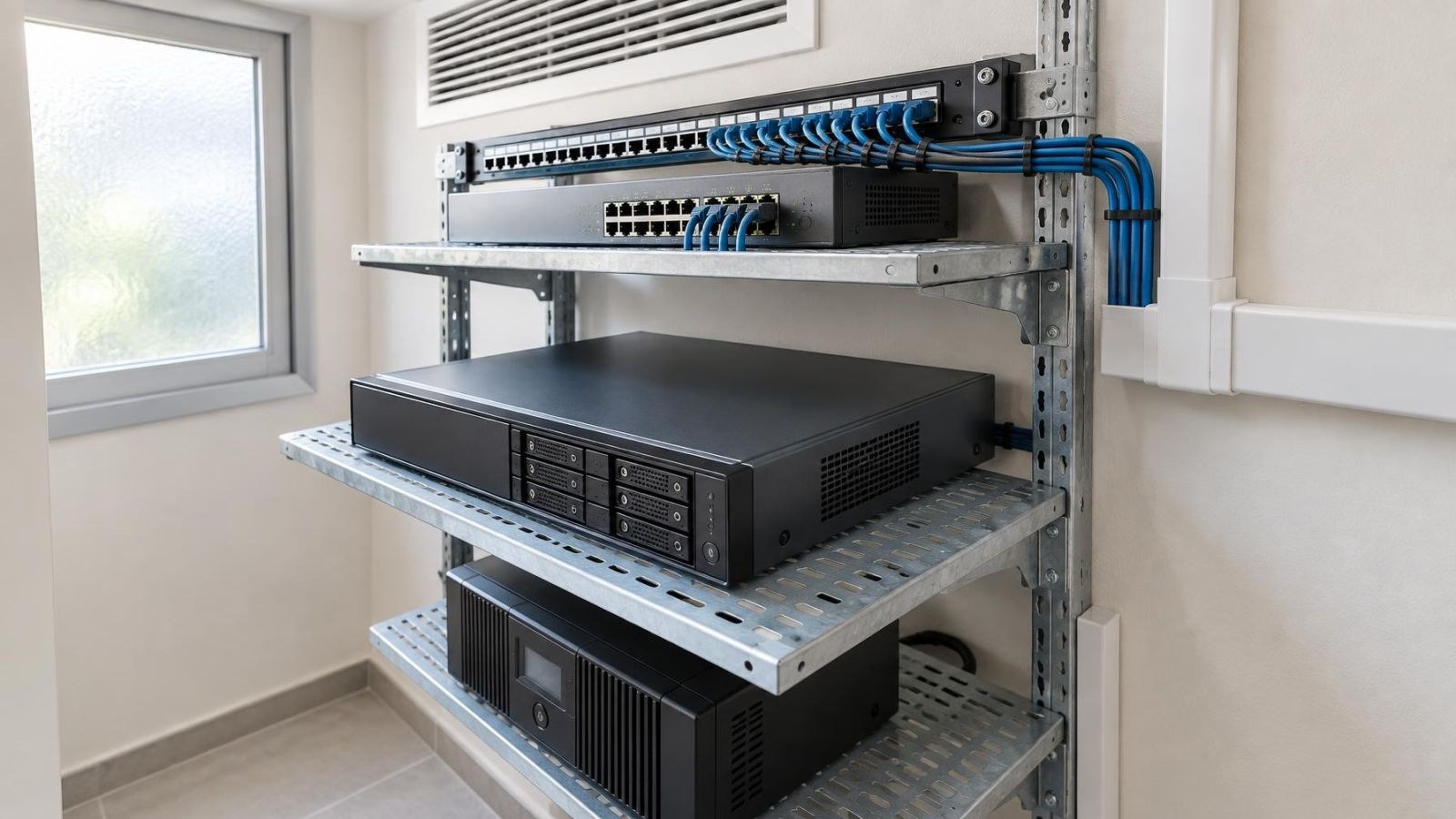
- Placement: Keep the PC and network equipment where heat, dust and accidental disconnection are manageable. A mamad can affect wireless coverage, which is another reason not to base fixed-camera recording on marginal Wi-Fi.
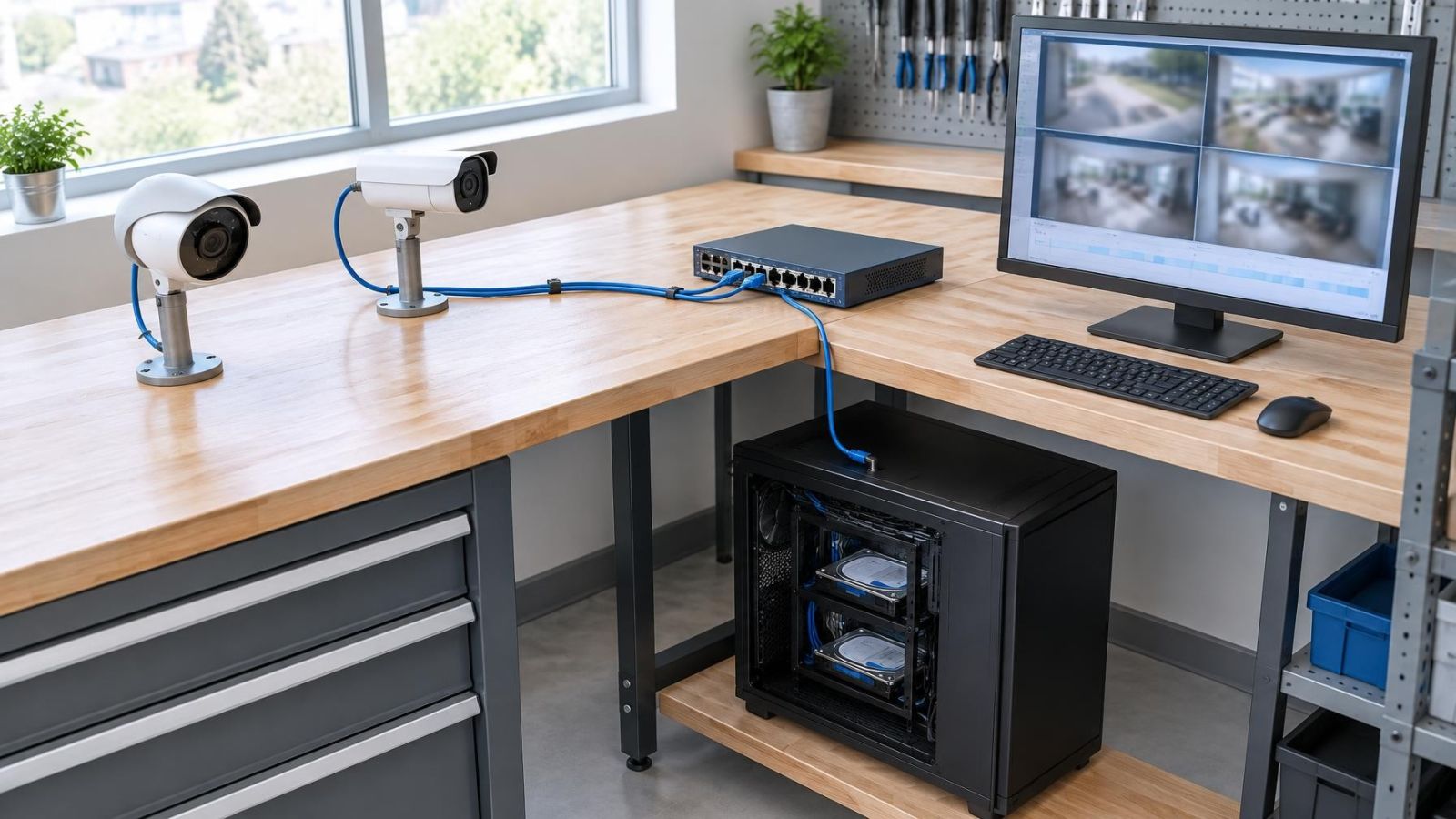
Run a pilot before treating the PC as the regular recorder. Add a small selection of cameras, leave continuous recording active, review the timeline, export a clip and restart the PC and network equipment under controlled conditions. Then verify that recording resumed. The useful test for free NVR software is not whether it displays a camera once; it is whether the complete recording and retrieval process behaves predictably.
Finally, document the system in plain language. Note which cameras record continuously, which use motion recording, where the archive is stored, how remote access differs from local access, and what should restart automatically. This makes the recorder easier to manage for a household, a remote owner or a small business where more than one person may need to retrieve footage.
Key takeaways
- Existing RTSP and ONVIF cameras can feed a compatible PC recorder after their credentials and video streams have been tested.
- Local recording removes dependence on a mandatory camera-vendor cloud recording plan.
- Reliable continuous recording requires stable wired networking, healthy storage and a PC that restarts cleanly after an interruption.
- A daily timeline with event markers makes long continuous recordings practical to search and export.
- Remote phone viewing creates an external network path even when the main video archive remains on the PC.