On this page
A security camera app connects a phone to a camera recorder through a local Wi-Fi network or remote access. Smartphone privacy settings decide whether the app can use notifications, the microphone, saved files and nearby devices. Meanwhile, push notifications may depend on background activity even when live video still works. The practical question is how to review camera app permissions without breaking the features you rely on.
The safest approach is not to approve everything or deny everything. Start with the way the app is used, inspect the current settings without touching them, then make one controlled change at a time. This separates phone permissions from account privileges, recorder configuration and network problems.
Map How You Use the App
Before opening the phone's privacy menu, write down what you expect the app to do. A person who only checks live view needs a different permission set from a shop manager who receives alerts, speaks through cameras and exports recorded video. Remote property owners also need to distinguish access from the property's Wi-Fi from access through their phone's mobile connection.
- Live view: Note whether you watch only while connected to the same Wi-Fi as the recorder, only from elsewhere, or in both situations.
- Recorded video: Confirm whether you play recordings inside the app or also download clips to the phone.
- Alerts: List the alerts you expect and whether they must appear when the app is closed.
- Two-way audio: Decide whether anyone actually speaks through a camera. Listening and speaking may use different phone controls.
- Saving and sharing: Record whether clips are exported to the phone's photo library or file storage.
- Shared access: Identify family members, employees or property managers who use separate accounts or separate phones.
Do not treat all users as one configuration. A business owner may have administrator privileges while staff have viewing-only access. Family members may use the same camera system but have different notification and microphone settings on their phones. In an apartment building, access to cameras covering a shared entrance may also be administered separately from cameras inside a private home.
This map gives each permission a purpose. If no used feature can be connected to a permission, it becomes a reasonable candidate for removal. If a feature matters, you know exactly what to test after changing its related setting.
Which Camera App Permissions Does the App Need?
There is no single permission list that suits every camera system. The app's design, the phone's operating system and the features enabled on the recorder all matter. The useful distinction is between access needed for core viewing and access needed for optional functions.
| Phone permission | Common purpose | Usually unnecessary for |
|---|---|---|
| Local network | Finding or connecting to cameras and recorders on the same network | Viewing through an established remote connection, depending on the app |
| Notifications | Displaying alerts outside the open app | Opening live view manually |
| Microphone | Speaking through a camera or compatible audio device | Silent live view and recorded playback |
| Photos or files | Saving, opening or sharing exported clips | Watching video inside the app |
| Location | Location-based actions or nearby-device workflows that specifically use it | Ordinary viewing when no location feature is enabled |
Which Security Camera Permissions Are Optional?
Notification access is optional if you never want push alerts. Microphone access is optional if you do not speak through cameras. Photo or file access is optional if clips stay inside the app. Location access should be tied to a named feature you use, rather than enabled on the assumption that every camera app needs it.
Local network access deserves more care. It can be necessary when the app discovers a recorder or connects directly while the phone is on the same network. Removing it may leave remote viewing intact while local discovery stops, or it may affect both, depending on how the app establishes a connection.
Check Access Without Changing It
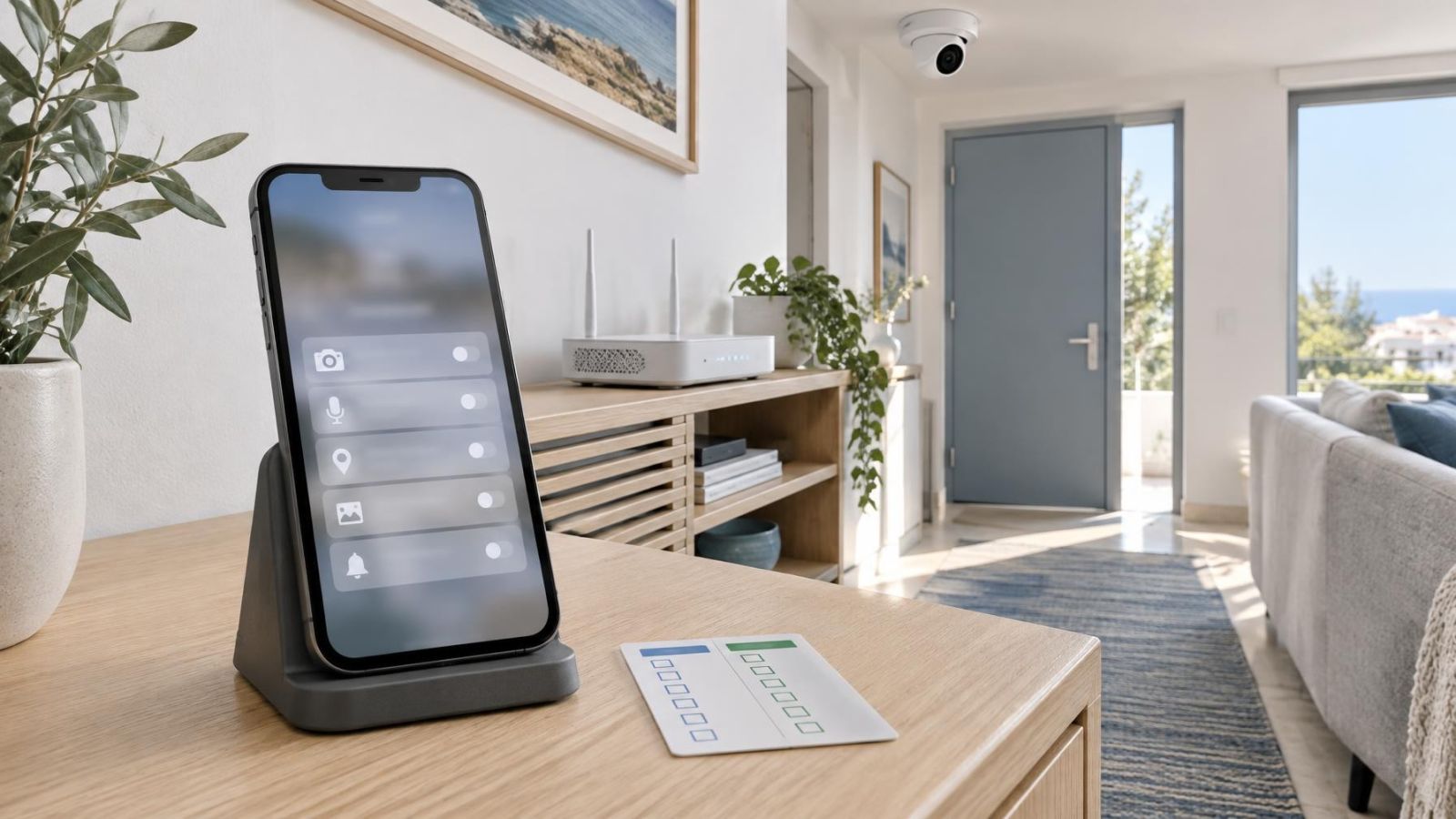
First create a snapshot of the working state. Open the phone's privacy settings and record what the camera app can currently use. Screenshots are useful, but a short written note is better for settings hidden across several menus. Do not toggle anything during this inspection.
- Check whether local network access is allowed.
- Check whether notifications are permitted and whether individual alert categories are silenced.
- Check microphone, photo or file, and location access.
- Check whether the app may use mobile data when Wi-Fi is unavailable.
- Check whether background activity is allowed.
- Check whether battery-saving controls restrict the app when it is not open.
Then test the existing behaviour. Open live view on the property's Wi-Fi. Play a recording. Close the app and wait for a normal system-generated alert if one is available. Finally, disconnect the phone from Wi-Fi and test remote viewing over mobile data. A remote owner can perform the same separation by testing from two known connections rather than assuming every connection path is equivalent.
Keep network quality in mind. A phone in a mamad, the reinforced safe room common in Israeli homes, may have weaker Wi-Fi or mobile reception. A failed test there does not by itself prove that a permission is wrong. Move to a place with a reliable connection before changing privacy settings.
This baseline prevents a common troubleshooting mistake: changing phone permissions to solve an account, recorder or network fault. If live view already fails before the review begins, preserve the settings and diagnose that failure separately.
Revoke App Permissions Safely
Make the smallest possible change. Avoid combining a privacy review with a password change, app reset, recorder restart or network reconfiguration. Several simultaneous changes may produce a working result, but they hide which change mattered and make later faults harder to trace.
- Choose one permission that appears unrelated to the features you use.
- Record its current state, then disable only that permission.
- Open the app and test live view on the local Wi-Fi network.
- Test remote access over mobile data or another external connection.
- Test the feature most closely associated with the removed permission.
- Leave the change in place only if all required behaviour still works.
For example, after removing microphone access, test silent live view and recorded playback. The video should not depend on permission to capture your phone's microphone, although the speak function will. After removing notification access, open live view manually. If viewing works but alerts no longer appear, the change has affected the expected feature rather than general access.
Leave account credentials unchanged during this process. Signing out can introduce password, verification or account-role questions that have nothing to do with phone privacy. Also avoid deleting the app merely to clear permissions. Reinstallation may remove local preferences and make the original working state harder to reconstruct.
Shared users must test their own phones. One person's successful test does not establish that another person has the same operating-system permissions, mobile data setting or account privileges.
Why Did Camera Access Stop?
The failed function usually points to the right layer. Begin with the exact symptom rather than enabling every permission again.
| Symptom | Likely area to inspect | Useful comparison |
|---|---|---|
| App cannot find equipment on the same Wi-Fi | Local network permission or network connection | Test whether remote access still works |
| Live view works on Wi-Fi but not away from the property | Mobile data permission, mobile connection or remote connection path | Disable Wi-Fi and test another internet service |
| Live view works but alerts do not appear | Notification permission, alert settings or background restrictions | Open the app and check whether events are listed there |
| Alerts arrive late or only after opening the app | Background activity or battery-saving controls | Compare behaviour while the app is open and closed |
| Speak function fails while video works | Microphone permission or audio feature settings | Test silent viewing and audio listening separately |
| Equipment is not discovered when phone and recorder use different networks | Expected limit of local discovery or unavailable remote path | Place both on the same network, then test discovery again |
Notification permission does not usually control live view. It controls whether the phone presents alerts. Similarly, removing photo access may prevent exporting a clip without affecting playback inside the app. These distinctions are useful because partial operation is evidence: it narrows the problem to a feature rather than the complete camera system.
Different networks require careful interpretation. Local discovery generally expects the phone and recorder to share a network. Remote viewing is specifically designed for a phone using another internet connection. If the phone is away from the property, failure to discover a local recorder may be normal; failure of an already configured remote connection is a separate issue.
Restore Only the Required Access
If a feature stops after a controlled change, restore the permission most directly connected to that feature. Do not enable a group of unrelated permissions. The aim is to return the required function while preserving a minimal and understandable configuration.
- Name the failed feature precisely: local discovery, live view, playback, alerts, speaking or clip export.
- Restore the permission that was changed immediately before the failure.
- Close and reopen the app if the phone requires it to recognise the new setting.
- Retest the failed feature on the same connection used when it failed.
- Test local Wi-Fi and remote access separately.
- Confirm live view and recorded playback before testing optional functions.
Two-way audio only needs testing if someone uses it. If it is required, check speaking separately from listening. Microphone access on the phone concerns audio captured by the phone for transmission; it is not a general requirement for watching silent video.
For alerts, restore notification access first. If alerts remain delayed, inspect background activity and battery controls rather than changing camera access, microphone or files. Some phones reduce background work aggressively, and an operating-system or app update may alter those controls without changing the camera account.
Restore the permission connected to the failed feature, not every permission the app has ever requested.
Keep a Minimal Permission Setup
A minimal setup is not the fewest permissions possible. It is the smallest set that reliably supports the features each person needs. Good camera app privacy is therefore a maintained configuration, not a one-time round of denying requests.
- Leave unused microphone, location, notification, photo or file access disabled when no required feature depends on it.
- Document the working permission set, mobile data setting, background status and battery controls for each important phone.
- Review phone power controls after major app or operating-system changes if alerts or remote behaviour change.
- Review family and staff access when responsibilities change, rather than copying an administrator's setup to every user.
- Keep a clear escalation point for settings controlled by the recorder administrator or installer.
For a small business, documentation can be a simple role-based note: who needs alerts, who can review recordings, who exports clips and who administers the recorder. For a remote property owner, include a known method for testing both the property's Wi-Fi path and an outside connection. For family access, record settings per phone because devices may handle background activity differently.
Escalate when the evidence no longer points to a phone permission. Examples include all users losing access at once, the recorder being unavailable on its own network, account privileges changing, or remote viewing failing across several independent connections. At that point, repeated permission changes add noise. Preserve the documented working state and give the administrator or installer a precise description of what works, what fails and on which network.
Key takeaways
- Camera app permissions should reflect the viewing, alert, audio and export features that are actually used.
- Changing one phone setting at a time makes the cause of a failure much easier to identify.
- Local Wi-Fi viewing and remote viewing over mobile data must be tested separately.
- Notification, microphone, file and location permissions can often be separated from core live viewing.
- A written record of working settings makes later troubleshooting faster and safer.