On this page
A security system may include an NVR (network video recorder), security cameras, an alarm panel, a router, a mobile viewing app and several detectors. Resetting any one of them can break connections to the others, even when the equipment itself still works. Before factory-resetting security equipment, the practical question is simple: what information will you need to rebuild the system, recover access and verify each function afterwards?
Confirm What the Reset Affects
Start by identifying exactly which device is being reset. A recorder reset is not the same as a camera factory reset. An alarm panel, router and mobile app also keep different parts of the overall configuration. Treating the installation as one device is a common source of unnecessary work.
Reset behaviour varies. A reset may remove configuration settings while leaving recordings on the internal storage. Another reset option may initialise storage as well. A camera may lose its password, IP address and image settings without changing anything on the recorder. An app reset may remove saved sites from the phone while leaving the physical system untouched.
What does a factory reset of an NVR affect?
A factory reset of an NVR commonly affects accounts, camera registration, network settings, recording schedules, event actions and display preferences. It does not automatically follow that the video archive will be erased. Configuration and stored footage are separate assets, so each requires its own check before proceeding.
Read the reset description shown by the device and consult the device-specific instructions available to you. Look for separate commands such as resetting settings, restoring defaults, initialising storage or removing user data. If the wording is unclear, stop before confirming the command. Do not assume that a reset option behaves like one on another recorder or camera.
Should you reset the whole security camera system?
Usually, only the component connected to the fault should be reset. If remote viewing fails but local recording continues, the problem may be in the router, account or app rather than the cameras. If one camera is offline, resetting the recorder and every other camera creates more variables without isolating the original fault.
What Should You Save Before Factory-Resetting Security Equipment?
Export the configuration where the equipment provides that option. Store the file away from the recorder, panel or phone being reset. Give it a clear filename containing the site name and device identity. A configuration backup may still be unusable without the matching credentials or compatible equipment, so do not treat the presence of a file as proof that restoration will work.
- Configuration: Export recorder, camera, alarm panel or VMS (video management software) settings where supported.
- Video: Export required clips and snapshots from the video archive in a format you can open independently.
- Alarm history: Save event history if it is operationally useful to the home or business.
- Reference material: Take readable screenshots of important settings, even when a configuration export exists.
Critical video should be exported separately rather than assumed to be included in a recorder backup. Check the exported clip on another device and confirm that the relevant camera view and time period are present. If a separate playback utility is required, keep that with the export and confirm that it opens.
Screenshots are particularly useful when settings interact. A single motion sensitivity value means little without the corresponding detection area, schedule and event action. Keep related screens together in folders named for the recorder, camera or alarm panel.
Record Accounts and Remote Access
Confirm that the administrator account is known and that its recovery method is accessible without relying on the device being reset. Store credentials in a secure password manager or another controlled location. Do not place an administrator password in an unprotected screenshot, shared folder or handwritten wiring note.
List each local user account and its role. Record which users can view live video, play recordings, change settings, operate alarm functions or export footage. For a small business, distinguish daily operator access from administrator access. For a remotely managed property, note who has local access if the internet connection is unavailable.
- The administrator account, recovery email or other recovery path, and any required verification access.
- Usernames, roles and permissions, without exposing passwords in the working document.
- Sites and devices saved in the mobile viewing app or desktop VMS.
- The method used for remote connection, including any account association or router dependency.
- Notification recipients and whether each receives an app alert, email or another configured delivery method.
Remote viewing often depends on several layers: the recorder or camera account, the mobile app, the router and an external connection service. Record which layer the installation uses. If a property owner is outside Israel, also identify the person who can view the equipment locally during restoration. A remote app alone may not reveal what appears on the recorder screen.
Map Cameras and Network Settings
What should you record before a camera factory reset?
Record the camera name, physical position, viewing direction, connection point and current IP address. Names should describe the actual location, such as entrance gate, rear garden or stockroom door. Generic labels such as Camera 1 become difficult to interpret when a recorder rediscovers devices in a different order.
In an Israeli apartment building, distinguish cameras belonging to the private apartment from cameras covering the shared entrance, lobby or parking area. Shared equipment may be managed through the va'ad bayit or another designated person. Write down who controls the recorder and network connection; do not assume that access from one apartment means the equipment belongs to that apartment.
For each networked device, note whether its address is fixed on the device, assigned automatically, or reserved by the router. Record the IP address, subnet information, gateway and DNS settings where they are configured. Include the recorder's network ports or other connection details only when they are genuinely part of the remote access setup.
| Item | What to record | Why it matters after reset |
|---|---|---|
| Camera identity | Name, location, direction and recorder channel | Reconnects the software entry to the physical view |
| Address assignment | Fixed, automatic or router-reserved | Explains whether the address should return or change |
| Core network | IP address, subnet, gateway and DNS | Allows devices and external services to communicate |
| Recorder connection | Camera credentials, protocol and stream selection | Supports camera registration and stable recording |
| Router dependency | Reservations, VLAN and remote access settings | Identifies configuration outside the recorder |
If the system uses PoE (power over Ethernet), note whether cameras connect directly to PoE ports on the recorder or to a separate network switch. A direct recorder port may use a private camera network that is not visible from the main router. Also record any VLAN used to separate security equipment from ordinary devices.
Save stream and image settings that were deliberately adjusted: resolution, frame rate, compression mode, main and secondary stream roles, orientation, exposure, WDR (wide dynamic range), IR behaviour and night vision mode. Strong Israeli sunlight can make entrance views difficult when a shaded interior faces a bright street. Those exposure and WDR choices may need manual recreation.
Record the time zone, clock source and daylight-saving behaviour. Time settings affect searches, exported clips and the order of alarm events. The recorder, cameras and alarm panel should use a consistent source where the system allows it.
Document Recording and Detection Rules
A recorder can display every camera correctly and still behave differently after a reset. The missing layer is often the recording schedule. Capture whether each channel records continuously, on motion detection, on another event, or under a combination of modes. Include differences between working hours, closed periods and other operating schedules.
Motion detection requires more than a sensitivity setting. Save screenshots of the active areas drawn over each camera view, along with threshold, sensitivity and schedule settings. Outdoor cameras near gardens, gates and street frontage may have deliberately excluded areas containing moving plants, passing traffic or strong reflections.
- Recording mode and schedule for every channel.
- Motion detection areas, exclusions, sensitivity and relevant thresholds.
- Actions attached to each event, such as recording, snapshots, local output or notifications.
- Notification settings, recipient lists and delivery schedules.
- Storage allocation, retention behaviour and overwrite settings.
- Privacy masks and any image regions intentionally hidden from the recorded view.
Trace each important event from trigger to action. For example, motion detection on an entrance camera may start recording, create a snapshot and send an app alert. A reset can leave the motion feature enabled while removing one or more actions. Recording schedules, detection areas and notification rules may therefore need to be recreated manually.
A live picture proves that a camera is connected; it does not prove that recording, detection, notifications or playback are configured.
Document storage behaviour separately. Note which disks or storage locations are active, what happens when storage becomes full and whether older recordings are overwritten. Do not initialise or reformat storage merely because the recorder has been reset unless that action is separately intended.
Capture Alarm Zones and Wiring
What changes when you reset an alarm panel?
A reset alarm panel may lose zone names, detector assignments, user access, partitions, arming modes, entry and exit delays, output behaviour and communication settings. The exact scope depends on the panel and the reset method. Document the logical programming and the physical wiring before changing either.
Create a detector list that links each zone number to a clear physical description. Include doors, windows, motion detectors and other connected devices. In a home, specify rooms precisely, including a mamad when it forms part of the floor plan. In a business, use stable descriptions such as rear storeroom door rather than references to movable furniture or changing staff positions.
- Zone number, zone name, protected area and detector type.
- Partition assignment and which users or keypads operate each partition.
- Arming modes and the zones included or excluded in each mode.
- Entry, exit and other configured delays.
- Siren, output and relay assignments, including what activates them.
- Communication paths and notification recipients used by the panel.
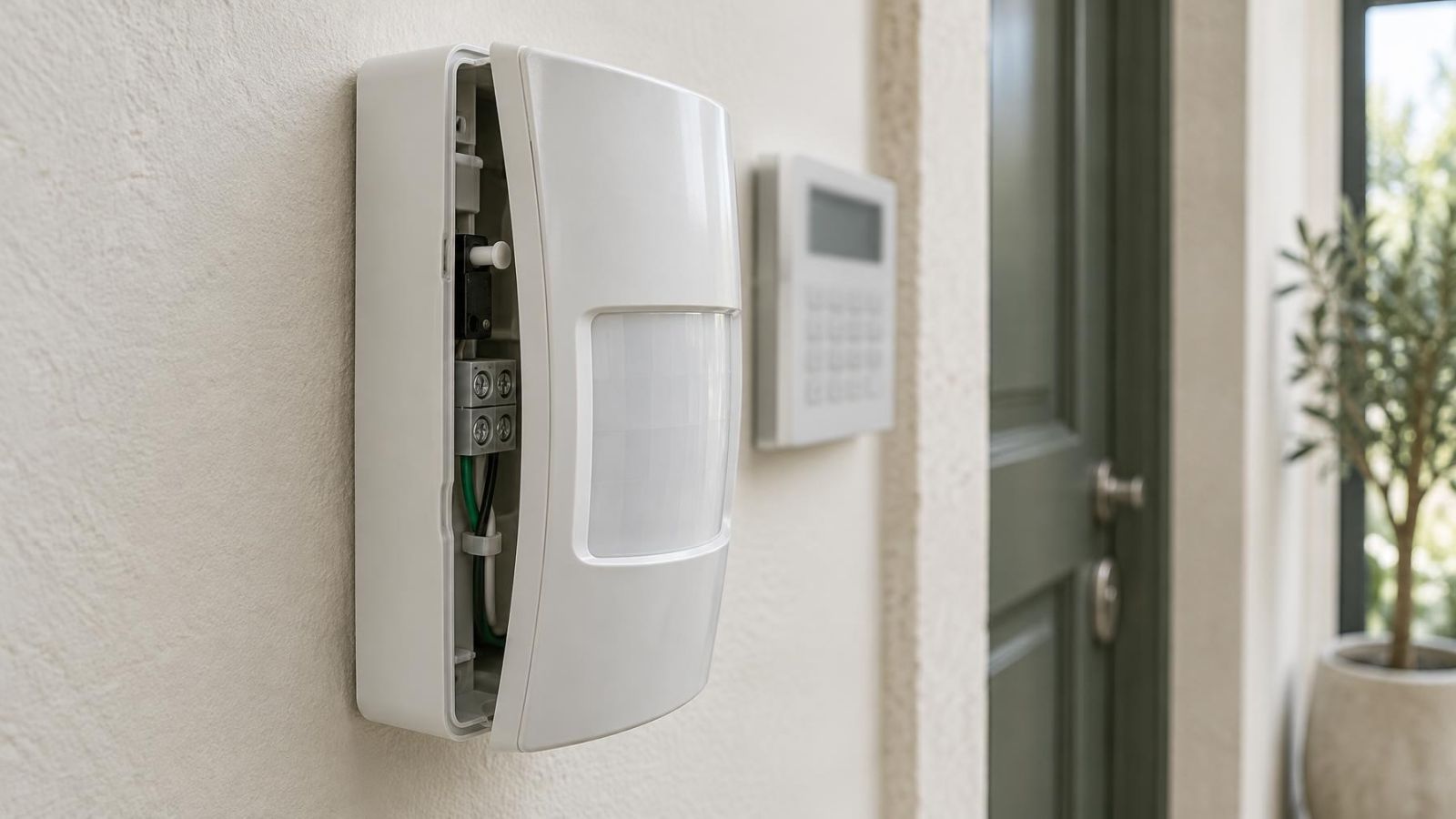
Photograph the alarm panel before touching the terminals. Take one wide photograph showing the complete board and enclosure, followed by close views of each terminal group. Labels must be readable, wire colours visible and cable routes easy to follow. Add temporary cable labels if existing markings are missing or ambiguous.
Also photograph expansion modules, power connections, battery leads, siren wiring and any network or telephone-style modules attached to the panel. Match every photograph to the panel or module name in your notes. Labelled wiring photos make connections easier to reconstruct, but they are not a substitute for recording zone programming.
How do you manually factory reset security equipment?
Use the reset procedure written for the exact device and reset scope. Equipment may use an on-screen command, a physical button, a power-on sequence or a combination of controls. The required order and holding time vary, so a universal button sequence is not reliable. Finish the documentation and backup checks before starting the device-specific procedure.
Are You Ready to Reset?
A backup is useful only when it is identifiable, accessible and supported by enough information to use it. Open exported documents, screenshots and video clips. Confirm that configuration files are present and record the credentials and compatible device context they require. Keep a second copy away from the equipment being reset.
- Verify the configuration export and open the accompanying screenshots and notes.
- Open critical video clips and snapshots independently of the recorder.
- Confirm access to administrator credentials, recovery methods and required user accounts.
- Check that network details include the router, recorder, cameras, switches and any VLAN or address reservations.
- Match camera and wiring photographs to clear device labels and physical locations.
- Write the restoration order before initiating the reset.
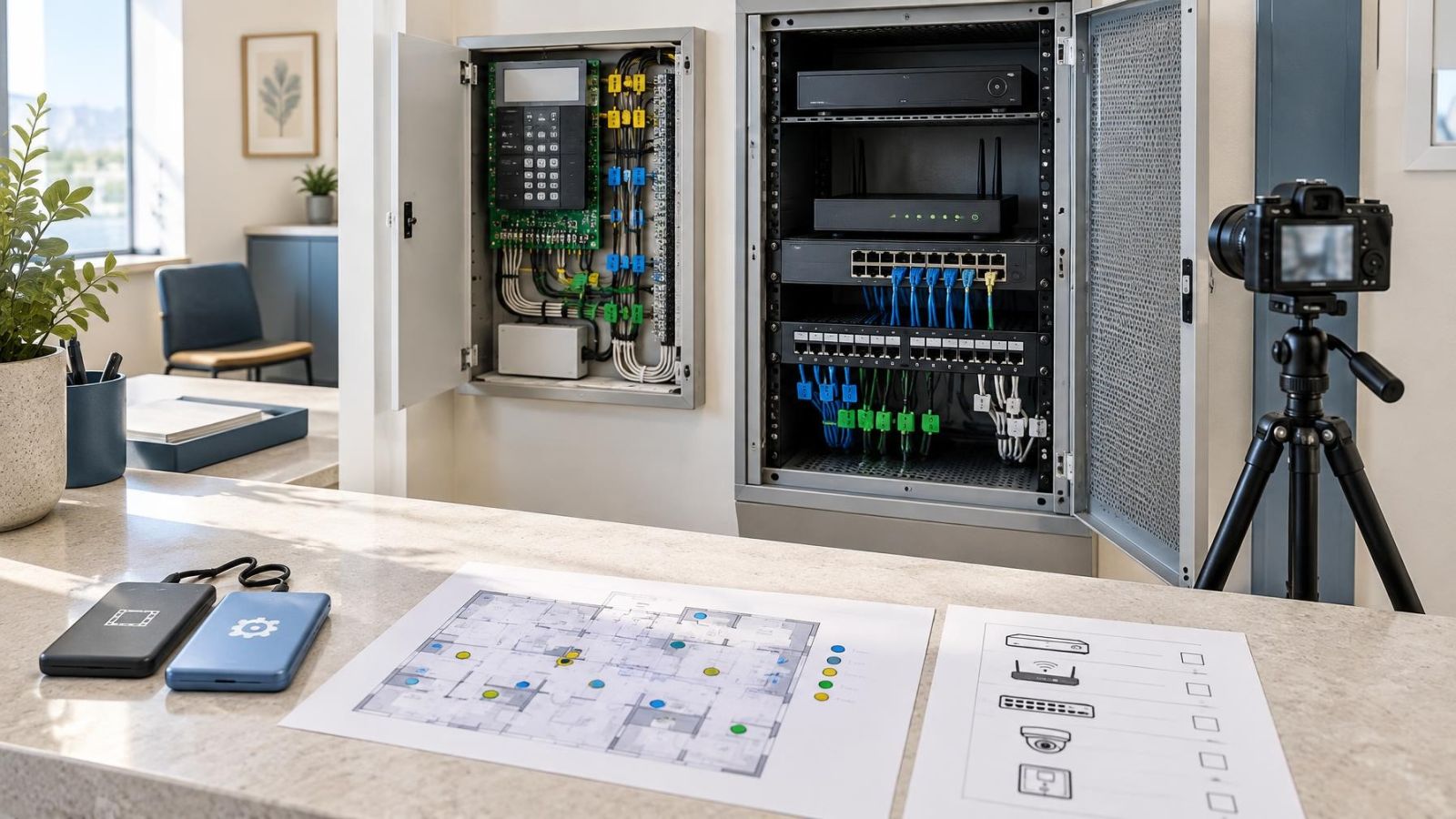
- Prepare a test checklist covering local operation, recording, detection, alarms, notifications and remote access.
The restoration order should follow dependencies. Restore or confirm the router and network first. Configure the recorder and its administrator access. Reconnect cameras, then rebuild recording and detection rules. Restore app access and notifications after local functions work. For an alarm system, establish panel programming and zone assignments before testing arming modes, outputs and messages.
Test one function at a time. Confirm the correct live view and camera name, then check recording and playback. Trigger configured motion detection and verify the intended action. Test each alarm detector against its recorded zone label, followed by arming modes, delays, sirens and notifications. Finally, test remote viewing from a connection outside the property network.
If any required file, credential or network dependency is still uncertain, postpone the reset. More screenshots and a clearer device map are usually easier to create while the existing configuration remains available than after the equipment has returned to defaults.
Key takeaways
- Configuration backups and important recordings should be saved and checked separately before any reset.
- A complete device map should connect camera names, network addresses and alarm zone labels to physical locations.
- Administrator credentials, recovery methods and remote access details must remain available outside the equipment being reset.
- Labelled photographs of alarm wiring and connected devices make physical connections easier to reconstruct.
- A written restoration order and testing checklist reduce missed settings after the equipment returns to its defaults.