On this page
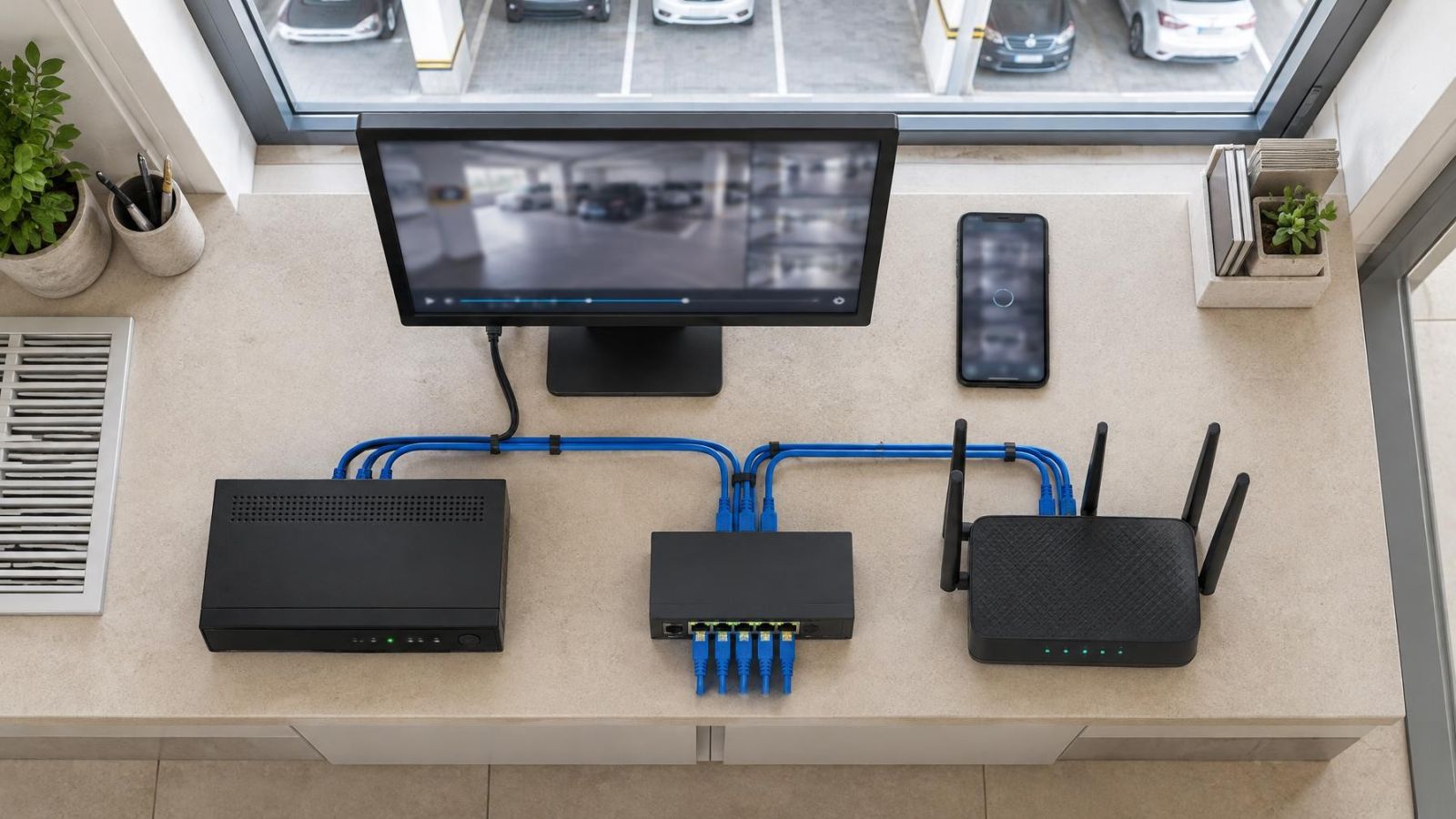
A security camera may send video to a network video recorder, while an internet router connects the system to a mobile app outside the property. Between them may be a wired link, a Wi-Fi network or both. The internet speed that matters for remote live view is primarily the available upload capacity at the camera site. This article explains how to measure that limit, distinguish it from local network trouble and choose settings that fit the way the system will be viewed.
Why internet speed controls remote viewing
Remote viewing reverses the direction people often think about. At the camera site, video is going out through the internet connection, so it uses upload capacity. At the phone, tablet or computer, the same video comes in through the viewing connection and uses download capacity.
Both ends matter, but the camera site is often the first place to investigate. A fast download service there does not imply equally capable upload performance. The viewing device can also struggle if it is using a weak mobile connection, busy public Wi-Fi or another restricted network.
Local recording is a separate path. Cameras connected to an NVR (network video recorder) can continue sending their main streams across the local network without sending all of that recorded video through the internet. Upload capacity is used when someone requests live video, plays back a recording remotely, exports footage remotely or uses another feature that transfers data off site.
An upload bottleneck usually appears as delayed opening, pauses, reduced image quality, a live view that falls behind real time or streams that disconnect when more cameras are opened. These symptoms indicate that data is not arriving smoothly, but they do not prove the internet service is the cause. Weak Wi-Fi, congestion inside the property and an overloaded viewing device can look similar.
What determines each stream’s bandwidth
The clearest practical measure is video bitrate: the amount of video data a stream attempts to send over time. For planning purposes, inspect the configured or reported bitrate of the stream used by the app. Camera count alone says little because two cameras can be configured very differently.
Higher resolution can require more bitrate because each frame contains more pixels. A faster frame rate sends frames more often. Neither setting operates alone. Compression, image noise, lighting and movement also affect how much data is needed to preserve a useful picture.
A quiet indoor scene with stable lighting is easier to compress than foliage moving in wind, rain illuminated by IR, traffic crossing the frame or heavy digital noise in darkness. With variable bitrate, demand can rise when the scene becomes more complex. With a fixed bitrate limit, complex scenes may instead show stronger compression artefacts or lost detail.
Main stream or substream?
Many systems provide a main stream and a substream. The main stream normally carries more detail and is suitable for recording or close examination. The substream uses a lower bitrate and is intended for lighter viewing, especially a multi-camera grid on a mobile app.
These streams can serve different purposes at the same time. An NVR may record the main stream locally while the app requests the substream for live viewing. Opening one camera full-screen can then switch to a more detailed stream if the system supports that behaviour and the connection can carry it.
| Setting or scene factor | Likely bandwidth effect | Practical response |
|---|---|---|
| Higher resolution | Can require a higher bitrate to retain added detail | Reserve it for views where the extra detail is useful |
| Faster frame rate | Creates more frames for the encoder to process and send | Match it to the speed of activity in the scene |
| Frequent movement or image noise | Makes efficient compression more difficult | Improve lighting and avoid unnecessary moving areas |
| Substream | Usually reduces live-view demand | Use it for remote grids and routine checks |
| Several streams at once | Combines the demand from every open stream | Plan around simultaneous viewing, not total camera count |
How much upload speed do cameras need?
There is no single upload requirement for every camera system. Add the bitrates of the streams that will be transmitted at the same time, then allow capacity for ordinary variation and for other devices sharing the connection. The relevant number is concurrent remote demand, not the total bitrate of every installed camera.
For example, a property may record many main streams locally while a remote user normally opens a grid of lighter substreams. Only the streams being sent remotely contribute to that viewing session. If another user opens additional cameras, their streams add to the outbound load. A cloud recording arrangement can create a more continuous upload demand because video is being sent away from the site for storage.
Do not plan for the calculated stream total to consume all measured upload capacity. Internet performance changes, and calls, file synchronisation, backups, messaging and other services may share the same connection. A working margin lets those activities coexist without forcing video to compete for every available part of the link.
Live view and recorded playback also behave differently. Live view must remain close to the present, so delayed packets quickly become visible as lag or pauses. Playback may send recorded video at its normal pace, seek to another point or transfer it faster for export. Reviewing several main-stream recordings remotely can therefore demand considerably more than checking a substream grid.
Plan for the streams people will open together, not merely for the number of cameras on the property.
How do you test upload speed?
Run an internet speed test from the camera network and read the upload result separately from the download result. The advertised or headline connection description is not a substitute for a measurement made through the equipment and route the camera system actually uses.
How can I check internet speed at the camera site?
- Connect a computer by Ethernet to the same router or network path used by the recorder, where practical.
- Pause avoidable heavy transfers so the first test shows the connection without an obvious competing task.
- Run a reputable broadband speed test and record upload performance, download performance and latency.
- Repeat the test while the network is being used normally, including at times when remote viewing tends to be troublesome.
- Compare the results with a test over the Wi-Fi used by a wireless camera or recorder connection.
The wired result helps isolate the internet service from radio conditions. If wired upload performance is steady but a Wi-Fi speed test near a camera varies sharply, the local wireless link deserves attention. If both wired and wireless tests show unstable upload performance, investigate the router, shared traffic and the external connection.
A single result is only a sample. Repeated tests reveal whether capacity is consistent during normal use. Also watch latency and stability. A connection may report enough throughput yet still produce a poor live view if delay changes abruptly, packets are lost or the link drops for short periods.
Separate internet limits from Wi-Fi problems
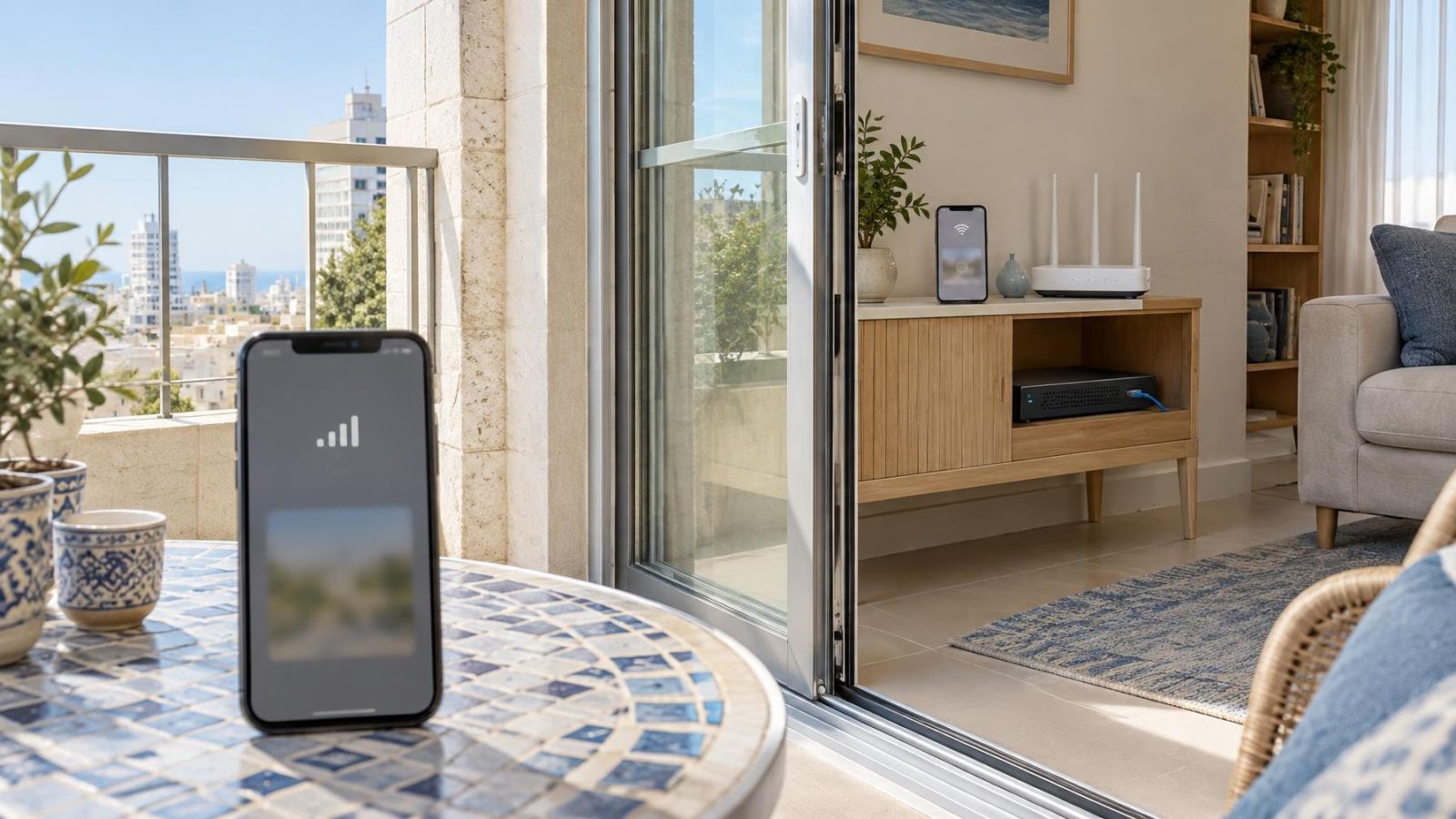
Internet upload capacity concerns the link leaving the property. Wi-Fi concerns the local radio path between a camera, recorder, access point or router. A fault in either path can interrupt remote video, but the corrective work is different.
Wireless cameras may have weak signal where they are mounted, even when a phone appears to work nearby. Walls, metal surfaces, reflective glazing, distance, antenna orientation and the camera’s exact position all affect the radio path. Outdoor locations can be especially deceptive because the mounting surface may sit between the camera and the access point.
Interference and shared airtime matter as well. Nearby networks and local wireless devices compete for radio time. A speed test performed close to the router does not reveal what happens at the camera. Test near the installed position where possible, and observe performance while the rest of the network is active.
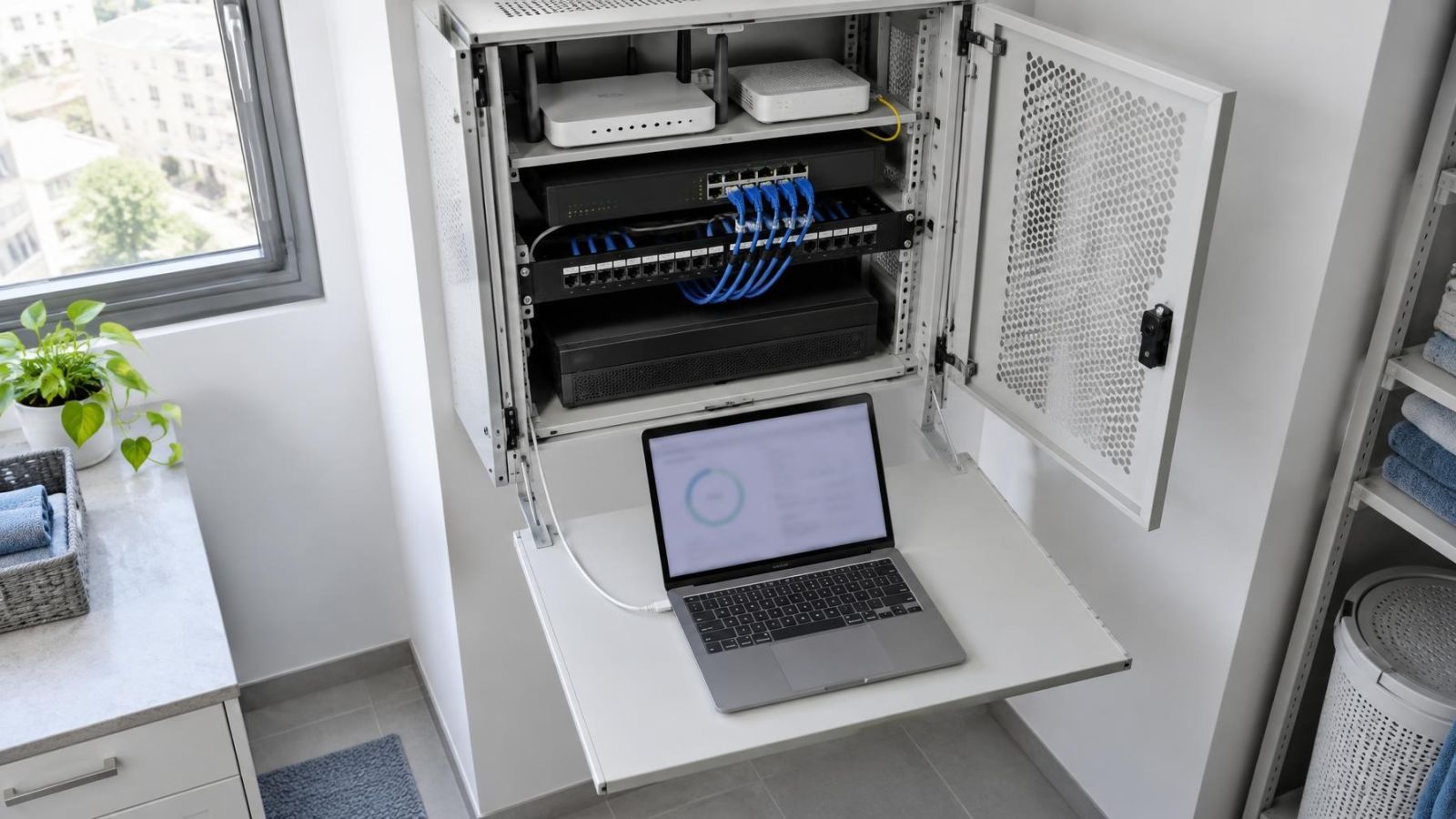
The recorder’s connection is equally important. Cameras may reach an NVR reliably, but remote viewing can still fail if the NVR has a poor link to the router. Where a wired connection is practical, it removes a variable from this critical path. Comparing wired and wireless results is one of the quickest ways to identify whether the bottleneck is local radio or the internet connection.
- If local live view is smooth but remote view is not, inspect the internet path and remote stream settings.
- If both local and remote views from a wireless camera are unstable, inspect its Wi-Fi link first.
- If one camera struggles while others remain stable, compare that camera’s signal, bitrate and scene complexity.
- If all streams degrade when another device uploads heavily, shared outbound capacity is a likely constraint.
Reduce bandwidth without losing usefulness
Start by selecting a substream for routine remote viewing. This often provides the largest practical reduction while leaving the main recording stream unchanged. A camera grid does not usually need the same detail as full-screen review, particularly on a small display.
If further adjustment is needed, reduce the remote stream’s bitrate before lowering resolution automatically. A sensible bitrate limit may preserve the pixel dimensions while applying stronger compression. Check the result in real scenes, however. Too little bitrate can smear moving subjects, flatten fine texture and create block-like artefacts.
Set frame rate according to what the camera watches. Fast movement may benefit from more frequent frames. A quiet doorway, storage area or garden may remain useful with fewer. The aim is not the highest available setting; it is enough temporal detail for the intended viewing task.
Efficient video compression can reduce demand, but every camera, recorder, VMS (video management software), browser and mobile app in the viewing chain must support the selected format. A theoretically efficient setting is not useful if it prevents reliable playback on the devices people actually use.
Finally, avoid opening more high-detail streams than necessary. Use a substream grid to find the relevant view, then open one camera in greater detail. This changes demand at the moment it matters without weakening the recordings kept on site.
Plan the camera and network settings
Begin with viewing habits. Decide whether remote access will usually mean checking one entrance, watching a multi-camera grid, reviewing recorded events or exporting longer sections of footage. These actions place different loads on the connection.
Then consider concurrency. More than one person may use the mobile app, and each session can request its own streams. A shop owner checking several views while another authorised user reviews playback creates a different load from a single occasional live view.
Confirm where recording takes place and how playback reaches the viewer. Local recording keeps routine camera-to-recorder traffic inside the property, but remote playback still uses site upload capacity. Recording away from the site sends video across the external connection as part of normal operation, so that continuing demand must be included in the plan.
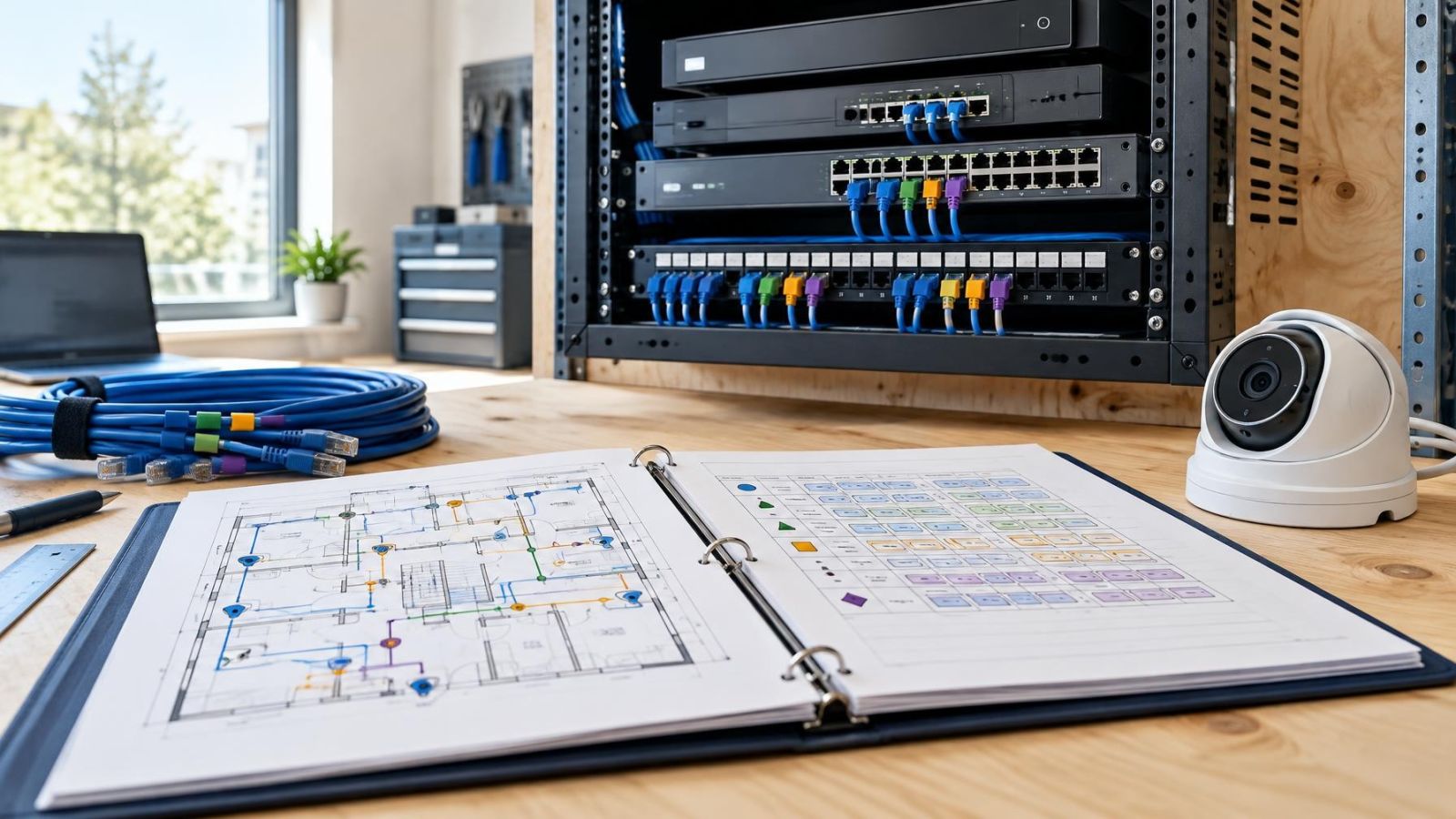
Document the main stream and substream settings for each camera: bitrate mode and limit, resolution, frame rate, compression format and which stream the app uses for grid and full-screen views. Also note whether the recorder is wired to the router. Clear records make later adjustments controlled rather than experimental.
Finish by verifying behaviour through the actual mobile app over an external connection. Open the number of cameras people expect to view, switch between grid and full-screen modes, and test recorded playback. Repeat the check while the property network is under normal load. The final measure is not the speed-test result alone, but whether the chosen settings produce stable, appropriately detailed video in ordinary use.
Key takeaways
- Upload capacity at the camera site governs how much live or recorded video can leave the property at once.
- Combined stream bitrates are more useful for planning remote viewing than the number of installed cameras.
- A wired internet speed test helps separate an internet connection limit from weak or congested Wi-Fi.
- A substream can reduce remote-viewing demand while the main stream continues to provide more detail for local recording.
- Camera and network settings should reflect how many streams people actually view at the same time.