On this page
The shorthand description “camera app not WiFi” usually means a camera app can display a security camera or video recorder through a mobile data connection, but not through the home Wi-Fi router. That pattern tells us something useful: the external route works, while a route through the local network does not. The question is therefore not simply whether the camera is online. It is which network path the phone is trying to use, and where that path stops.
Camera App Not WiFi: What the Connection Pattern Reveals
Successful viewing on mobile data is a strong diagnostic clue. The app can authenticate, the account or saved device entry is recognised, and the system can deliver video through an external connection. The security camera, recorder and internet connection at the property are therefore doing enough to support that route.
It does not prove that every part of the system is correctly configured. Many apps use one route when the phone is outside the property and another when it joins local Wi-Fi. The mobile-data test confirms the external route. It says little about local addressing, wireless separation or router filtering.
Why do cameras work on mobile data?
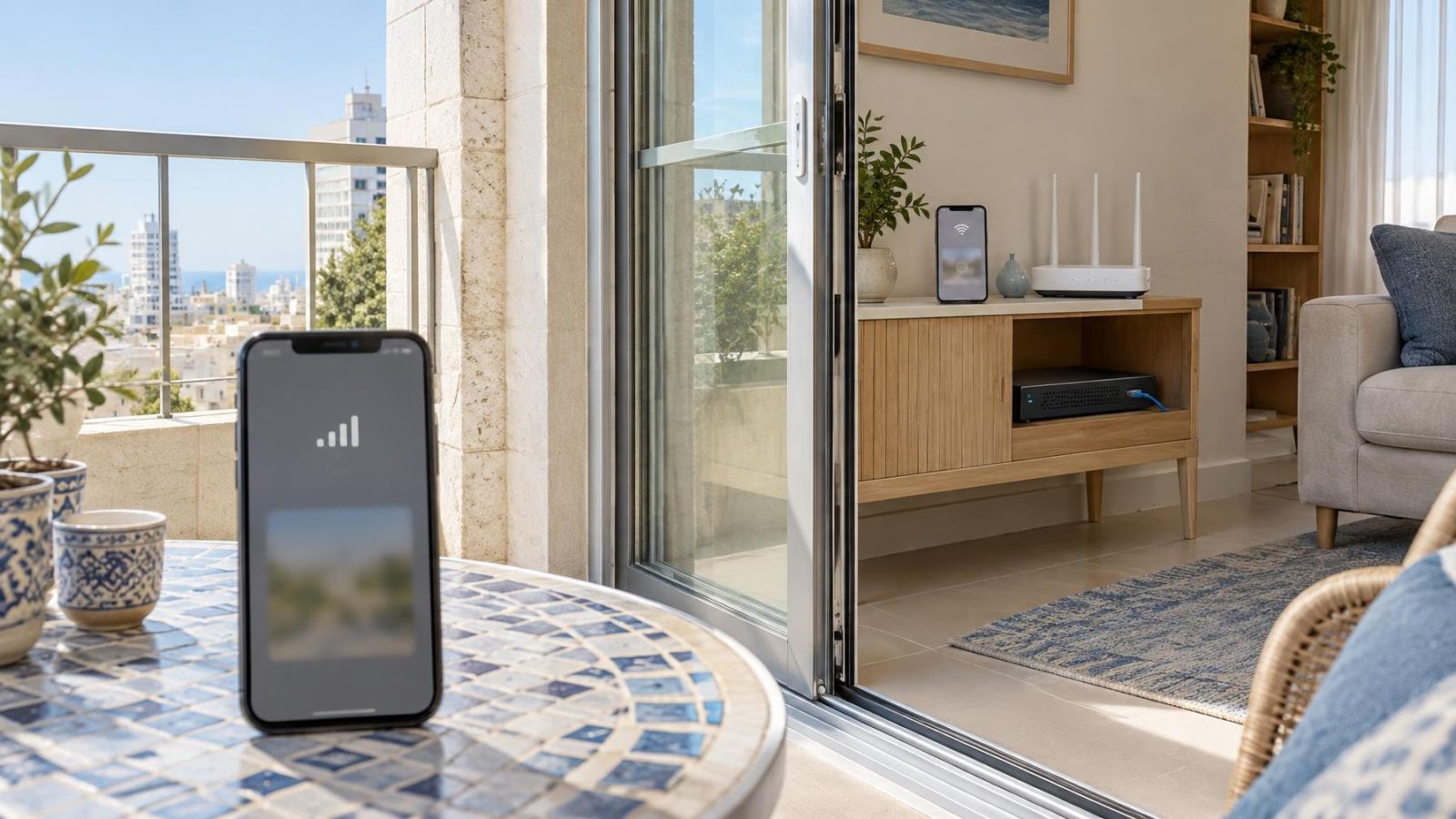
Mobile data places the phone outside the property network. The app normally reaches a cloud service or an externally available recorder connection over the internet. When the phone joins Wi-Fi, the app may continue using that cloud route, switch to a local IP address, or attempt local discovery. A problem affecting only one of those methods can produce the apparently contradictory result.
It is also important to separate internet access from local device access. A phone can open websites through a router while being prevented from contacting a recorder in the same building. The reverse is possible too: a local camera may remain viewable inside the property even if that Wi-Fi network has temporarily lost internet access.
Mobile-data success does not clear the whole network; it confirms that one complete connection path is working.
How Remote Viewing Reaches Your Camera
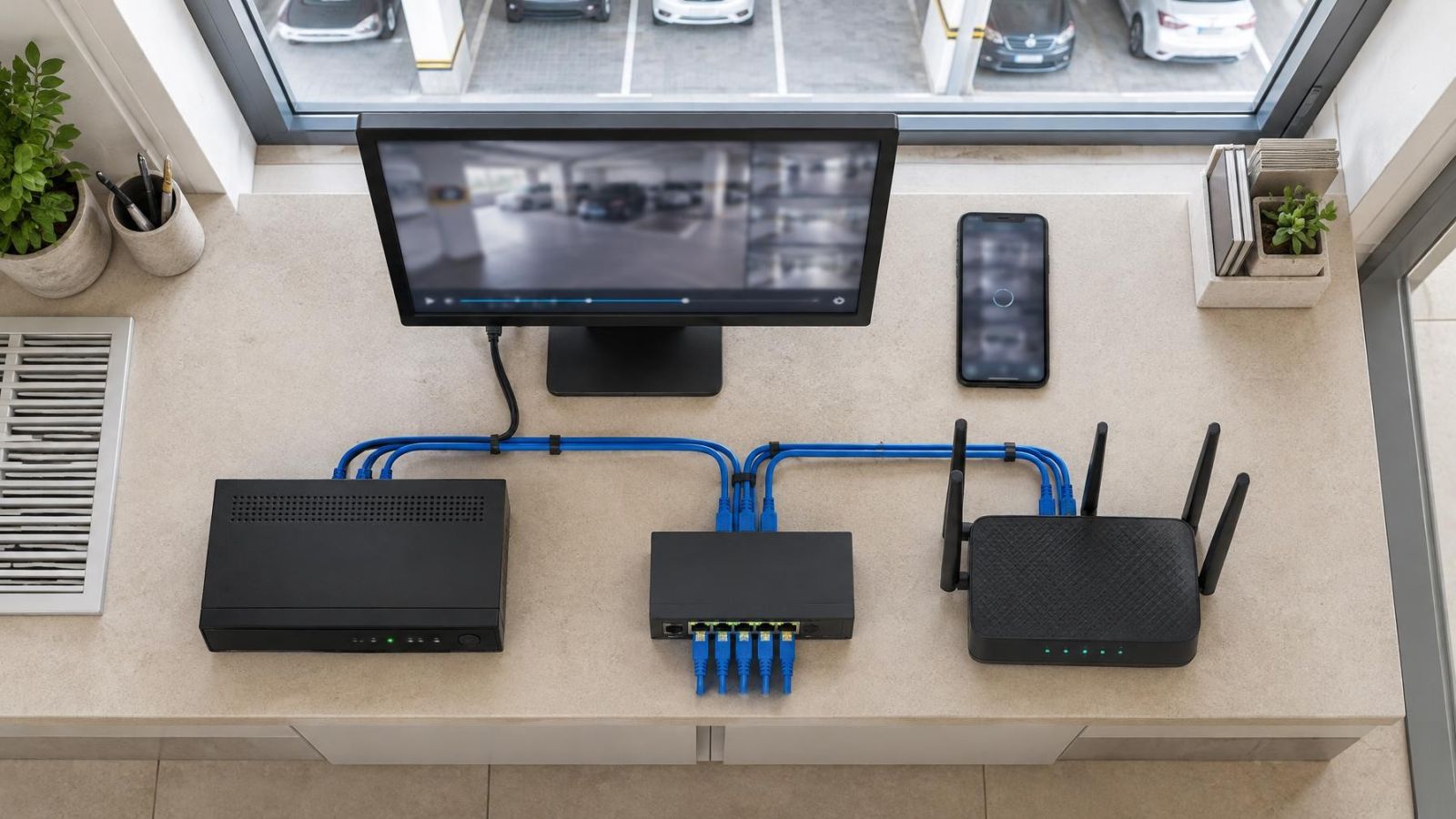
The video begins at a security camera or at the video recorder receiving its stream. In an IP system, the recorder may be an NVR (network video recorder). Other installations may use a DVR or VMS (video management software). Regardless of the recording platform, the app still needs a valid route to the source or to a service that relays its connection.
How does remote viewing use local Wi-Fi?
There are two broad connection methods. A cloud-assisted app contacts an internet service, which then locates the camera system and negotiates the session. A direct connection targets the recorder or camera itself, usually through a local IP address while the phone is on the property network. Some apps support both and choose automatically.
| Phone connection | Typical route | What must work |
|---|---|---|
| Mobile data | Phone to mobile network, internet service, then camera system | External connectivity, app authentication and the property internet connection |
| Property Wi-Fi using cloud access | Phone to router, internet service, then camera system | Wi-Fi internet access, DNS resolution and permitted cloud traffic |
| Property Wi-Fi using direct local access | Phone through the local network to the camera or recorder | Compatible local addressing and permission to communicate between devices |
This distinction matters in Israeli homes and small businesses because the router is not always the only network device. An apartment may have the provider router in a communications cabinet and additional access points around the home. A private house may use separate wireless coverage for the garden or gate. A street-front business may separate staff, customer and security equipment. Two Wi-Fi names can appear equally usable while placing connected devices on different network segments.
Some apps discover a recorder automatically when the phone is nearby. Others retain a manually entered local address. If the app changes method when Wi-Fi connects, a broken local entry can take priority over an external route that still works on mobile data.
Why Does Viewing Fail on Wi-Fi?
Why does the camera app fail on the home network?
The most common explanations are separation, filtering and addressing. None requires a fault in the camera image itself.
- Guest network separation: Guest Wi-Fi usually provides internet access but may block access to equipment on the main local network. A phone on the guest network may therefore browse normally while remaining unable to reach the recorder.
- Device isolation: A router or access point can prevent wireless clients from communicating with other clients. Depending on the network layout, that may block discovery or direct access to the camera system.
- Firewall or content filtering: Rules applied to the Wi-Fi network can interrupt the app’s cloud connection. Ordinary websites may still work because the app and browser do not necessarily use the same destinations or connection types.
- DNS resolution failure: The phone may have internet connectivity but fail to translate the cloud service name into a reachable address. This often looks like an app problem because general browsing can remain partly functional.
- Conflicting local IP addresses: If two devices use the same local address, access can be intermittent or may reach the wrong device. The result can change after equipment restarts and reconnects.
Managed networks add another possibility. Cameras, recorders, staff phones and guest devices may be placed on separate network segments or a VLAN. Communication between them then depends on routing and firewall rules, not simply on whether they use access points in the same building.
Check the Network Before the Camera
Start with the connection path that differs between the successful and unsuccessful tests. Avoid changing camera settings merely because the camera app reports that the device is offline.
- Confirm that the phone is connected to the intended property Wi-Fi, not guest Wi-Fi, a neighbouring saved network or an isolated network intended for other devices.
- Use the same phone and Wi-Fi connection to check ordinary internet access. If internet access also fails, deal with the Wi-Fi or router connection before investigating the camera system.
- Check the network status shown by the camera or recorder. A recorder may display its current IP address, gateway, DNS details and cloud connection state on a locally connected monitor.
- Restart the router before resetting security equipment. A normal restart can clear a stalled connection or renew addressing without erasing camera names, recording settings or account associations.
- If the property uses separate access points, test through the main router’s Wi-Fi where possible. This temporarily removes an extender, mesh link or managed access point from the path.
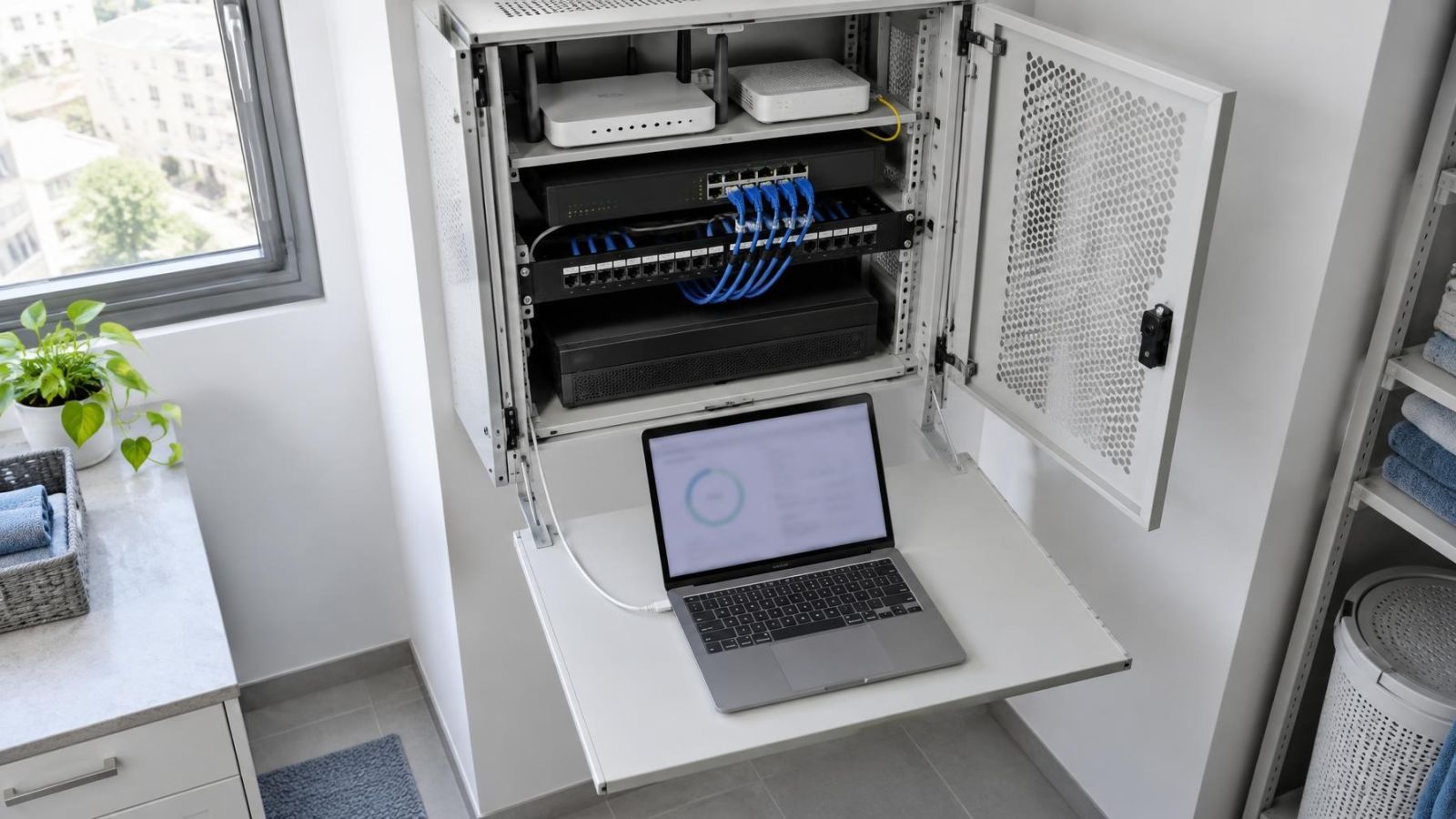
A router and an access point perform different jobs. The router normally assigns local addresses and controls traffic between the local network and the internet. An access point provides wireless access to that network. In a larger installation, however, the access point may apply its own guest policy or client isolation. Restarting or inspecting only the router can miss the device that is actually blocking communication.
Do not assume that a strong Wi-Fi signal means the required route is available. Signal strength shows that the phone can communicate with an access point. It does not confirm that the access point permits traffic to the recorder or to the app’s cloud service.
Is Local Addressing Causing the Problem?
Local addressing deserves attention after a router replacement or network redesign. A new router may use a different address range. A recorder that retained an old fixed address can then sit outside the new local network, while an app may continue trying to reach an address that no longer belongs to the recorder.
Automatic addressing allows the router to assign an available local IP address. Fixed addressing keeps the device at a chosen address. Either approach can be stable when planned correctly. Problems arise when a fixed address does not match the router’s current network, or when the router automatically gives the same address to another device.
- A saved local address in the app may be outdated even though cloud viewing still works.
- A recorder may display an address that belongs to the previous router’s address range.
- A duplicate address may cause intermittent access, connection warnings or a changing response after devices restart.
- A manually configured gateway or DNS address may still refer to the previous router.
- Automatic addressing may give the recorder a new address, leaving a direct app entry pointed at the old one.
Check the recorder through its current address, not the address written on an old note or saved in an app entry. The active address can often be seen on the recorder’s local interface or in the router’s connected-device list. Device names in router lists are not always clear, so compare network details carefully rather than editing the first unfamiliar entry.
Test Without Losing Working Settings
Troubleshooting is more reliable when each test has a clear purpose. Repeatedly switching settings can make a temporary success difficult to explain and can remove information about the original fault.
- With the app open, test on mobile data and note whether live view, playback and device status load.
- Join the intended Wi-Fi and repeat the same actions without changing the app entry.
- Move beside the main router or its primary access point and repeat the Wi-Fi test. This reduces coverage and roaming issues.
- Confirm whether another phone on the same Wi-Fi shows the same behaviour. Keep the same account and device entry where practical so the network remains the main variable.
- Temporarily test a non-guest Wi-Fi network at the property if one is available and authorised for the device.
- Record the result, then change only the setting relevant to the suspected cause.
Leave a factory reset until last. A reset can erase recording schedules, camera names, network details, motion detection settings and account associations. It also cannot correct a router rule that blocks communication. Resetting too early may turn one network-path fault into several configuration tasks.
The same caution applies to deleting the device from the app. If mobile-data viewing still works, the existing app entry contains useful working information. First determine whether the Wi-Fi route is being blocked, whether the app is switching to an obsolete local address, or whether the cloud service cannot be resolved from that network.
Decide What Needs Reconfiguration
The test results should point to the layer that needs attention. If the app fails only on guest Wi-Fi but works on the main Wi-Fi, review guest separation rather than camera settings. If every device on the Wi-Fi has trouble reaching the app service, inspect DNS, filtering and firewall behaviour. If direct access fails after a router change, verify the recorder’s local network details and the address saved in the app.
- Router or access-point settings: Review guest access, device isolation, network segmentation, DNS choices and filtering.
- Camera or recorder settings: Correct the local IP address, gateway or DNS details only when the current values do not fit the network design.
- App device entry: Update an obsolete local address or select the intended connection method without disturbing an external entry that still works.
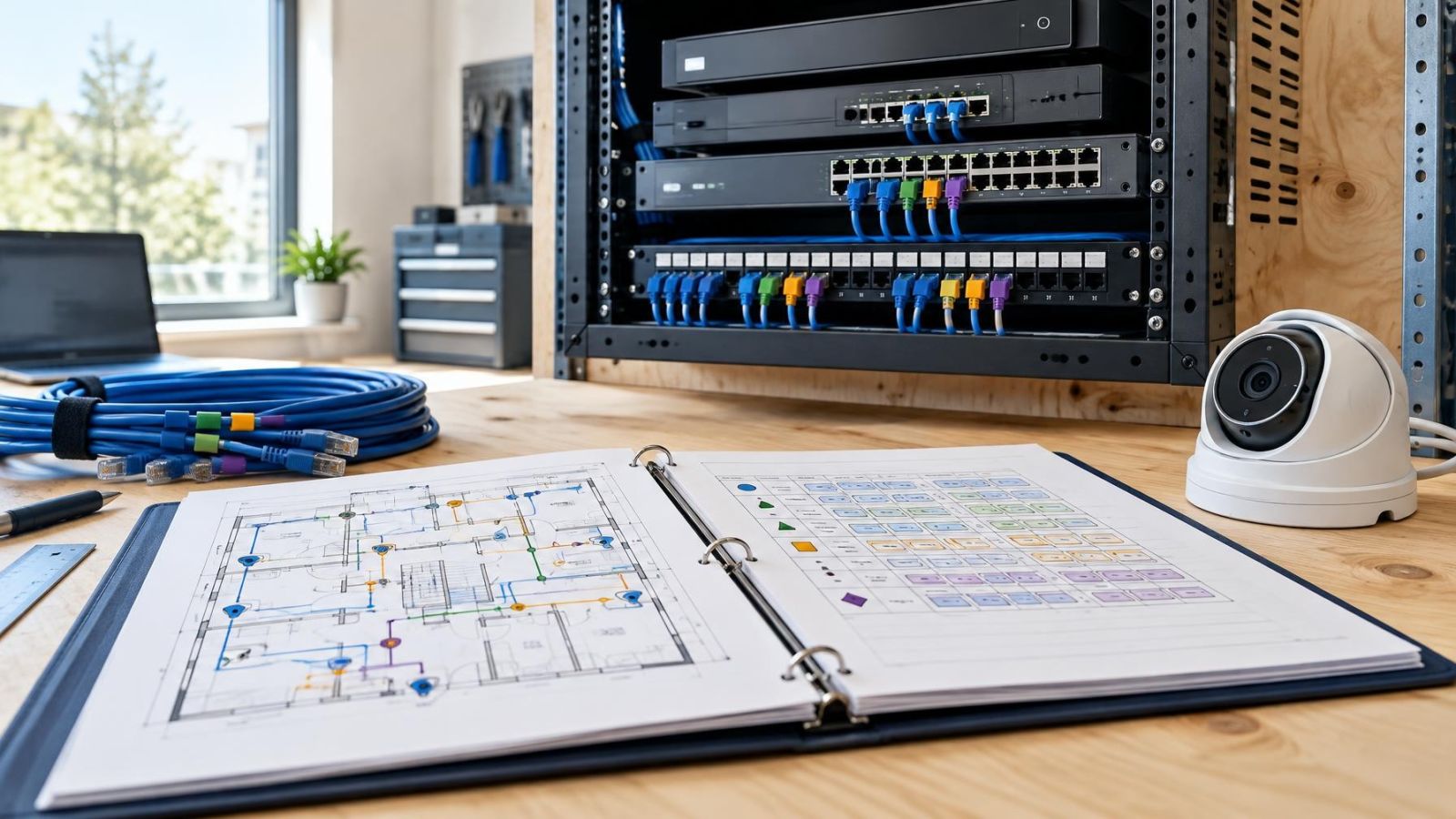
- Managed network configuration: Ask the network installer to verify routing between the security equipment and authorised user devices. The camera installer may need to provide the recorder’s current network details.
- Final verification: Test from the property Wi-Fi and then through mobile data. Also check the functions you actually use, such as live view, playback and notifications.
A stable result should survive moving between internal and external connections without manual repair each time. The aim is not merely to make one test pass. It is to give the app a valid, repeatable path from the networks where it is expected to operate.
Key takeaways
- Successful viewing over mobile data narrows the likely fault to the Wi-Fi connection path rather than the camera image.
- A guest network or device-isolation setting can provide internet access while blocking communication with a local security camera or recorder.
- Changing a router can make saved local addresses and fixed network settings obsolete.
- Network checks should be completed before a security camera or recorder is returned to factory settings.
- Changing one variable at a time preserves working settings and makes the failing connection layer easier to identify.