On this page
What It Means When a Camera View Freezes
A network camera can remain listed as online in a camera app while the picture stops moving. The video recorder may still be operating, the router may still have internet access, and the Wi-Fi connection or Ethernet cable may still pass some data. When a camera view freezes, the practical question is not simply whether the camera is connected. It is which part of the path has stopped carrying usable video.
The online indicator normally reflects a control or status connection. That connection uses little data compared with a live stream. A camera may therefore answer a status request even when video packets are delayed, dropped or no longer reaching the viewing device.
Why Is the Security Camera Image Frozen?
Start by distinguishing a frozen frame from a blank screen. A frozen frame is an earlier image that remains displayed. A blank or error screen usually means the viewer has no usable frame to show. Those symptoms can share a cause, but they provide different clues.
- Watch the timestamp. If it has stopped advancing, the displayed frame is stale even if objects in the scene are not moving.
- Look for small natural changes. Leaves, shadows, reflections and people are more reliable clues than a quiet room.
- Open playback. A frozen live view does not establish that recording has stopped.
- Note the exact symptom. A still frame, black screen, loading symbol and connection error should not be treated as identical faults.
The word online describes a connection state. It does not certify the full video path.
Why Is the Camera Online With No Video?
The camera can continue sending a small heartbeat or responding to control messages while its video data is interrupted. This creates the confusing combination of camera online, no video. The failure may sit in the camera itself, its power supply, the local network, the video recorder, the internet connection or the app session.
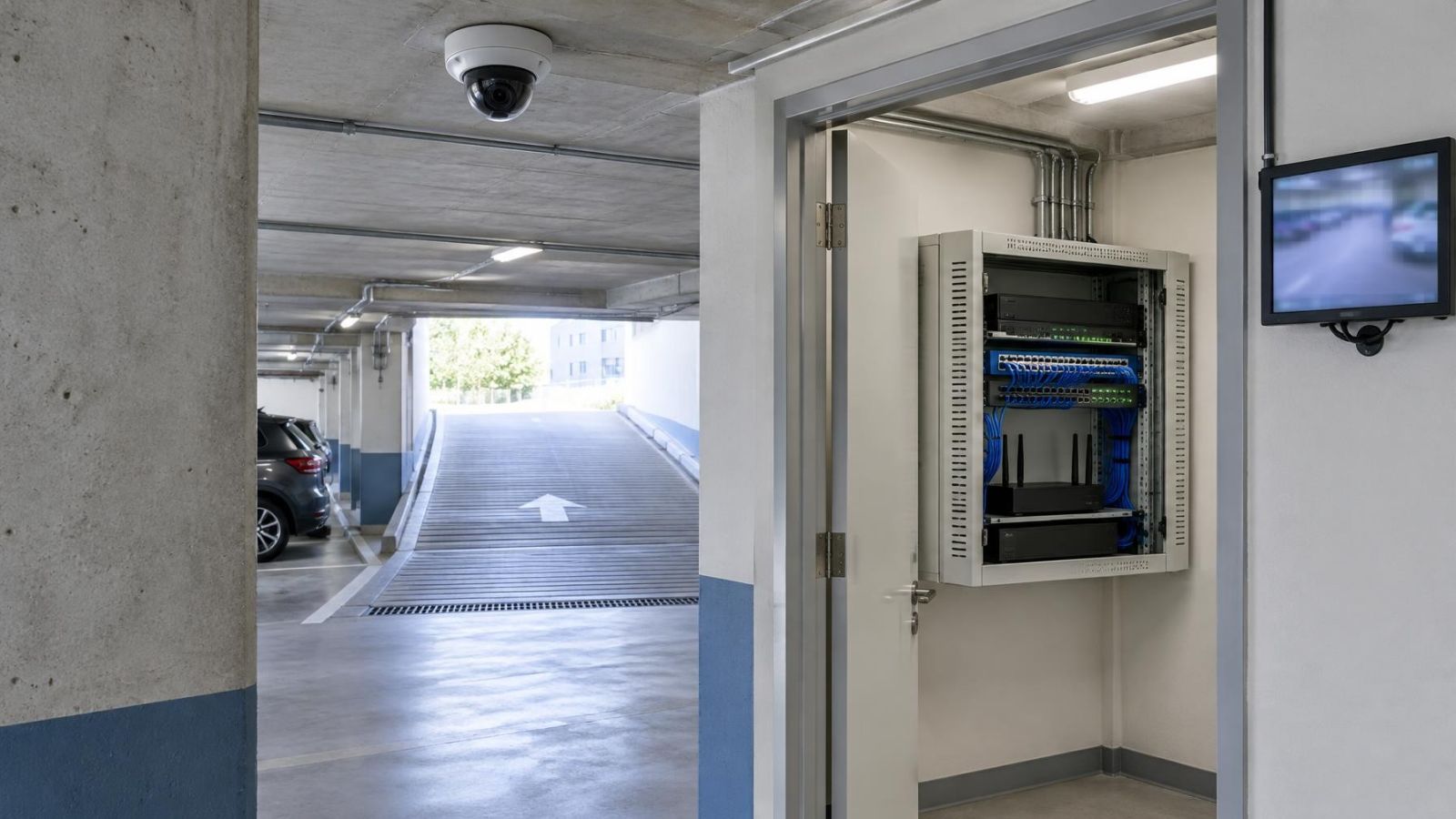
It helps to treat those components as separate links. The camera produces the stream. A cable or Wi-Fi link transports it. The router directs network traffic. An NVR (network video recorder) may receive and store it. The app or VMS (video management software) requests and displays it. A green status symbol at one link says little about the others.
Stream selection can also matter. Many systems offer a main stream for recording and detailed viewing, plus a lower-bandwidth substream for phones and remote access. An app may fail to negotiate one stream even though another remains available. An expired app session can produce a similar symptom: the device list updates, but the selected video never starts.
Find Where the Freeze Begins
Diagnosis becomes much faster when you compare paths instead of changing several settings at once. Make each comparison while the fault is present. If the picture starts working again, write down what changed rather than assuming the last action fixed it.
Camera Live View Frozen: What Should You Check First?
- Check a local monitor connected to the recorder. If local video moves but the phone view is frozen, the camera-to-recorder path is probably still carrying video.
- Check playback for the affected period. Moving recorded footage with a frozen live view points towards viewing, stream selection or app delivery rather than complete camera failure.
- Compare another camera. One failed channel suggests a camera, cable, port or channel issue. Several affected cameras suggest a shared recorder or network path.
- Try another viewing device. Use a second phone or computer if available. This separates a device-specific problem from a wider system problem.
- Change the access path. Compare remote viewing over mobile data with viewing through the property network, without changing other variables at the same time.
- Try the substream. If the lower-bandwidth stream works while the main stream stalls, investigate available bandwidth, packet loss, recorder load and stream handling.
| Observation | Likely area to inspect | What it does not prove |
|---|---|---|
| Local live video works; remote view freezes | App session, internet path, router or remote stream | It does not prove that every recording is complete |
| Playback moves; live view freezes | Live stream request, app, VMS or decoder | It does not prove that the network is fully stable |
| One camera freezes; others work | Camera power, cable, wireless link, port or recorder channel | It does not prove that the camera itself is faulty |
| Main stream freezes; substream works | Bandwidth, packet loss, stream settings or processing load | It does not prove that lowering quality is the correct permanent fix |
| Local and remote views both freeze | Camera, power, local network or recorder | It does not prove that recording has stopped |
Check Network and Wi-Fi Conditions
Video is less tolerant of an unstable link than a status message. A weak Wi-Fi signal may be sufficient for the camera to remain visible in the app while sustained video traffic suffers packet loss. The result can be pauses, growing video latency, repeated loading or a frame that never updates.
Israeli homes often contain reinforced concrete walls. A mamad, the reinforced safe room found in many homes, is particularly difficult for wireless signals. A router inside the mamad may serve nearby devices poorly, while a wireless camera inside it may struggle to reach a router elsewhere. A signal indicator can still appear acceptable even when the path changes from minute to minute.
Busy connections can have the same visible effect. Cloud backups, video calls, large downloads and several simultaneous camera streams compete for capacity. In a street-front business, guest Wi-Fi, payment devices and staff devices may share infrastructure unless the network has been planned to separate them.
- Check whether the freeze follows periods of heavy network use.
- Compare Wi-Fi viewing with a wired local connection where possible.
- Inspect the Ethernet plug for a loose latch, movement or visible damage.
- Check exposed cable routes for crushed sections, tight bends and connectors affected by dust or moisture.
- If cameras use PoE (power over Ethernet), inspect the network cable and PoE port because one path carries both data and power.
- Confirm that any VLAN used for cameras still permits the required path between cameras, recorder and viewing devices.
Check Power, Camera and Recorder
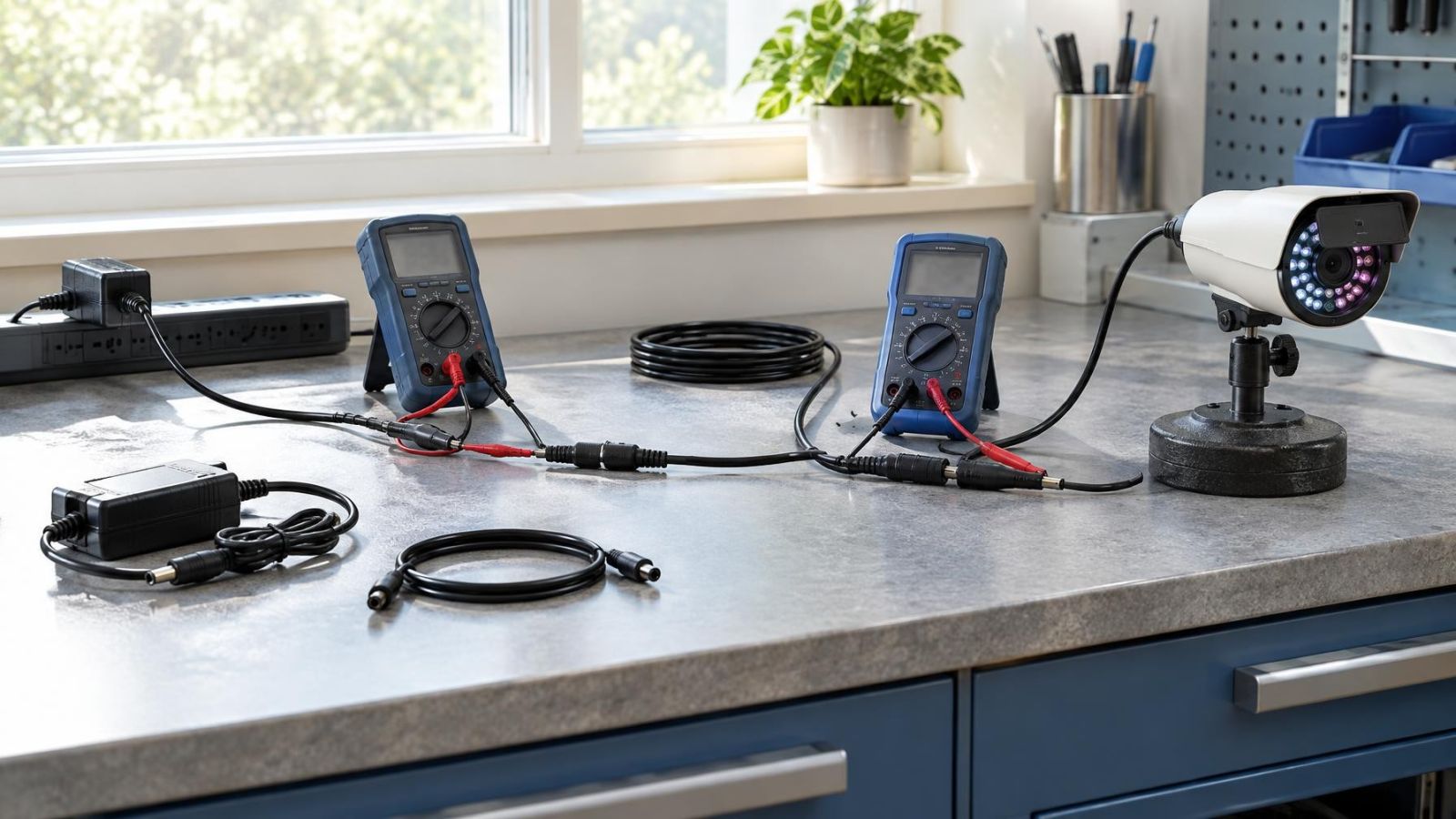
Unstable power can imitate a network fault. A camera may start, announce itself to the system and then become unreliable when the IR illuminator switches on or processing demand changes. With PoE, a poor connector or cable can disturb power and data together. With a separate power supply, inspect both the camera end and the supply end.
Connections deserve a physical check, not only a software check. A plug can look inserted without being firmly seated. Outdoor junctions may collect dust or moisture. Cable movement near a gate, shutter or cabinet can create intermittent behaviour that disappears during a brief test.
The recorder is another independent point of failure. One channel may stall while others continue. The recorder may also be busy decoding several high-data live views even while it continues writing footage. Compare a single-camera view with a multi-camera grid, and compare live viewing with playback.
Heat and dust matter around routers, PoE switches and recorders. Equipment placed in a sealed cupboard, on top of another warm device or behind stored items cannot shed heat properly. Do not block ventilation openings. Cleaning should be gentle and should not push dust deeper into the equipment.
Use an Orderly Restart Sequence
Before restarting anything, record which views fail, whether playback works, and what each timestamp shows. Then close and reopen the app. If the fault remains, restart the affected camera or its power source where that can be done safely. Restart the recorder next if the channel remains stalled. Restart the router only when the evidence points to a wider network problem, because doing so interrupts other connected services.
Wait for each component to finish starting before moving to the next. Restarting the camera, recorder and router together may restore the picture temporarily, but it removes the evidence needed to identify which link failed.
Separate App Problems From System Problems
A fresh app session is a low-impact test. Close the live view, sign in again if necessary and request the camera once more. If the device list updates but only one live window remains frozen, switch away from that camera and return to it. Also check whether the app has selected a main stream that the current connection cannot carry reliably.
Compare local and remote access deliberately. If a phone works on the property's Wi-Fi but not from another network, focus on remote delivery, the internet path or the account session. If remote access works but the same phone fails locally, investigate local routing and Wi-Fi behaviour. If another account or device works on the same path, the original app session or device is a stronger suspect.
- Request the lower-bandwidth substream and note whether it starts promptly.
- Test another camera in the same app to see whether the failure is channel-specific.
- Test the affected camera from another authorised device or account.
- Restart the viewing device if several video apps are behaving poorly.
- Clear the app cache only if that option is understood and does not remove saved access information.
- Avoid deleting the camera from the account merely to refresh a stalled view.
A lower-bandwidth stream that works is useful diagnostic evidence, not necessarily the final answer. Leaving the system permanently on the lighter stream can conceal a weak link that may also affect playback access or other cameras.
Decide the Next Practical Step
By this stage, describe the failure as a path rather than as a general complaint. For example: local playback moves, local live view moves, and remote live view freezes only on one phone. Or: one camera freezes on the recorder and in every app, while the other cameras remain normal. That description directs attention to the right link.
- For a physical connection fault: reseat or replace the suspect plug, correct damaged cable routing, or test another suitable port.
- For unstable power: inspect the supply, PoE source, connectors and cable rather than repeatedly restarting the camera.
- For weak Wi-Fi: reconsider access-point placement, especially around reinforced walls and the mamad, or provide a wired connection.
- For an app-only fault: preserve the working camera and recorder settings while correcting the session, device or stream selection.
- For a persistent recorder-channel fault: document the affected channel, playback behaviour and comparison with other cameras before requesting diagnosis.
Avoid a factory reset as a general troubleshooting step. It can erase network details, recording schedules, stream settings and remote-access configuration without repairing a weak cable, unstable supply or poor wireless route. If the fault persists after the comparisons above, an installer can test the path component by component while preserving the configuration that still works.
Key takeaways
- An online status confirms contact with the camera but does not prove that video is moving.
- Playback and local viewing usually isolate a frozen stream more effectively than repeated restarts.
- Network, power, camera and recorder checks are most useful when performed in a clear order.
- Reinforced concrete walls and mamad placement can make a wireless camera link unstable even when a signal remains visible.
- Persistent freezing requires diagnosis of the failing path rather than a factory reset.