On this page
A network camera encodes each scene before sending it to a video recorder, but it does not normally store every frame as a complete picture. Instead, each keyframe begins a group of pictures that becomes part of the recording archive. The keyframe interval CCTV systems use therefore affects how quickly a playback timeline can open, seek and recover, as well as how much data the system produces. The practical question is where to place that interval so recorded video remains easy to review without needless storage and network load.
This matters in ordinary Israeli installations. A camera may face a bright apartment entrance, a private-home gate with moving plants, or a small business opening directly onto a busy street. Those scenes behave differently from a quiet indoor corridor. A setting that looks sensible on a configuration page must still be checked against the actual recording.
What Are Keyframe Interval CCTV Settings?
A keyframe, also called an I-frame, contains a complete image. Predicted frames contain changes relative to other frames around them. This is interframe compression: instead of repeatedly encoding an unchanged wall, floor and doorway in full, the video codec can describe what changed between pictures.
A keyframe followed by its dependent predicted frames forms a group of pictures. The keyframe interval tells the encoder how far apart those complete images should be. A shorter interval inserts them more often. A longer interval lets more predicted frames depend on each keyframe.
What do video GOP settings control?
Video GOP settings control the structure and length of each group of pictures. Configuration menus may express the interval as a frame count, a time-related value or a named GOP option. The meaning should always be checked against the camera’s frame rate. If the frame rate changes while the interval remains fixed in frames, the time between keyframes changes too.
The camera creates this structure, but the recorder has to interpret it. Live view can appear normal even when recorded navigation is poor because continuous live decoding starts once and then follows the stream. Playback involves repeated starts, jumps and speed changes. Those actions expose incompatibilities or overly long GOP structures much more clearly.
How Playback Uses Keyframes
A recorder normally uses keyframes as practical entry points into encoded video. After you click a different place on the timeline, the decoder may need to locate a suitable keyframe and then process dependent frames until it reaches the requested moment. The longer that dependency chain is, the more work may be required before a complete picture appears.
How does CCTV playback seeking work?
CCTV playback seeking is not simply the equivalent of opening an individual photograph. When the operator drags the timeline, the recorder may start from an earlier keyframe, decode forward and then display the requested point. Shorter intervals usually make this feel more immediate because a useful starting point is closer.
The same principle affects thumbnail previews. A recorder that builds timeline thumbnails from keyframes has more possible preview points when complete frames are closer together. With a long interval, thumbnails may represent broader sections of time and feel less precise.
Reverse playback and accelerated playback are more demanding than ordinary forward viewing. The recorder may have to skip groups, repeatedly locate keyframes or decode more material than it displays. A stream can therefore play normally at standard speed yet hesitate, jump or briefly show an incomplete image when the operator changes direction or speed.
The Storage and Bandwidth Trade-Off
Complete images generally require more data than predicted frames. Inserting keyframes more frequently therefore adds encoding overhead. Extending the interval can reduce that overhead, but the saving cannot be calculated from the interval alone.
| Setting tendency | Playback behaviour | Data behaviour | Main concern |
|---|---|---|---|
| Shorter interval | Faster seeking and recovery in many systems | More frequent complete images | Additional bandwidth and archive load |
| Longer interval | More dependence on earlier frames | Lower keyframe overhead | Less responsive navigation and recovery |
Scene content can outweigh a modest configuration change. Moving foliage, vehicle traffic, reflections and people crossing an entrance all create differences between frames. Strong Israeli sunlight can produce glare and sharp transitions between bright exterior areas and shaded interiors. At night, image noise can make apparently static areas change constantly. The encoder then has more information to describe.
Bitrate control also changes the result. With a fixed bitrate target, the encoder has a constrained data allowance and may distribute quality differently around keyframes and complex movement. With variable bitrate, a difficult scene may produce larger bursts of data. Intelligent compression modes may alter bitrate, frame handling or GOP behaviour according to activity in the picture.
For archive planning, treat the keyframe interval as one input among several. Frame rate, pixels per frame, image noise, codec configuration, movement and recording schedule all affect storage capacity. Changing the interval may alter retention, but it does not provide a dependable retention estimate by itself.
What Happens When Intervals Are Long?
Long intervals increase the distance between complete images. After a timeline jump, the decoder may need to return farther to find a usable keyframe. The result can be a pause, a temporary blank area, an earlier picture appearing first or a visible jump to the next decodable point. The exact behaviour depends on both the stream and the playback software.
A long interval can also make preview thumbnails less representative of the precise moment selected. During fast playback, the recorder may skip too much, decode too much or alternate unevenly between GOPs. Reverse playback may become particularly coarse because predicted frames were designed around dependencies that are easier to process in the forward direction.
Stream interruptions are another consideration. If packets are lost or a connection briefly drops, dependent frames may be unusable until the decoder receives a fresh keyframe. A shorter interval usually gives the stream an earlier opportunity to recover. This is relevant to remote properties and cameras reached through a less consistent network path, even when local recording continues normally.
Match Camera and Recorder Settings
A camera can produce a valid stream that a particular recorder handles poorly during scrubbing or accelerated playback. The recorder must support the codec, profile, frame structure and bitrate behaviour being sent. The recording may exist in the archive while some review functions remain slow or unstable.
How should NVR keyframe settings be checked?
NVR keyframe settings should be checked as part of the complete stream configuration, not as an isolated number. An NVR (network video recorder) may recommend a relationship between frame rate and keyframe interval or may impose limits for certain playback functions. Begin with recorder guidance, then confirm the camera is actually sending the requested structure.
Settings can drift when cameras are configured individually, imported from an older installation or changed through a separate interface. Keep frame rate, codec choice, bitrate mode and keyframe interval visible during comparison. If several similar cameras serve the same purpose, unexplained differences between them make diagnosis and archive planning harder.
Main streams and substreams deserve separate attention. The main stream commonly carries the detail intended for recording. A lighter substream may be used for multi-camera displays, mobile access or remote viewing. Each stream can have its own frame rate, bitrate and keyframe structure. Smooth remote viewing does not prove that main-stream playback will scrub well, and the reverse is also true.
Intelligent compression requires careful testing because its behaviour may change with movement or scene complexity. A recorder or VMS (video management software) may work well with a conventional stream but respond differently when the camera dynamically extends GOPs or adjusts other encoding parameters. If an advanced mode causes unpredictable review, test a simpler baseline before changing several unrelated settings.
Test With Real Recorded Footage
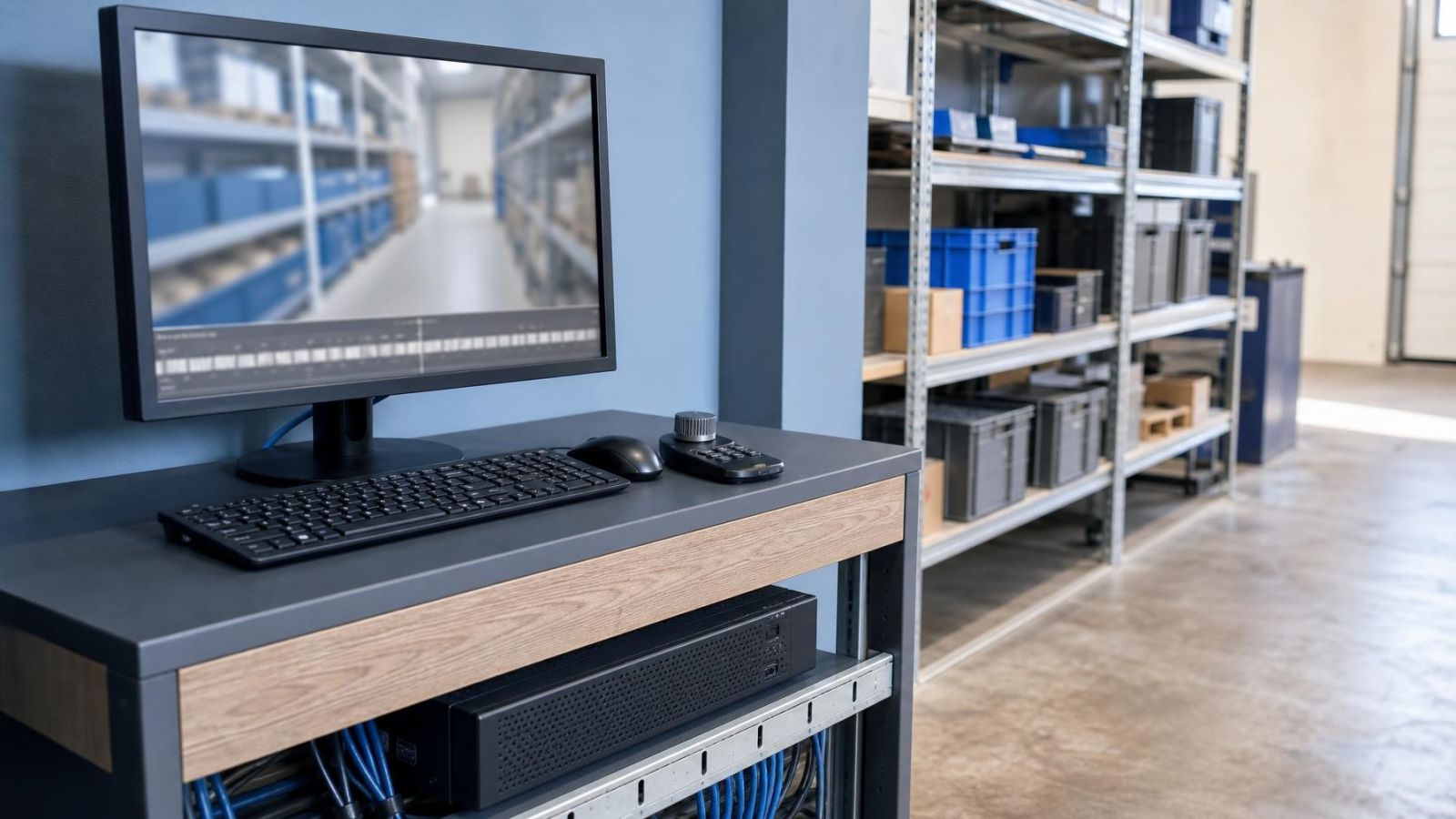
Live view is useful for aiming a security camera, but it is not the right test for archive usability. Record representative footage, allow the scene to change naturally and review it through the same recorder interface that will be used later. For a remotely managed property, also test through the normal remote connection rather than only on the local network.
Choose scenes that challenge the encoder. An apartment building may have a shared entrance with people moving between a shaded lobby and bright daylight. A private home may have a gate, garden plants and headlights crossing the frame. A street-front business may combine passing traffic, reflections in glass and frequent changes around the doorway.
Test daylight and low light separately. Strong glare may obscure detail while also increasing abrupt tonal changes. Moving foliage adds constant motion. In low light, movement and image noise can increase the data produced even when the physical scene seems quiet. A dusty cover or infrared reflection from a nearby wall can make night footage harder to encode and review, so image condition matters as well as menu settings.
- Record a period containing still areas, ordinary movement and more complex activity.
- Jump to several unrelated points on the playback timeline and note how quickly a stable image appears.
- Scrub forward and backward, then try the playback speeds that operators actually use.
- Compare main-stream local playback with substream or remote playback.
- Check recorder storage reporting and network traffic over a representative operating period.
- Change one encoding setting at a time, record again and repeat the same review.
Changing one setting at a time is important. If frame rate, bitrate mode, image processing and keyframe interval all change together, you may improve playback without learning which adjustment mattered. You may also create a storage increase that is wrongly attributed to keyframes.
Choose the Working Compromise
There is no universal interval that suits every camera, recorder and scene. Start with the recorder’s guidance and a conventional GOP relationship for the chosen frame rate. Then decide what the installation values most: rapid event review, low-delay remote access, restrained network use or longer archive retention.
For a busy entrance where staff frequently search for short events, responsive playback may justify more frequent keyframes. For a quiet secondary view that is rarely reviewed, lower encoding overhead may carry more weight. The decision should reflect the review workflow, not only the appearance of the live image.
The best interval is not the longest or the shortest. It is the one the recorder can navigate cleanly while the network and archive remain within their intended operating load.
Document the final values for every camera and for both main and substreams. Record the frame rate, codec, bitrate control, keyframe interval and any intelligent compression option. Consistent documentation helps when a camera is replaced, a recorder configuration is restored or a remote owner needs someone else to verify the system.
Finally, keep the recorded-footage test as the deciding check. Configuration labels can describe what a device intends to send, but only archive playback shows how the camera, recorder, network and scene behave together.
Key takeaways
- Shorter keyframe intervals generally improve playback responsiveness but add encoding overhead.
- Storage use depends on scene movement, image noise, bitrate control and compression settings, not only on the keyframe interval.
- Camera encoding and recorder decoding settings must work together for dependable seeking and accelerated playback.
- Testing recorded footage reveals navigation problems that may not be visible in a live view.