On this page
A security camera app can place a camera alert thumbnail on a lock screen before anyone opens the app. The same notification may reach a shared tablet or smart display, while user permissions determine who can open the live view or recordings. Good camera notification privacy therefore means controlling both access to the camera system and what each receiving screen reveals. This article settles how to keep useful alerts without showing private images or location details in the wrong place.
Where camera notification privacy can fail
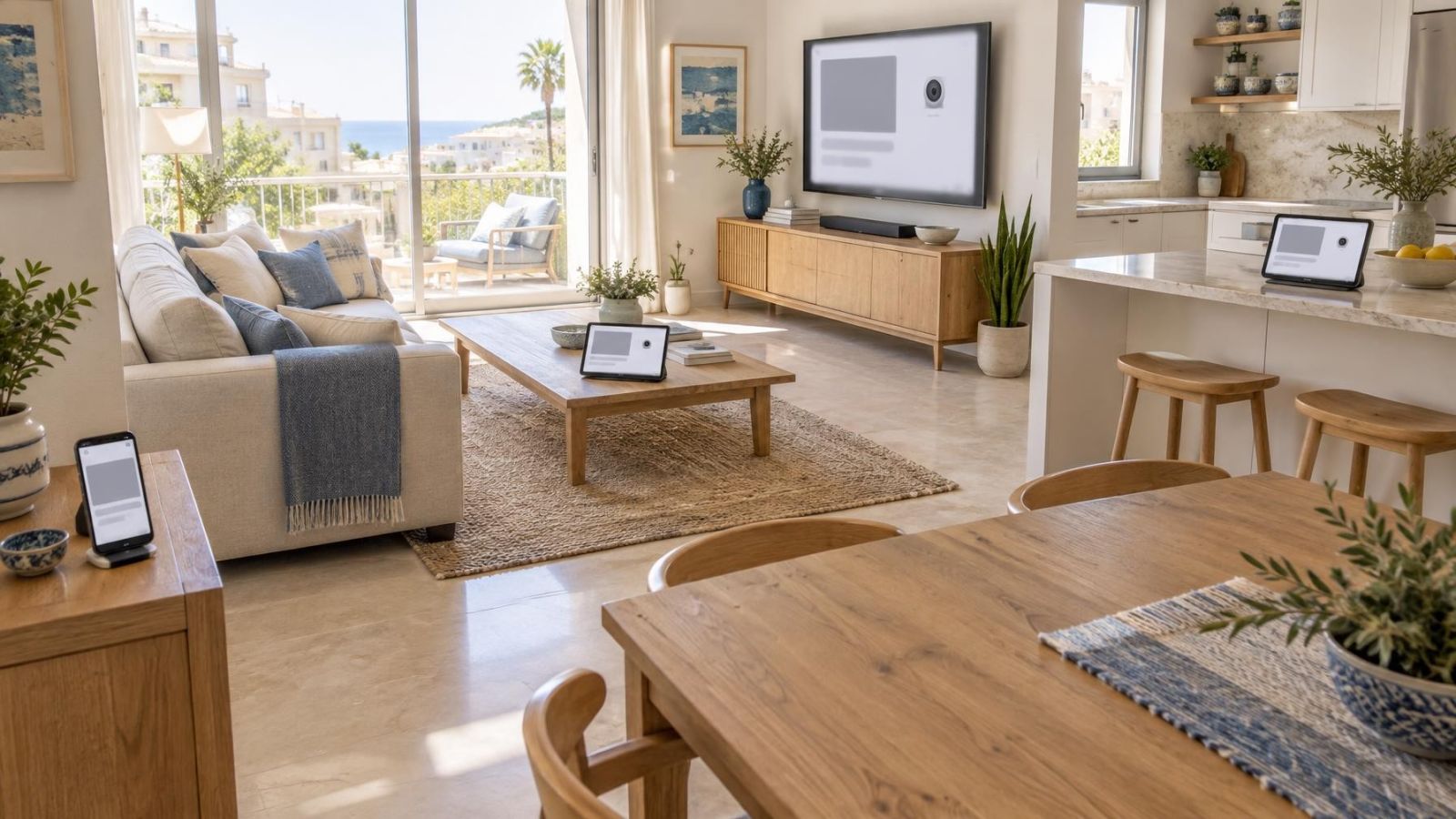
The phone in your hand is only the most obvious destination. Notifications can be copied, mirrored or synchronised to other devices signed into the same device account. A family tablet left in the kitchen may show the same thumbnail as a private phone. A wearable may repeat the alert text. A television can display it while a screen is being mirrored.
Lock-screen previews deserve particular attention because they appear before device authentication. Depending on the phone and app settings, camera thumbnail notifications may show a person at the gate, a delivery at a business entrance or activity in a shared apartment lobby. Hiding the thumbnail often leaves the underlying event alert active, so the phone can still report activity without displaying the image.
What do CCTV lock screen alerts reveal?
The visible content can include more than a picture. The notification may show the camera name, event description, time and part of the property layout captured in the frame. Even with images hidden, a label such as “Children’s Room” or “Rear Garden Door” discloses information. Neutral names such as “Indoor 2” or “Gate” reveal less, although remote property owners may need enough detail to distinguish similar locations.
| Destination | What may appear | What to inspect |
|---|---|---|
| Private phone | Text, camera name and thumbnail | App preview controls and lock-screen settings |
| Shared phone or tablet | The same content visible to every device user | Device users, notification settings and signed-in camera account |
| Smart display or television | Mirrored alert or camera view | Screen mirroring, connected services and display notifications |
| Wearable | Alert text, camera name or thumbnail | Notification mirroring and wearable preview settings |
Do not assume that a device is private because it usually stays at home. A shared tablet can move between adults, children, guests and workers. A smart display may face a seating area. A business television may be visible to customers. Privacy depends on where the screen sits and who can see it during ordinary use.
Control who receives private security camera alerts
Who can see private security camera alerts?
Anyone who can see a receiving screen may read its visible notification content, but only authorised camera-app users should be able to open the associated live view or recording. These are separate questions. A person without camera access can still notice a thumbnail on an unlocked family tablet, while an authorised remote user may receive no notifications because alerts are disabled on that user’s phone.
Shared camera credentials blur those boundaries. Everyone using the same login may receive the same broad access, and removing one person can require changing the credentials used by everyone. Individual accounts make access easier to understand. They also allow each user to set notifications on their own device without changing another person’s preferences, where the system supports per-user controls.
Match access to the person’s role rather than to convenience. A homeowner may need administration, live view and recordings. A relative checking an empty property may need viewing only. Business staff may need alerts from the street entrance during working hours but no access to private office cameras. Someone who manages devices does not automatically need every camera view.
- List every person with a camera-app account, including relatives, property managers, cleaners and former staff.
- Distinguish administration rights from viewing rights and notification delivery.
- Check whether remote access belongs to a named individual or to credentials passed between people.
- Remove access at the account level when a person no longer needs it; deleting the app from one phone does not necessarily end the account’s access.
The scene itself also matters. In an Israeli apartment building, an entrance camera may show neighbours and visitors in a shared lobby managed through the va’ad bayit. At a private home, a gate camera may include part of the garden or path. A small business on street frontage may capture staff, customers and passers-by. Keep the alert audience no wider than the operational need for that view.
Choose what each alert reveals
An alert does not need an image to be useful. Text can report that an event occurred and identify the relevant camera. The user can then open the security camera app when appropriate. This is often a sensible arrangement for a phone left face-up on a desk, a family tablet or any device that regularly sits in view of other people.
There are usually two layers to inspect. The camera app decides whether its event notification includes a thumbnail or descriptive content. The receiving device decides whether that content appears on the lock screen, appears only after authentication, or remains hidden entirely. Changing only one layer can leave an unexpected preview elsewhere.
- Use text-only alerts on devices that are shared or routinely visible to other people.
- Allow image previews only on personal devices where the added context is genuinely useful.
- Hide notification content while a device is locked, rather than relying only on the camera app’s thumbnail control.
- Use camera names that identify the view without describing bedrooms, children, valuables or detailed routines.
- Set personal and shared devices separately; synchronised settings should not be assumed.
A short, neutral naming system works well. Labels such as “Entrance”, “Gate”, “Office 1” and “Indoor 2” remain understandable without advertising a detailed floor plan. For a remote property with several similar views, add a neutral zone reference rather than a personal description.
A notification can remain useful without becoming a miniature live view of the property.
Separate people, accounts and devices
Use an individual account for each regular user whenever the camera system allows it. This is not merely an administrative preference. Named access makes it easier to see who should still be connected, change one person’s permissions and remove one user without replacing credentials across every phone.
Shared credentials create practical confusion. It becomes difficult to know whether an old phone remains signed in, who changed an alert setting, or whether a former staff member still knows the password. They can also force unrelated people into the same access level. A person who needs an entrance alert may receive access to indoor views simply because the login covers the whole system.
Keep administration on a personal, protected device. A wall-mounted tablet can provide a convenient shared view without also being the place where users, passwords and camera settings are managed. For a small business, staff viewing and owner administration should be separate. At home, a family display does not need the same controls as the homeowner’s phone.
What should happen to old phones and tablets?
Treat every retired, lost, sold or repurposed device as a possible remaining notification destination. Sign it out where possible, remove its access from the camera account, and review any connected-device or active-session list the system provides. If a tablet moves from private use to a kitchen wall or business counter, reassess both its account permissions and its lock-screen previews.
- Give each household member, employee or remote helper only the access needed for the role.
- Keep shared viewing devices out of administrator accounts.
- Review named users as soon as household responsibilities or staffing change.
- Remove obsolete devices from notification mirroring and connected-screen services.
- Do not rely on uninstalling an app when account access can be revoked centrally.
Preview controls for camera alerts
How do I hide camera alert previews?
Start with the receiving device’s notification settings. Find the security camera app and choose whether notifications may appear on the lock screen and whether their content is visible before authentication. The wording differs between devices, but the important distinction is between allowing an alert and revealing its contents.
Next, inspect the camera app’s own event and notification controls. Look for settings related to images, snapshots, thumbnails or rich notifications. Turning off the image should not be assumed to turn off the event alert. Trigger a test event to confirm that the alert still arrives in the form you intended.
Repeat the process on every shared phone and tablet. Device settings are not always transferred consistently, even when several devices use the same general account. A tablet may also stay unlocked longer than a phone, so inspect how notifications appear both when it is locked and while another app is open.
For smart displays and televisions, inspect notification mirroring, screen casting and any connected viewing service. The camera app may not appear to be sending directly to the large screen; the phone may simply be copying its notifications there. Wearables should be checked in the same way.
Also test what happens when the device is unlocked but unattended. Some settings hide content only on the lock screen, while notification banners remain fully visible during use. On a shared tablet or business display, banners can be the more important exposure.
Set a practical privacy routine
Notification privacy is easier to maintain when the chosen arrangement is written down. The record does not need to be complicated. Note who has an account, what each role can view, which devices receive alerts, whether images are allowed, and which device holds administration access.
Begin by mapping every destination. Include personal phones, shared phones, tablets, wearables, smart displays, televisions and computers that mirror phone notifications. For a remote property, include devices used by anyone who checks the site on the owner’s behalf. For a business, include counter tablets and screens in staff or customer-facing areas.
- List each camera-app user and each physical device that can receive or mirror an alert.
- Mark each device as personal, shared within a household, shared with staff, or publicly visible during normal use.
- Decide where text alerts are acceptable and where image previews provide enough value to justify displaying them.
- Check account permissions, camera names, app preview controls and device lock-screen settings.
- Lock each device, trigger a test event and inspect every connected screen rather than checking only the main phone.
- Record the final arrangement and review it when a user, device, household role or staff role changes.
The review should reflect ordinary conditions. Test the family tablet where it normally stands, not while holding it privately. Check a business screen during its usual display mode. If a phone connects to a television in the evening, test notification behaviour during that connection. The aim is to observe the real notification path, including screens that are easy to forget.
Israeli properties often combine private and shared spaces within a small area: an apartment door near a communal landing, a private garden beyond a shared path, or a shop entrance directly on the street. Clear camera names, narrow account access and restrained previews help keep alerts useful without placing more detail on shared screens than the recipient needs.
Key takeaways
- Hidden image previews can preserve useful event alerts while revealing less on a locked screen.
- Individual accounts provide clearer control over access than credentials shared by a household or team.
- Every connected or mirrored screen should be treated as a possible destination for security camera notifications.
- Neutral camera names reveal less about a property when notification text appears without an image.
- Privacy checks should be performed with every receiving device locked and in its normal shared location.