On this page
An IP camera at an Israeli home or small business can show one time while the video recorder shows another. The time server may be reachable, yet an internal clock, regional setting or restart can still shift the recording timeline. CCTV timestamp drift describes several different faults, not one. The practical question is whether the clock is drifting gradually, jumping suddenly or merely being displayed differently—and which setting must be corrected.
What CCTV Timestamp Drift Looks Like
A wrong timestamp is not always obvious during live viewing. It may first appear when someone searches playback for a delivery, an alarm activation or the opening of a business. The useful diagnostic detail is how the error behaves.
| What you see | Likely pattern | What it suggests |
|---|---|---|
| The error grows gradually | The camera loses or gains time while operating | The internal clock is running without reliable synchronisation |
| The time changes in one step | The clock jumps after a restart or settings change | A power, time zone or clock-backup issue is more likely |
| Cameras disagree with one another | Each device shows a different offset | The devices may use different time sources or settings |
| Live view and playback disagree | The live overlay is correct but the recorder timeline is not, or the reverse | The camera, recorder and viewing software may be presenting different clocks |
Gradual drift is usually small at first and becomes more noticeable while the camera remains disconnected from network time synchronisation. A sudden jump points elsewhere. It can follow a power interruption, a restart, a manual clock adjustment or a change in regional time settings.
Different times across cameras often mean that the installation has no single timekeeping authority. One camera may contact a time server, another may rely on its internal clock, and the recorder may use a third reference. All three devices can appear to be working normally while their timelines disagree.
Why Is the Camera Time Wrong?
If you find the camera time wrong, first separate clock accuracy from clock configuration. A device can synchronise successfully and still display the wrong local time because its time zone or seasonal clock setting is incorrect.
- Internal clock drift: a free-running device clock gradually moves away from the correct time when it is not being synchronised.
- Missing network synchronisation: the time-server address may be absent, unreachable or configured only on some devices.
- Incorrect time zone: the device may receive correct universal time but convert it to the wrong local time.
- Seasonal clock mismatch: one device may adjust automatically while another remains on a fixed offset or uses a different regional rule.
- Power interruption: a restart can expose a weak or depleted internal clock backup, causing the device to return to an incorrect value.
Why Does the Camera Clock Keep Changing?
Repeated changes usually come from competing settings or restart behaviour. A camera may accept time from the recorder and then contact a separate time server. A viewing application may also convert the displayed time according to the computer or phone running it. If the change appears only after power is removed, inspect the device’s ability to retain time and confirm that synchronisation resumes after startup.
In Israel, a fixed numerical offset is a poor substitute for selecting the correct regional time zone. Local clock changes are handled more reliably when the camera, recorder and viewing software all use the Israeli region and automatic seasonal clock handling. Manual seasonal changes are easy to miss, especially for remote property owners.
Where the Recording Time Comes From
A security camera system can contain several versions of “the time”. Knowing which one you are looking at prevents unnecessary configuration changes.
| Time shown | Typical source | Where it appears |
|---|---|---|
| Camera overlay | The IP camera clock | Text placed over the live or recorded picture |
| Recorder timeline | The NVR or DVR clock | Playback search, event lists and exported segments |
| VMS display | The server or viewing device, sometimes with local conversion | Desktop or remote viewing software |
| Shared reference time | A time server | The source used to align cameras, recorders and other network devices |
An NVR (network video recorder) may store video received from a camera while creating its own playback index. The camera can place a visible timestamp inside the picture, but the recorder can label the same footage using its own clock. If those clocks disagree, the visible overlay and the playback cursor can show different times for the same frame.
Displayed time is therefore not always stored time. A visible camera overlay may be embedded in the recorded picture. Other timing information can be held as recording metadata or in the recorder’s database. A VMS (video management software) may then convert that information for the time zone selected in the software. Correcting one layer does not necessarily correct the others.
Before changing a clock, identify whether the wrong value belongs to the camera image, the recorder timeline or the viewing software.
How Do I Sync Camera Time?
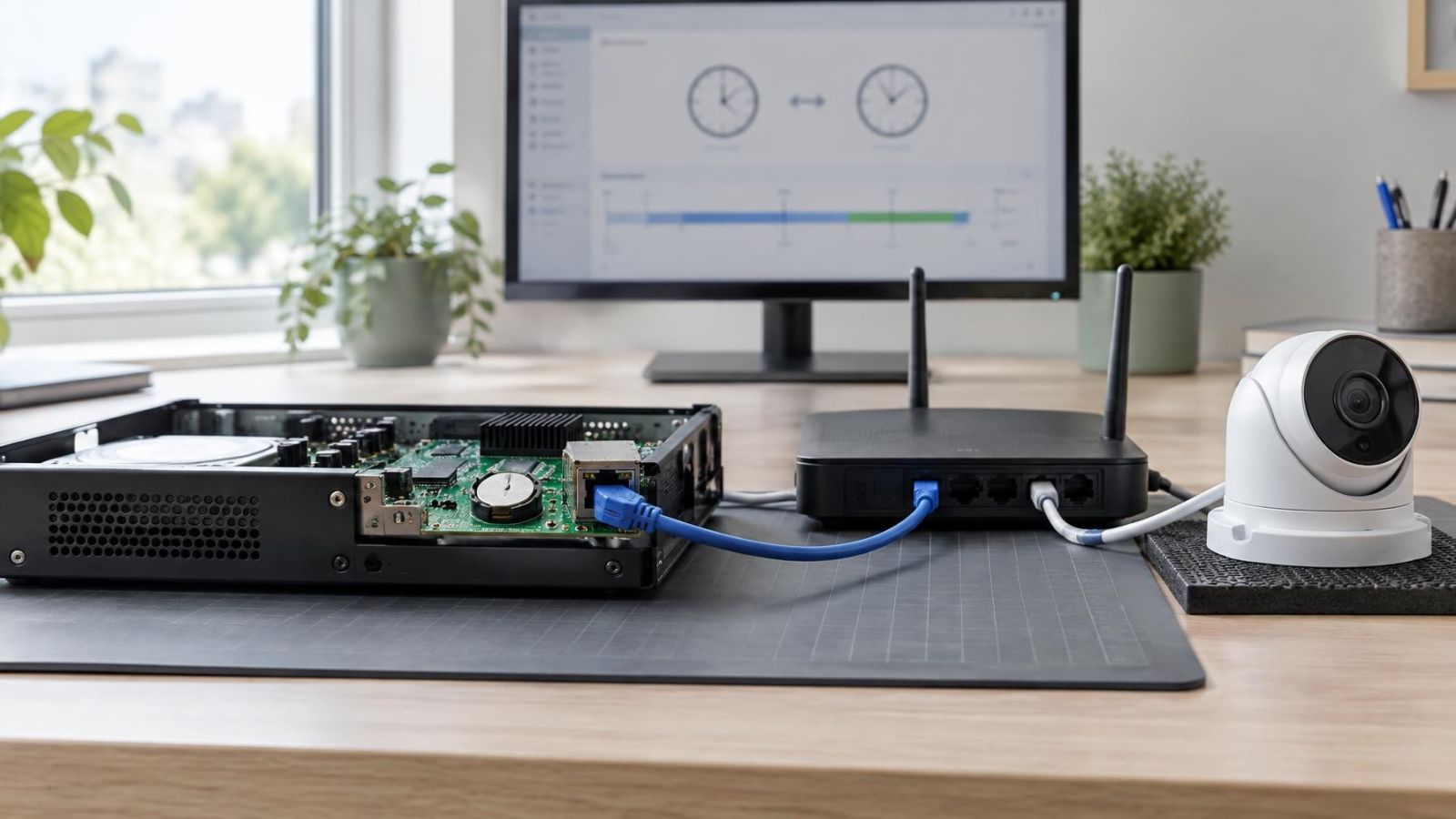
To sync camera time reliably, choose one trusted reference and define clear roles. The recorder can act as the internal time source for cameras, or the recorder and cameras can use the same reachable time server. What matters is that the design does not create conflicting authorities.
- Choose the trusted time source. Use one stable server that the intended devices can reach consistently.
- Set the recorder’s time zone to the Israeli regional setting. Enable automatic seasonal clock handling rather than relying on a permanently fixed offset.
- Apply the same regional and seasonal settings to every camera. Synchronisation supplies a reference time, while the time-zone setting controls how local time is displayed.
- Decide whether cameras synchronise directly with the trusted server or through the recorder. Avoid configurations in which the recorder sets a camera and the camera later corrects itself from an unrelated source.
- Confirm network access. The camera or recorder must have a working route to the selected server, including across a VLAN where the system is segmented.
- Restart one device as a controlled test. Check whether it retains a reasonable time during startup and whether it synchronises again after network connectivity returns.
- Record a short test and review it through the normal playback interface. Compare the visible overlay, playback cursor and event list rather than checking live view alone.
A PoE (power over Ethernet) camera can lose both network access and power when its supplying switch restarts. The camera may begin with its retained internal time and correct itself only after the network is available. That can create a short discontinuity in the recording timeline. The recorder’s logs or status pages may show whether synchronisation resumed, but playback still needs a direct check.
Diagnosing Persistent Time Errors
Persistent errors should be diagnosed as a pattern rather than corrected by repeatedly setting the clock by hand. Manual correction can hide the symptom without fixing the source.
- Compare the camera clock, recorder clock and viewing-device clock at the same moment. Note both the size and direction of each offset.
- Wait long enough to identify the pattern. An offset that increases gradually indicates free-running clock drift; an unchanged whole-hour shift points more strongly to time-zone or seasonal handling.
- Review what happens after a normal restart and after power has been absent. A device that returns with an implausible time may not be retaining its clock.
- Confirm that every device can reach the intended time source. A configured address is not proof of successful synchronisation.
- Compare live view with recorded playback. Check the timestamp drawn in the picture, the playback cursor and any event-list entry separately.
- Repeat the test from the usual remote-viewing application. If only the remote display is wrong, inspect its regional setting before changing camera or recorder clocks.
A wrong recording timestamp that appears only on one camera usually directs attention to that camera’s configuration or clock retention. If every camera is offset by the same amount in playback, the recorder or VMS is a stronger candidate. If camera overlays differ but the recorder timeline remains coherent, camera-level synchronisation needs attention.
Do not assume that a neat offset has a network cause. A whole-hour difference can result from regional conversion, while an irregular and growing difference is more consistent with clock drift. A large jump at every restart is different again. The shape of the fault narrows the investigation.
Correcting Existing Recording Timelines
Correcting the configuration affects future operation. It does not necessarily rewrite the timeline of recordings already stored. Existing material should be handled as an original record with a documented timing error, not silently altered until it appears correct.
- Write down the known offset and state which clock was used as the comparison reference.
- Record the point at which the offset changed, especially if the clock jumped after a restart or power interruption.
- Preserve the original recording and its original export before creating converted copies or renamed files.
- Compare event order across cameras when one device has a reliable timeline and another does not.
- Use visible sequences such as a person moving between camera views, a gate opening or lights changing to align events.
- Change only the settings related to timekeeping while diagnosing the fault. Unrelated changes make later comparison harder.
A constant offset is simpler to describe than a drifting one. If a camera remained consistently behind the recorder, the correction note can state that relationship for the affected segment. If the clock drifted or reset more than once, divide the recording into separate segments. Each segment may have a different offset.
Event sequence is often more dependable than the displayed clock when reconstructing order. For example, movement may leave one camera’s view and enter another’s, or an alarm detector may activate close to a visible action. Sequence comparison does not repair the timestamp, but it helps explain how recordings relate without modifying the originals.
Choose a Reliable Timekeeping Setup
A dependable design is deliberately simple. Cameras, recorder and viewing software should share a clear regional configuration, while one authority supplies reference time. Extra time sources do not add resilience when they can disagree.
- Use one synchronisation authority for the complete recording system.
- Keep the Israeli time zone and automatic seasonal clock handling consistent across cameras, recorder and VMS.
- Document whether cameras obtain time directly from a server or from the recorder.
- Check device clocks and playback after power interruptions, network work or replacement of a PoE switch.
- Verify recorded playback periodically, not only the clock shown in live view.
- Include timekeeping in remote property checks, because the live picture can appear normal while its playback index is offset.
Recurring resets deserve an installer review. The cause may be clock retention inside a device, a network path that becomes available too late, conflicting synchronisation roles or settings that are not being saved. Replacing hardware should not be the first assumption. The restart pattern and the source of each displayed time need to be established first.
The final check is practical: restart the relevant equipment, allow the network to settle, create a short recording and play it back through the interface normally used by the owner or staff. A coherent system should show the expected local time and preserve the same event order across cameras, overlays and the recording timeline.
Key takeaways
- Gradual clock drift and sudden clock resets have different causes and require different corrections.
- Cameras and recorders should use one trusted time source rather than synchronising independently to unrelated sources.
- The Israeli time zone and automatic seasonal clock handling must be configured consistently across every device.
- Recorded playback should be checked after power interruptions, network changes and device restarts.