On this page
When a CCTV recorder starts beeping, the immediate question is whether it is still saving footage. The sound may come from an NVR (network video recorder), a DVR, or an attached power unit. It may relate to the hard drive, one of the security cameras, the network or cooling. The recorder screen and system log are the quickest routes from an unexplained noise to a specific fault category. This guide explains what to check first, without assuming that live pictures mean the system is recording.
What CCTV Recorder Beeping Actually Means
The beep is an audible warning, not a diagnosis. Recorders use the same internal sounder for several conditions. A storage fault, lost camera signal, interrupted network connection or temperature warning may therefore sound identical. Counting beeps is rarely useful unless the recorder screen describes a specific pattern.
Treat recording status as the first concern. A recorder can display live video while failing to write footage to its hard drive. Live view proves that a picture is reaching the screen at that moment. It does not prove that the picture can be found and played back later.
The warning may also concern a function that does not stop local recording. For example, loss of an internet connection can affect remote viewing while the recorder continues saving footage locally. The correct response depends on what has stopped working, not on how irritating the sound is.
A quiet recorder is not the objective. A recorder that saves footage correctly and reports genuine faults clearly is the objective.
Why Is the Recorder Beeping?
What causes a recorder warning sound?
The useful clues are on the monitor, in the event log and on the recorder’s status pages. The main warning categories are distinct even when they share one sound.
| Warning category | What may be happening | First place to check |
|---|---|---|
| Storage | The hard drive is missing, unreadable, full under the selected recording policy, or unable to accept new footage | Storage status and recent playback |
| Video | A camera is offline or its video signal has been lost | Live-view channel grid and camera status |
| Network | The local network, internet connection or a configured network service is unavailable | Network status and cable connections |
| Power | The recorder, cameras or network equipment lost power or restarted unexpectedly | Power connections and system log |
| Cooling | Airflow is restricted, the internal temperature is high, or the cooling fan is not operating normally | Vents, surrounding space and fan sound |
A hard drive error deserves prompt attention because it can affect the archive. The recorder may show messages such as disk missing, storage abnormal or recording exception. Do not format or initialise a drive merely to remove the warning. Those actions can erase footage and can hide the evidence needed to diagnose the storage problem.
Video loss can be limited to one channel. On an NVR, the cause may be a disconnected network cable, loss of PoE (power over Ethernet), a camera power problem or a network configuration issue. On a DVR, inspect the video and power connections for the affected channel. If every channel disappears together, look for a shared power or network problem before assuming that all cameras failed separately.
Why can a camera recorder alarm sound when video looks normal?
The visible camera tiles may be normal while another system function is unavailable. The recorder may have stopped saving footage, lost a camera that is not currently on screen, lost internet access, or detected a cooling problem. It may also be warning about a channel that was intentionally disconnected but remains enabled in the configuration. Check the stated event rather than judging the system from the main live view alone.
Check Recording Before Anything Else
Playback is the quickest practical test. Use the recorder directly if possible. A remote app introduces another possible failure point: the recorder may be operating locally even when the app cannot connect. For a remote property in Israel, ask someone on site to inspect the recorder screen if remote access is the only part that has failed.
- Open playback rather than relying on the live-view screen.
- Choose a camera that should be recording and select a recent period before the beep began.
- Play the footage for long enough to confirm that it advances normally rather than showing a single frozen frame.
- Check the latest available recording and compare it with the recorder’s current time and date setting.
- Repeat the test on several channels, including any camera marked offline or showing video loss.
- Look for archive gaps around the warning and note which channels are affected.
The recorder clock matters because a wrong time or date setting can make valid footage appear to be missing. Search around the time shown by the recorder, not only the time shown on your phone or computer. If the clock changed after a power interruption, write down the difference before changing it. That helps you locate recordings created under the incorrect setting.
A blank timeline across every channel points towards a recorder-wide recording or storage issue. A gap on one channel points more strongly towards that camera, its connection or its recording schedule. An archive that ends at the same moment for all channels may indicate a drive, power or recorder event.
Read the Screen and System Log
After checking playback, read the recorder screen carefully. Look for warning triangles, hard drive symbols, crossed-out camera icons and short status messages. Open the storage, camera and network pages rather than dismissing the notification immediately. Menu names vary, but the categories are generally recognisable.
Next, open the system log or event log. Filter it around the time the beeping started if the menu allows that. Relevant entries may include storage errors, video loss, camera disconnection, network failure, unexpected shutdown, restart or temperature warnings. Several events may appear together because one interruption can affect multiple components.
Read the order of events. A power interruption followed by a restart and several temporary camera disconnections tells a different story from repeated hard drive errors while power remains stable. Likewise, a network warning does not automatically mean local recording stopped. Confirm that separately through playback.
- Record the exact wording of the warning, including any channel or drive identifier.
- Note whether the warning is active, intermittent or already cleared.
- Check whether the same event appears repeatedly in the log.
- Write down the recorder time and compare it with the actual local time in Israel.
- Keep any error code exactly as displayed rather than paraphrasing it.
Inspect Power, Cables and Ventilation
What should you check when an NVR keeps beeping?
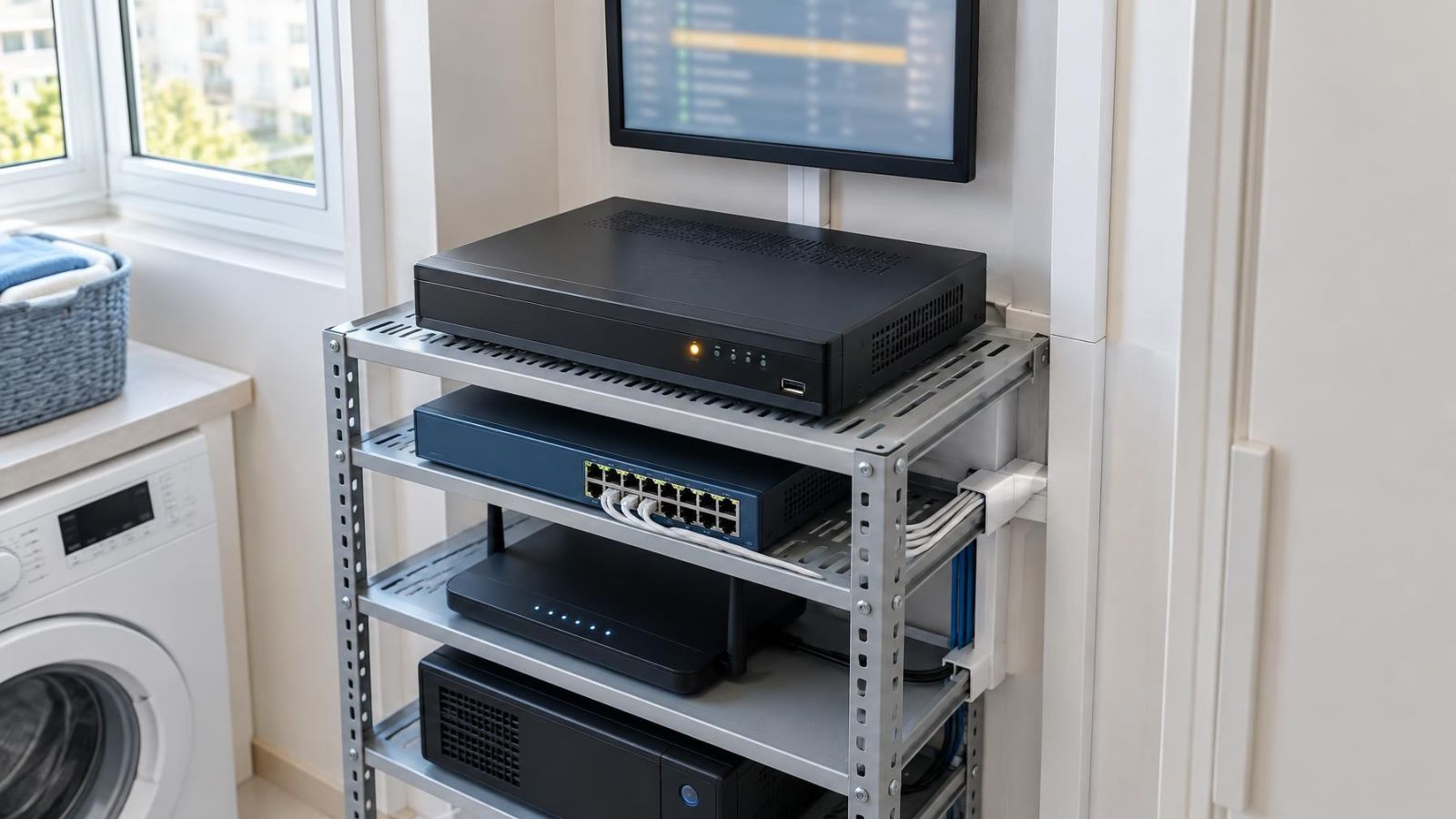
Begin with external checks that do not require opening the recorder. Make sure its power connector is fully seated and that the plug, power unit and any uninterruptible power supply show no obvious sign of damage or repeated switching. Check the network switch and PoE equipment if the cameras receive power through the network. A recorder may remain on while cameras or network equipment have lost their separate supply.
Inspect cables one at a time. A loose Ethernet cable can take an NVR camera offline. A loose video or camera power connection can cause video loss on a DVR. Avoid unplugging every cable together, because that removes useful evidence and makes it harder to identify the affected channel. Labelled cables make this work considerably easier.
Ask whether anything changed shortly before the warning: cleaning around the equipment, moving furniture, work in a communications cabinet, replacing network equipment or a brief power interruption. A change does not prove the cause, but it gives you a sensible place to begin.
Then inspect ventilation. Recorder vents collect dust, especially in cabinets, storerooms and small street-front businesses where doors open frequently. Israeli summers also make poor equipment placement less forgiving. The recorder needs open space around its vents; it should not be buried under papers, placed against a closed cabinet wall or stacked between other warm devices.
Listen to the cooling fan. A normal fan produces a steady airflow sound. Grinding, repeated starting and stopping, or complete silence alongside a temperature warning can indicate a cooling problem. Do not insert tools through the vents or open an energised recorder. If the fan appears faulty, leave internal work to someone equipped to service the unit safely.
In apartment buildings, the recorder may sit in a shared communications area or a cupboard managed with the va’ad bayit. Confirm who can access the space before moving shared power or network connections. In a private home, also check equipment serving the gate, garden cameras or an outdoor network cabinet. These may use a separate supply from the indoor recorder.
Should You Restart the Recorder?
Should you restart an NVR that keeps beeping?
A controlled restart is reasonable after you have checked playback and captured the warning details. It can clear a temporary software or connection condition. It does not repair a failing hard drive, loose cable, unstable power supply, blocked vent or defective fan.
Before restarting, note the active warning, the affected channels, the latest playable recording and the relevant log entries. A restart may clear an on-screen message or make an intermittent component reconnect, removing information that would otherwise help with diagnosis.
Use the shutdown or restart command in the recorder menu. Avoid pulling the power connector unless the recorder is completely unresponsive and no controlled option is available. An abrupt loss of power interrupts recording and can add another storage or shutdown event to the log.
After startup, do not stop at the live-view screen. Repeat the playback test, confirm that the clock is correct, check every expected channel and review storage status. Then watch the log for the original warning. If it returns, treat the underlying fault as unresolved even if the beep disappears for a while.
Silence the Cause, Not the Warning
Muting the buzzer changes the sound, not the condition that triggered it. Silence an alert only after you know what it represents and have confirmed whether recording is available. Otherwise, a useful warning becomes an invisible fault.
Some warnings come from configuration rather than failed hardware. A removed camera may still be enabled. A network alert may refer to remote access that is no longer used. A storage warning may follow an incorrect recording or overwrite setting. Configuration changes should be based on the log and a recording test, not on a desire to make the recorder quiet.
Hardware support is appropriate when the recorder cannot play recent footage, the hard drive is missing or repeatedly reports errors, a camera remains offline after its connections and power are checked, the recorder restarts unexpectedly, or a cooling warning returns. Provide the exact message, photographs of the status pages, the affected channel numbers and a description of what playback showed.
The final decision should rest on evidence: whether footage is being saved, which subsystem reported the warning, and whether the event returns after basic checks. That separates a harmless configuration mismatch from a fault that can leave a gap in the archive.
Key takeaways
- A recorder beep requires a recording check before the warning is silenced.
- Live video does not confirm that footage is being saved to the archive.
- The recorder screen and system log can identify the warning category and the affected channel or component.
- Power, cabling, storage and ventilation are the practical first checks for a recorder warning.
- A recurring alert needs diagnosis rather than repeated restarts.