On this page
What the Restart Pattern Reveals
A video recorder may show a logo, go blank and start again, leaving gaps in recorded footage even while the cameras remain powered. Whether the unit is a DVR or an NVR (network video recorder), the likely causes are similar: its power supply, hard drive, connected equipment or operating temperature. A recorder hidden in a communication cabinet adds ventilation to the list. The practical question is not merely why it restarts, but which part of the system is associated with the restart.
Begin by confirming that you are seeing a full reboot. A frozen mouse, unresponsive screen or interrupted remote connection can look similar. During a true reboot, the local display usually loses the interface and returns through the recorder’s normal startup sequence. Status lights may switch off and return. Cameras can disappear together, followed by the login or live-view screen.
Next, note the pattern. A regular cycle suggests a repeatable condition, such as a startup failure, drive problem or power supply that cannot remain stable under load. Random interruptions are more consistent with loose power connections, intermittent equipment, heat or a damaged cable. These are diagnostic directions, not final conclusions.
- During startup: note whether the recorder reaches live view before restarting.
- During recording: watch for a restart as cameras begin writing to the hard drive.
- During playback: note whether searching or playing stored footage triggers the problem.
- During remote viewing: record whether the interruption begins when an app or VMS (video management software) requests several streams.
- At no obvious trigger: write down the surrounding conditions, including cabinet temperature, other equipment switching on and any brief building power interruption.
Photograph any screen message before it disappears. If the recorder provides a system log, look for entries immediately before and after the restart. A gap in the log can support the conclusion that power was lost, while storage or temperature messages can direct the next check. Logs are not always complete, so compare them with what happened physically.
What does “CCTV recorder restarting” usually mean?
People often use this search phrase for any DVR or NVR that repeatedly returns to its startup screen. The useful distinction is between a recorder reboot and a camera feed that drops out. If every channel and the menus disappear together, investigate the recorder and its power first. If only one channel disappears, begin with that camera, its power and its cable.
Why Does the Video Recorder Keep Restarting?
The common causes fall into five groups. Unstable power can interrupt the unit without warning. Restricted airflow can allow internal heat to build until operation becomes unstable. A failing or overloaded hard drive can interfere with startup, recording or playback. A faulty camera connection or network cable can destabilise some systems. The remaining possibility is damage inside the recorder itself.
| Possible cause | Typical clue | Useful isolation test |
|---|---|---|
| Unstable power | Whole recorder goes dark or restarts unpredictably | Check plugs, power supply, socket and UPS path |
| Excess heat | Problem appears after time in a warm or closed cabinet | Clear vents and test with unobstructed airflow |
| Hard drive fault | Restart occurs during startup, recording, search or playback | Shut down safely and test startup without the drive |
| Camera or network fault | Restart follows connection of a particular cable or group of cameras | Reconnect one link at a time |
| Internal recorder fault | Restart continues with drive and external links isolated | Arrange component-level diagnosis |
Do not change several things at once. If you move the recorder, replace its power supply, disconnect the drive and remove every camera in one step, the symptoms may stop without revealing why. Change one controlled element, observe the result and record what you did.
What if the security recorder keeps rebooting?
Treat repeated rebooting as a system fault rather than a software inconvenience. Each cycle can create another gap in the recording timeline, and repeated hard shutdowns are not kind to stored data. Preserve accessible footage that matters, then work through power, ventilation, storage and connected devices. Avoid repeated factory resets: they can remove settings without correcting an electrical, thermal or mechanical problem.
Check Power Before Anything Else
Power is the first check because it is external, common and relatively easy to isolate. Start at the recorder and follow the complete power path. A plug can look connected while sitting loosely in the socket. A lead may be damaged behind furniture or strained where it enters a cabinet. Gently checking each connection is more useful than simply looking at it.
How do you identify a video recorder power fault?
Confirm that the power supply is intended for the recorder and has the correct output characteristics shown on the recorder and supply labels. A connector that physically fits is not enough. An unsuitable or deteriorating supply may start the recorder but become unstable when the hard drive spins up, cameras draw power or the processor handles multiple streams.
- Reseat the recorder’s power connector and check that it does not move easily.
- Inspect the cable for crushing, sharp bends, exposed material or a loose connector.
- Check whether the same socket or extension also powers equipment that switches on and off intermittently.
- Ask whether lights, routers or other equipment reset at the same time, which may indicate a wider power interruption.
- If a UPS is fitted, inspect its connections and indicators rather than assuming it is providing stable backup power.
Brief interruptions can occur within a building without producing an obvious long outage. In an apartment, compare the recorder’s behaviour with the router or another powered device inside the same property. Shared entrances, lifts and other building systems are separate installations and may not tell you what happened at the socket serving the recorder.
Inspect Heat, Dust, and Ventilation
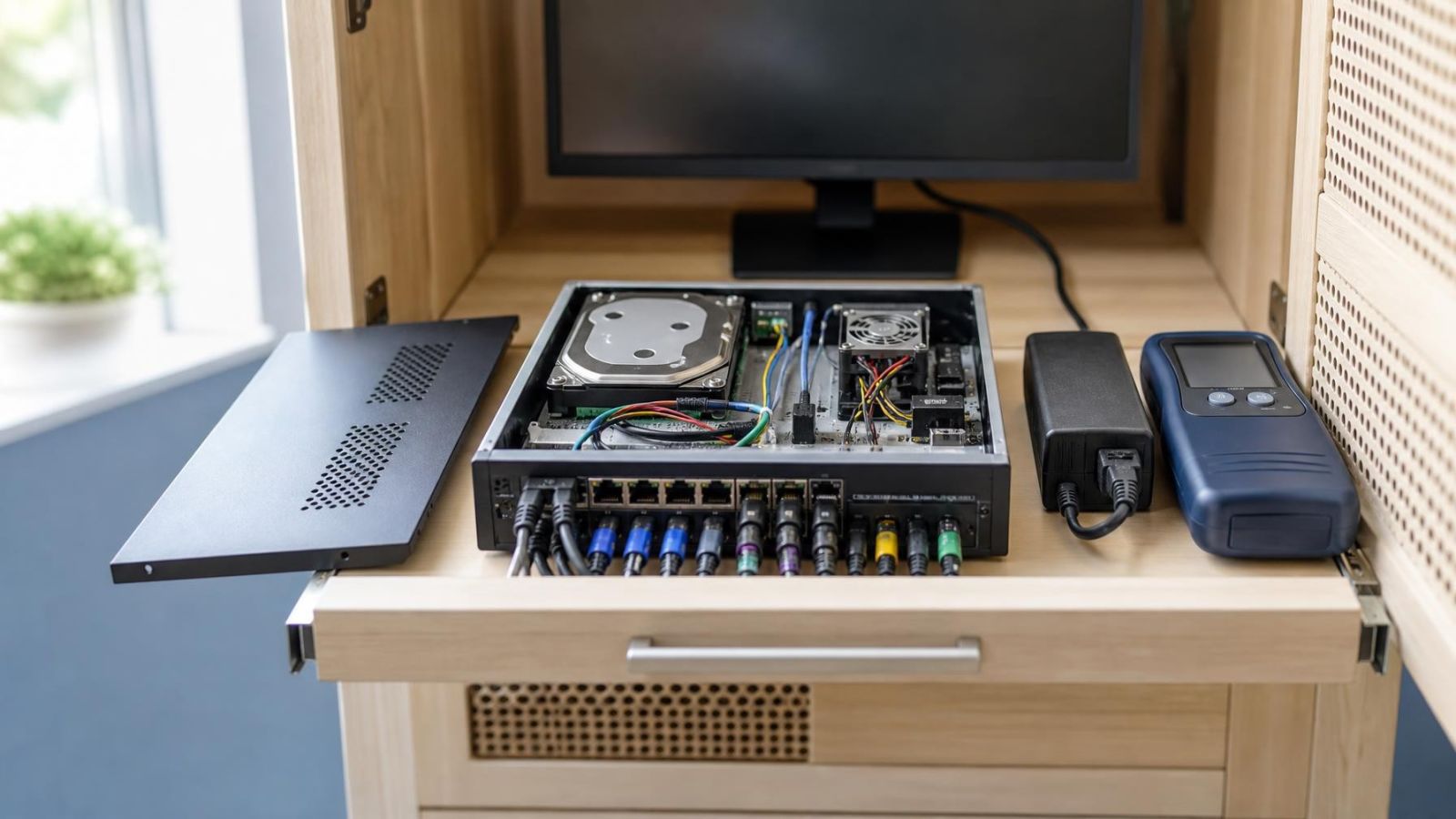
A recorder needs clear space around its vents. It should not be pressed against the side of a communication cabinet, covered by cables or stacked tightly between warm devices. A closed cabinet may look tidy while trapping heat from the recorder, network switch, router and other equipment.
Israeli summer conditions make cabinet placement important. A cabinet exposed to direct sunlight, installed high in an already warm room or built into an unventilated recess can hold considerably more heat than the surrounding space. A mamad may also contain communications equipment, but the room’s solid construction does not remove the need for airflow around the recorder.
- Switch the recorder off safely before removing loose dust from accessible vents.
- Look for dense dust on air inlets and outlets rather than pushing it further inside.
- Listen for a cooling fan that grinds, repeatedly speeds up or remains silent when it would normally run.
- Check whether folders, boxes or coiled cables block airflow inside the cabinet.
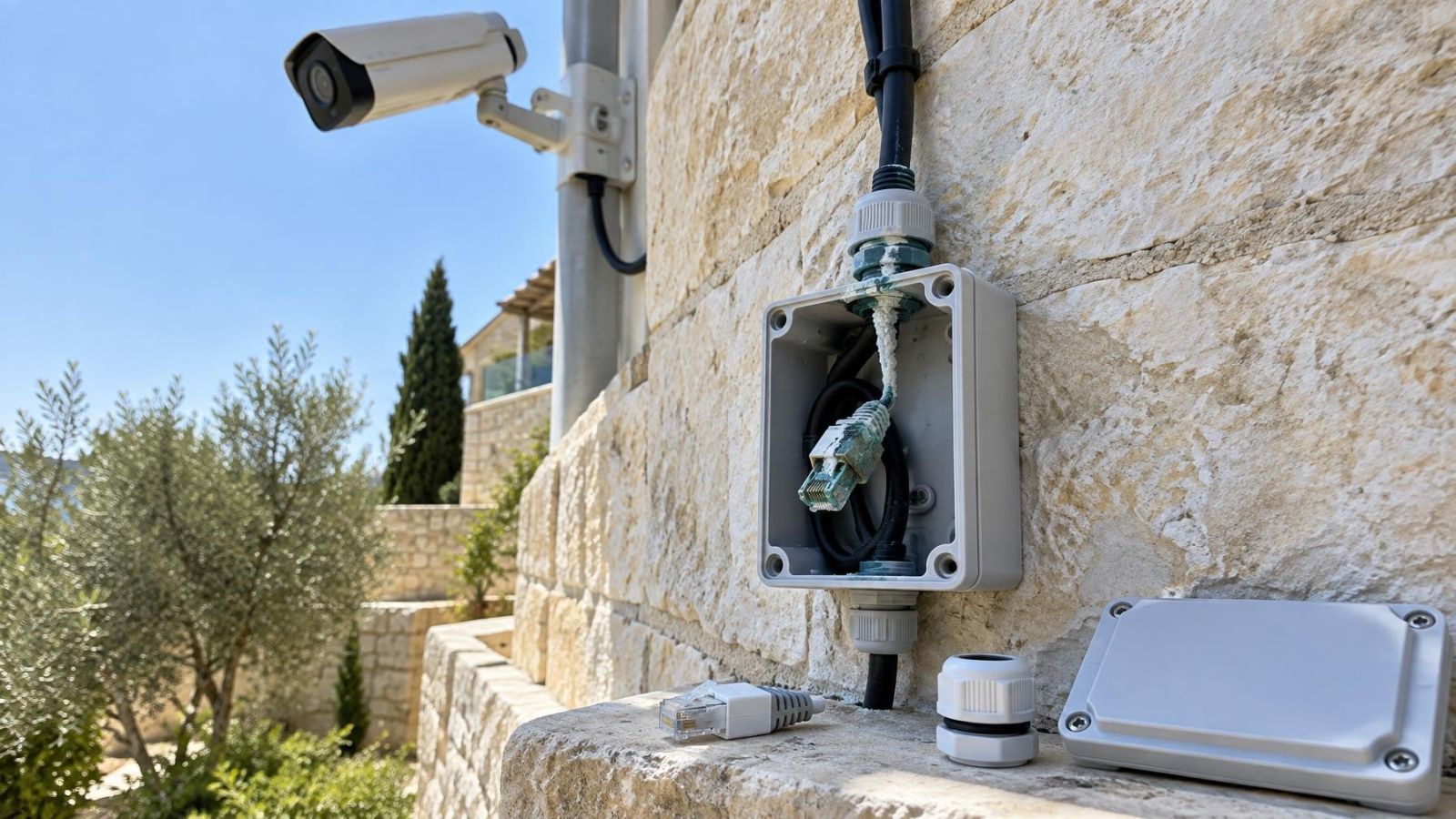
- Near the coast, inspect plugs, connectors and exposed metal for discolouration or corrosion associated with humid air.
Do not judge temperature only by touching the top cover. Some components can run hot while the outer case feels only warm. The more useful test is whether the restart pattern changes when vents are clear and the recorder operates in a properly ventilated position. Do not run it on fabric, carpet or another surface that blocks lower vents.
Test the Hard Drive Separately
The hard drive is active whenever the recorder writes footage, builds an index, searches recordings or plays video. A failing drive can therefore cause trouble at startup or only when storage activity increases. Detection errors, missing storage, repeated clicking or changes in drive noise are useful clues, although a drive can fail without making an unusual sound.
Preservation comes before experimentation. If important recordings remain accessible, export them before repeated tests. Confirm that the exported files open and contain the required period. Do not initialise, format or replace the drive until you have decided whether its existing footage matters.
- Use the recorder’s normal shutdown control and wait until shutdown has completed.
- Disconnect external power before touching the internal drive connection.
- If you are competent to access the drive without disturbing other components, disconnect its power and data connections carefully.
- Start the recorder without the drive and observe whether it remains stable at the live interface.
- Shut it down again before reconnecting or changing any hardware.
A stable startup without the drive strongly associates the problem with the drive, its cable, its power path or storage activity. It does not prove which one has failed. A recorder may also behave differently when no drive load is present. If footage is valuable or the enclosure is not straightforward to open, leave the disconnection and drive assessment to a technician.
A storage test is useful only if it protects the recordings first and changes one part of the system at a time.
Does It Restart Under Load?
A recorder may start normally with little connected and fail when cameras, network traffic or PoE (power over Ethernet) demand is added. This is why a recorder reboot loop should be tested with a controlled set of connections rather than by repeatedly restarting the complete system unchanged.
First identify which cables carry camera video, which provide network access and which connect to separate switches. Label them before disconnection. After a safe shutdown, remove the external camera and network connections that can be tested without affecting unrelated equipment. Start from the simplest stable arrangement, then restore one connection at a time.
- Inspect network plugs for broken retaining clips, bent contacts and poorly fitted terminations.
- Look for outdoor cables that have been crushed, stretched or exposed to moisture at a connector.
- On recorders supplying PoE directly, note whether the restart begins when a particular camera is connected.
- On systems with separate camera power, check that the camera’s power problem is not being mistaken for a recorder restart.
- Test remote viewing separately and note whether requesting many streams is the repeatable trigger.
If one connection repeatedly causes the restart, leave it isolated and inspect the complete path: recorder port, patch lead, fixed cable, intermediate switch and camera connection. Swapping ports can help distinguish a cable problem from a recorder-port problem, provided every change is documented.
Decide the Next Safe Step
At the end of the checks, you should have more than a statement that the recorder restarts. Record whether it is a full reboot, how long it runs first, what activity triggers it and which components were connected. Include any messages, status-light changes, fan behaviour and relevant log entries.
Back up accessible recordings and, where the recorder allows it, export the configuration before repair or replacement. A settings backup can simplify recovery, but it should not be treated as a substitute for written notes about camera names, network arrangement and recording behaviour.
- Power findings, including the tested supply path, socket and UPS condition
- Cooling findings, including blocked vents, fan behaviour and cabinet airflow
- Hard drive behaviour with and without storage activity
- Camera and network links that were disconnected or reintroduced
- The exact arrangement in which the recorder remained stable or restarted
If restarting continues with a verified power path, clear ventilation, the hard drive disconnected and external camera or network links isolated, an internal hardware fault becomes more likely. Diagnosis may require checking internal power regulation, connectors, cooling components or the main circuit board. That work is better handled with appropriate test equipment.
The choice between repair and replacement depends on the diagnosed fault, the recorder’s physical condition, compatibility with the existing cameras and the priority placed on retained recordings and settings. Make that decision after isolation, not before it. A methodical test avoids replacing the recorder only to discover that the original cause was its power supply, cabinet airflow or one damaged network cable.
Key takeaways
- The timing and trigger of each restart can identify which part of the system needs testing.
- Power delivery and ventilation should be checked before replacing cameras, drives or the recorder.
- A hard drive should be tested separately because drive faults can appear during startup and recording.
- Camera and network connections should be reintroduced one at a time to isolate a suspect connection.
- Restarting that continues with external components disconnected requires technician diagnosis.