On this page
A security camera keeps dropping offline intermittently, yet the video recorder, router, power supply, Ethernet cable and Wi-Fi network all appear normal when you check them. The camera may return by itself or after a restart, only to disappear again later. The useful question is not simply whether the camera is online now. It is which part of the power, recording and network path fails at the moment of disconnection.
What Does Offline Actually Mean?
“Offline” describes what one device cannot reach. It does not identify the failed component. A mobile app may be unable to reach a recorder through the internet while the recorder still receives and stores video. An NVR (network video recorder) may lose one camera while the camera itself remains powered. A Wi-Fi camera may be running but unable to maintain its wireless connection.
Why is the camera offline intermittently?
Start by separating power, local communication and remote access. Look at the camera in person if possible. Status lights, infrared switching and the sound or movement of an internal IR filter may indicate that it is still powered. Then check the recorder directly on its local monitor or through the local network. Finally, compare that result with the remote app.
| What you observe | What it may mean | Where to look first |
|---|---|---|
| Camera appears offline remotely, but recorded video is complete | The camera and recorder are probably still communicating locally | Internet connection, router or remote-access path |
| One channel disappears from the recorder and app | The fault is probably limited to that camera or its path | Camera power, connector, cable or wireless link |
| Several cameras disappear together | A shared component or path may be involved | Shared power supply, PoE switch, recorder or router |
| Recorded footage contains gaps matching the offline periods | The local video path was interrupted | Power, camera connection or recorder input |
Also note how the camera recovers. Immediate recovery after a router restart suggests something different from a camera that repeatedly reboots on its own. A failure at roughly the same part of a hot afternoon may point towards heat. A fault that appears when a gate moves or after damp weather may direct attention to a cable joint or junction box.
Start With the Failure Pattern
Intermittent faults are easier to diagnose when they are treated as a pattern rather than a series of isolated annoyances. Record which cameras fail, when they fail, how long they remain unavailable and whether they return without intervention. For a remote property, ask the person on site to check the recorder locally rather than relying only on screenshots from the app.
Why does a security camera keep disconnecting?
The cause is often revealed by what the affected devices share. Cameras on the same switch may share a network uplink. Several analogue cameras connected to a DVR may share a power supply. Wireless cameras may use the same access point. Cameras that look unrelated on the floor plan may still meet at one cabinet, router or recorder.
- Compare day and night. IR illumination increases the camera's power demand, so a marginal supply may fail only after dark.
- Compare hot and cool periods. Direct sun can heat a camera, power adapter or enclosure beyond the conditions found in the shaded equipment area.
- Check weather and movement. Moisture or movement at a gate can expose a damaged joint that works while dry and still.
- Review recorder logs. Repeated connection, authentication or restart entries can help distinguish communication failure from camera rebooting.
- Match logs to footage. A remote-access error with uninterrupted local footage is not the same fault as a missing recorded interval.
Is the Power Supply Stable?
Repeated camera reboots commonly point towards unstable power or excessive heat. Typical signs include the image returning with its normal startup sequence, the IR illumination cycling, the camera clock resetting, or the recorder reporting repeated device reconnections rather than a continuous network timeout.
For a separately powered camera, inspect the adapter, plug and low-voltage connector. A connector can feel secure while its internal contact is loose or oxidised. A damaged adapter may work when cool and become unreliable as it heats. If several cameras use one shared power supply, consider both the total load and the condition of each output.
For PoE (power over Ethernet), power and data travel through the same cable, but they should still be considered separately during diagnosis. A poor termination can interrupt either function. A long or damaged cable run can introduce voltage drop, particularly when the camera's demand rises after IR switches on. The PoE switch or injector may also be the shared point when several cameras restart together.
- Check for loose DC plugs, strained leads and adapters resting in enclosed hot spaces.
- Inspect shared power equipment for repeated cycling or excessive heat.
- Compare daytime operation with operation after IR illumination starts.
- Test with a suitable known-good power source without changing other parts of the path.
- Do not assume that a camera is faulty merely because power-cycling brings it back.
Check the Network Path
A network connection is a chain. For a wired camera, that chain may include the camera socket, a short patch lead, an outdoor junction, the main Ethernet cable, a wall outlet, a switch and the recorder. For a wireless camera, it includes the radio environment, access point, router and any wired link between the access point and recorder.
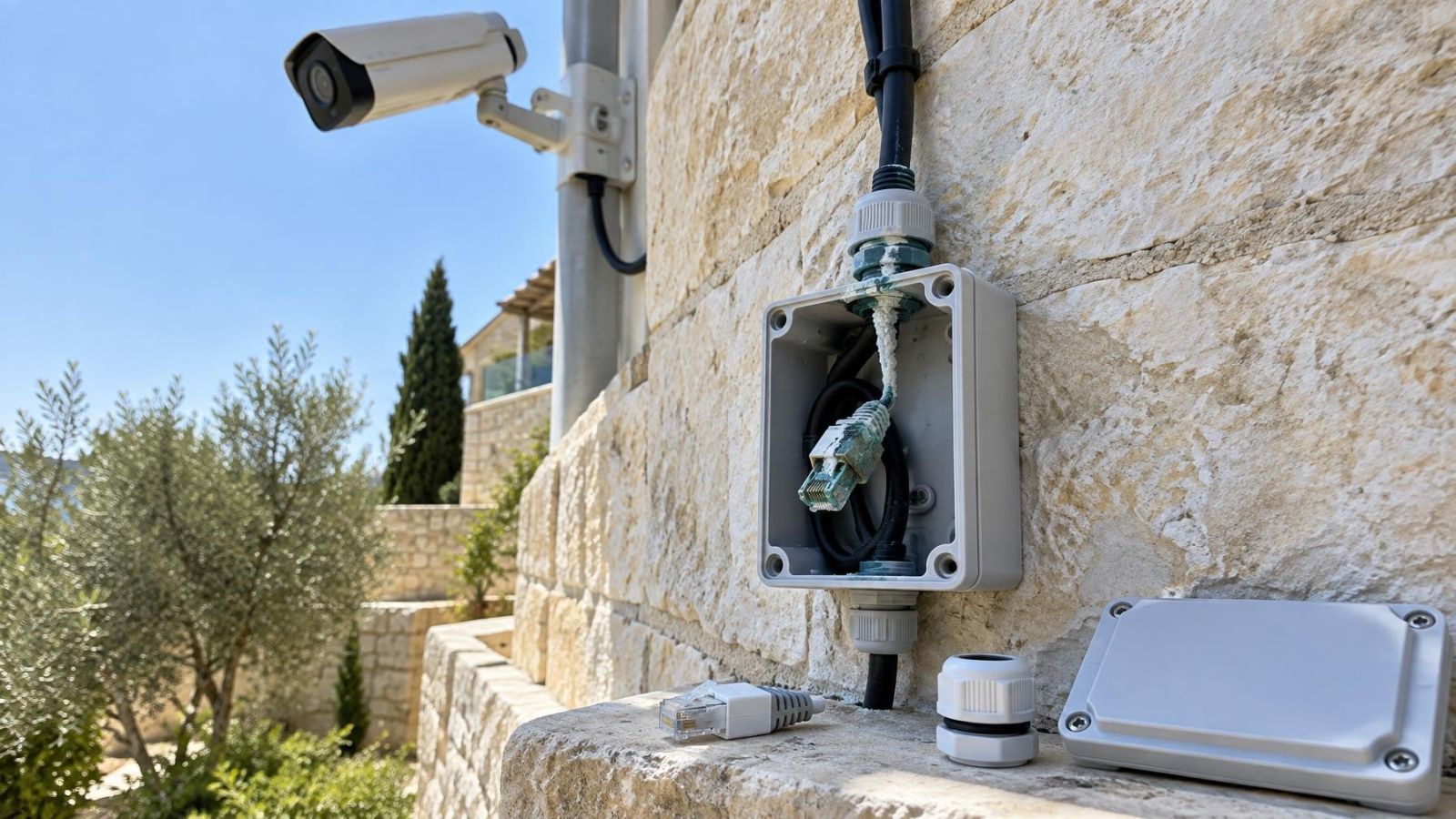
Inspect Ethernet plugs and joints closely. Look for strained locking tabs, sharp cable bends, crushed sections and outdoor joints without effective sealing. Damage can be conditional: expansion in heat, moisture around contacts or movement of a gate cable may produce a CCTV intermittent connection even though the same connection passes video when tested at another time.
Why does a camera disconnect and reconnect?
A camera disconnects and reconnects when the failed condition is temporary. Wireless interference can come and go. A loose conductor may make contact again as a cable cools or stops moving. Network equipment can renegotiate a link. The fact that the camera returns by itself does not establish that the camera hardware is responsible.
For Wi-Fi, a signal indicator seen during one site visit is not enough. A weak wireless connection can sometimes show a usable image and still fail intermittently. Test at the camera's actual mounting point with doors closed and the property in normal use. Neighbouring networks and other radio devices can change the available connection quality.
Israeli homes often contain a mamad, or safe room, built with dense reinforced walls. A router that covers the rest of an apartment may struggle to reach a camera through or around that room. Long corridors, multiple floors and stone-clad exterior walls can create similar problems. Moving the access point or adding a properly connected network point is generally more informative than repeatedly repositioning the camera by a few centimetres.
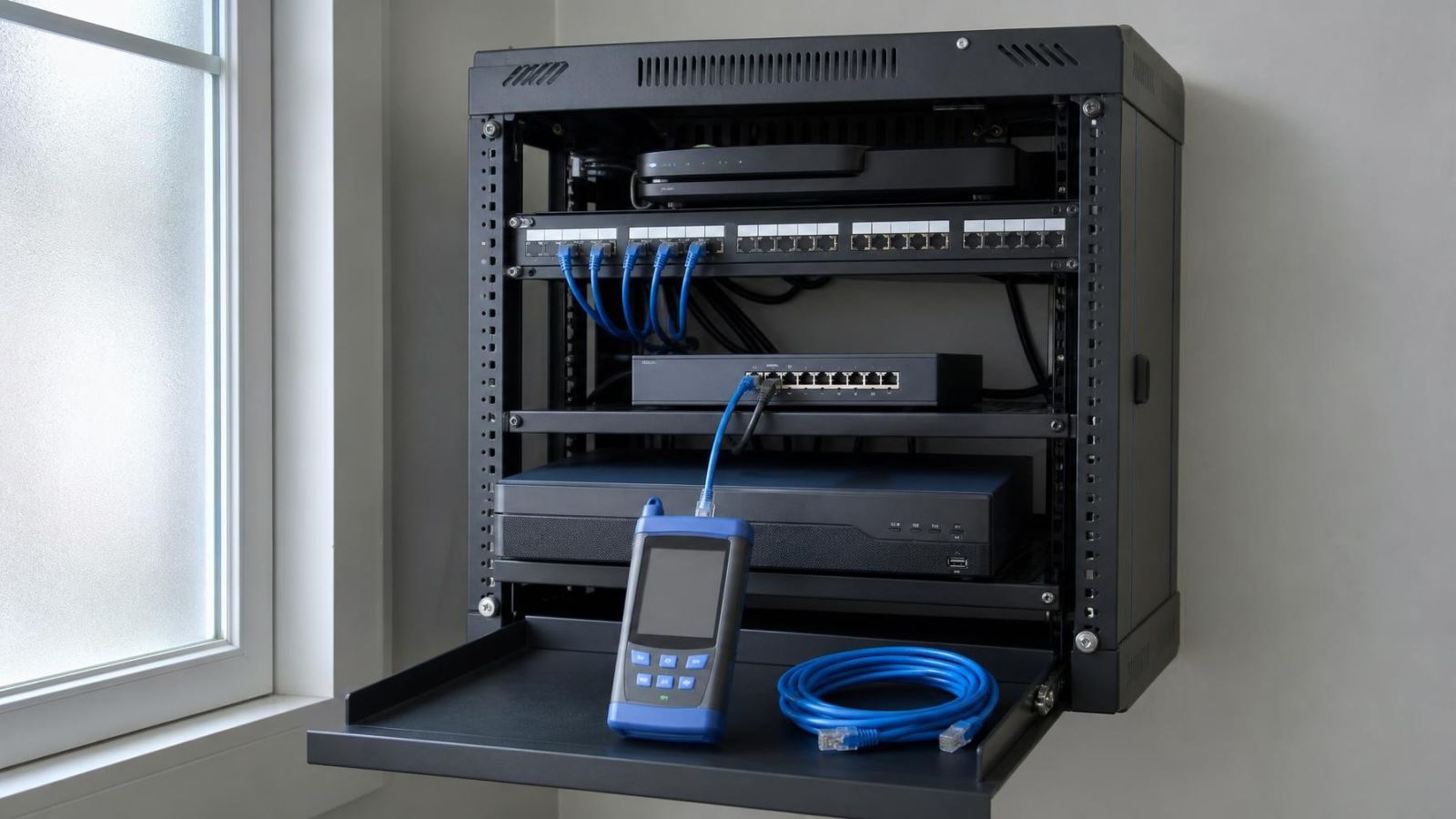
Follow the path back to the router, switch and recorder. A camera visible to an NVR but unavailable through the app points away from the camera's local link. If every camera becomes remotely unavailable while the NVR continues recording, investigate the recorder-to-router and router-to-internet paths before touching individual cameras.
Rule Out Addressing and Access Issues
A powered camera with a healthy cable can still be unreachable if its IP address changes or conflicts with another device. The recorder or VMS (video management software) may continue trying the previous address. An address conflict can also produce confusing behaviour in which the camera appears, disappears and returns as devices join or leave the network.
Check whether the camera is visible from inside the local network. If it responds locally but not through the recorder, review the recorder's camera entry, address and authentication details. A changed password, incorrect username or locked account can look like a network outage. Recorder logs may describe this as an authentication error rather than a timeout.
Keep remote access as a separate test. A recorder may be storing video normally while its app connection is unavailable because the internet service, router or remote-access session has failed. This distinction matters for remote owners: an offline notification should prompt a local recording check before anyone resets the camera system.
- Confirm that the camera has the address expected by the recorder.
- Check that no other device is using the same address.
- Verify camera credentials at the recorder rather than assuming they are unchanged.
- Compare access from the local network with access from an outside connection.
- If VLANs are in use, confirm that the intended path between camera, recorder and management device remains available.
Inspect Outdoor Exposure and Enclosures
Outdoor faults often appear only under the condition that exposes them. Strong Israeli sunlight can raise the temperature of a camera and its junction enclosure, especially on a south- or west-facing wall. A dark enclosure in direct sun can trap heat around connectors or power components. Repeated disconnection during the hottest part of the camera's exposure period deserves a physical inspection, not only a software reset.
Moisture does not need to fill an enclosure to cause trouble. Condensation or a small amount of water around a plug can affect a marginal contact. Near the coast, humid and salty air makes the quality of sealing and connector protection especially important. Dust can enter a poorly closed box elsewhere in the country and hold moisture around contacts.
Movement is another common trigger. Cables at sliding gates, garden entrances and exterior walls can be pulled, flexed or rubbed. Street-front businesses may also have exposed cable routes near shutters, signs or doors. Inspect the cable while it follows its normal movement, but do not keep flexing a visibly damaged section while equipment is connected.
Isolate the Fault Before Replacing Equipment
Changing one variable at a time is the most reliable way to isolate an intermittent fault. Replacing a camera, cable and power supply together may restore operation, but it does not reveal which part failed. That makes the same problem harder to recognise elsewhere and can lead to replacing serviceable equipment.
- Write down the baseline. Record the affected camera, failure time, recovery behaviour, weather, IR state and whether local footage is missing.
- Test power independently. Use a suitable known-good source or PoE connection while leaving the network path unchanged.
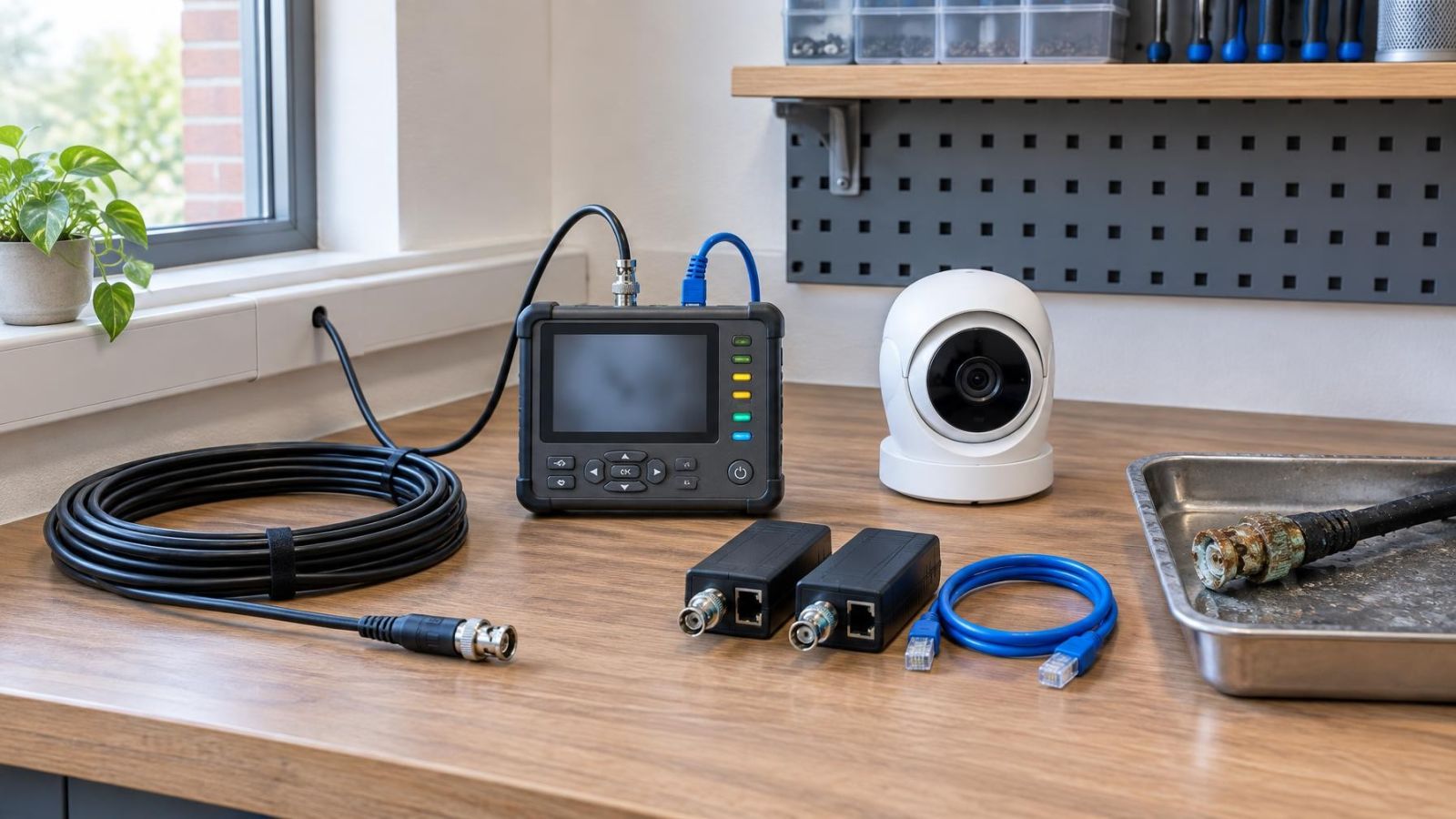
- Test the network independently. Where practical, connect the camera temporarily with a known-good wired path while keeping its normal power arrangement.
- Swap the camera without changing the route. A known-good compatible camera on the existing cable helps test the cable and shared equipment. Put the suspect camera on a known-good path as the matching comparison.
- Repeat under the triggering condition. A test performed only in shade or while a gate is stationary may not reproduce a heat- or movement-related fault.
- Document the result. Note exactly what changed and whether the symptom moved, disappeared or stayed with the original path.
The result should guide the next action. A fault that follows the camera supports repair or replacement of that device. A fault that remains on the same cable path directs attention to connectors, cabling, power or the switch port. A camera that works locally but not remotely calls for network or access reconfiguration rather than physical replacement.
Intermittent faults become manageable when the system is treated as separate power, local video and remote-access paths.
For an installer review, a short fault log is more useful than a general report that the camera “sometimes goes offline”. Include which channels failed together, whether the recorder retained footage, what restarted, and which controlled substitutions were tried. That evidence narrows the investigation without assuming in advance that the camera itself is the problem.
Key takeaways
- An offline status in a remote app does not necessarily mean that local recording has stopped.
- Several cameras failing together usually directs attention towards shared power or network equipment.
- Heat, moisture, dust and cable movement can expose connections that appear reliable under easier conditions.
- Controlled substitution provides clearer evidence than repeatedly restarting the camera, recorder or router.
- The timing and scope of each disconnection should guide the decision to repair, reconfigure or replace equipment.