On this page
Camera Live View No Recording: Why the Paths Differ
A security camera can appear normally in live view while the video recorder writes nothing to its hard drive. The camera app may show a clear image, motion detection may react, and yet the recording archive remains empty. The symptom commonly described as “camera live view no recording” therefore has several possible causes. The practical question is not whether the camera works, but whether the complete recording path is operating from image capture through storage and playback.
Why does the camera live view work with no recording?
Live view and recorded playback use overlapping equipment, but they are not the same service. Live view usually asks a camera or recorder for a stream at that moment. Recording requires an active rule, available storage, a working write process and a usable archive index. Playback then has to find the stored file under the correct channel and time.
| Part | Role in live view | Role in recording |
|---|---|---|
| Security camera | Produces and sends the current video stream | Produces the stream that should be stored |
| Video recorder | May relay the stream to the app or monitor | Applies recording rules and writes the archive |
| Hard drive or camera memory | Usually not required for the current image | Stores video and archive information |
| Camera app or VMS | Displays the selected live stream | Requests playback using channel, time and event filters |
An NVR (network video recorder) can lose access to its storage while continuing to receive video from a network camera. A DVR can have a similar separation between incoming pictures and drive activity. An app may also connect directly to a camera for live viewing while recorded playback depends on the recorder. The clear live image confirms only the part of the path currently being used.
Treat live view as proof of a current video stream, not proof of an archive.
Are Recordings Hidden by Time?
Before changing recording settings or opening the recorder, check whether the video exists somewhere unexpected on the timeline. An incorrect clock can place a recording earlier or later than the period you are searching. A remote property owner may also be viewing an app configured for a different time zone, while the recorder uses local Israeli time.
Check the clock, channel and playback view
- Compare the time shown on the recorder with the current local time at the property. Check the app separately rather than assuming it copies the recorder clock.
- Open playback for the exact camera channel that showed the live image. Similar camera names, duplicated entries and changed channel positions can lead to the wrong archive.
- Remove event-only filters temporarily. Search the full timeline rather than only motion, alarm or marked-event results.
- Move across a wider part of the timeline. Look around the recorder’s displayed time, not only the moment shown by the phone or computer.
- Check whether recordings appear under an unexpected day or hour. A time correction may change where new video is filed without moving older files to the new position.
Timeline colours and event marks are navigation aids, not proof that a playable file exists. Select a marked period and let playback run long enough to confirm moving video. A thumbnail, still frame or coloured bar can remain visible even when the underlying segment cannot be opened.
Check the Recording Mode
Why is my security camera not recording?
A security camera not recording often has a configuration problem rather than a camera fault. The camera can stream continuously while the recorder is instructed to save only at selected times, only after motion detection, or not at all. Recording settings should be checked on the recorder or VMS (video management software) responsible for the archive, not only in the camera app.
| Recording mode | What should create video | Typical source of an empty archive |
|---|---|---|
| Continuous | Video throughout the covered schedule | Schedule disabled, incomplete or assigned to another channel |
| Motion-triggered | A recording action after detected movement | Detection active but recording action not enabled |
| Scheduled event | Video only during configured event periods | Event rule or schedule does not cover the tested period |
| Manual | Video after an operator starts recording | Manual recording was never started or was later stopped |
Motion detection and motion recording are separate decisions. Detection can produce an outline, notification or event entry without telling the recorder to save video. Check the complete chain: detection is enabled, the recording action is selected, the intended channel is linked, the schedule covers the period, and the post-event recording time is not effectively absent.
Review settings channel by channel. Copying a schedule across cameras can fail silently if one channel was excluded, replaced or added later. Also check every day shown in the schedule. A visually filled grid can contain narrow uncovered periods, especially around transitions between continuous and event recording.
After correcting a rule, save or apply it and then reopen the page. Some interfaces let you edit a grid without committing the change. Do not assume that a successful motion notification confirms successful recording; playback is the final check.
Is the Storage Available?
A recorder cannot build a dependable archive unless it recognises writable storage. Open the storage or hard-drive page and read the actual status. Useful states are normally described in plain terms such as normal, read-only, uninitialised, absent, full or error. The wording varies, but the distinction is straightforward: detected does not always mean ready to record.
- Confirm that the expected drive or storage device appears in the recorder.
- Check whether the device is shown as writable and healthy rather than merely present.
- Review remaining capacity and whether recent files occupy the archive.
- Check the automatic overwrite setting. When overwrite is disabled, recording may stop after available space is used.
- Look for more than one storage device. The recorder may be targeting a different drive or storage group from the one being inspected.
An uninitialised drive usually cannot be used for recording. However, initialising or formatting it can erase archive data that may still be recoverable. Do not choose those actions simply because the interface presents them as the fastest way to clear an error. Preserve important files first, or have the storage assessed before making a destructive change.
Camera memory and recorder storage must also be distinguished. A camera with internal or removable memory may hold its own recordings while the NVR archive is empty. The reverse is also possible. Playback opened through the camera entry may search one location, while recorder playback searches another. Check which device is expected to store the video and which archive the app is actually displaying.
Automatic overwrite normally removes older material as space is needed so that newer video can be written. If old footage has disappeared but recent footage is present, overwrite may be behaving as configured. If both old and new periods are empty, investigate the storage state, recording rules and timeline rather than assuming routine deletion.
Trace Gaps to System Events
The beginning and end of a gap often reveal more than the empty period itself. Compare the missing interval across several cameras. A gap on every channel points towards a recorder, storage or site-power event. A gap on one network camera is more likely to involve that camera, its cable, its power source, its network path or its individual recording rule.
What causes CCTV missing recordings?
Common causes include recorder restarts, camera restarts, power interruptions, network dropouts and loose data or power connections. Once service returns, live view may look normal even though the interruption remains as a permanent archive gap. A network camera cannot send video to an NVR while its network path is unavailable unless another configured storage path is recording locally.
How do I check NVR recording gaps?
- Write down the first missing point and the first point at which recording returns for each affected camera.
- Compare the same interval across other channels. Separate system-wide gaps from single-camera gaps.
- Review recorder and camera status logs for restarts, disconnections, storage errors or clock changes around the gap.
- Inspect power and data connections without disconnecting storage. Check plugs, network terminations and PoE (power over Ethernet) equipment for movement or intermittent contact.
- Test the affected path under normal operation and confirm the result in playback.
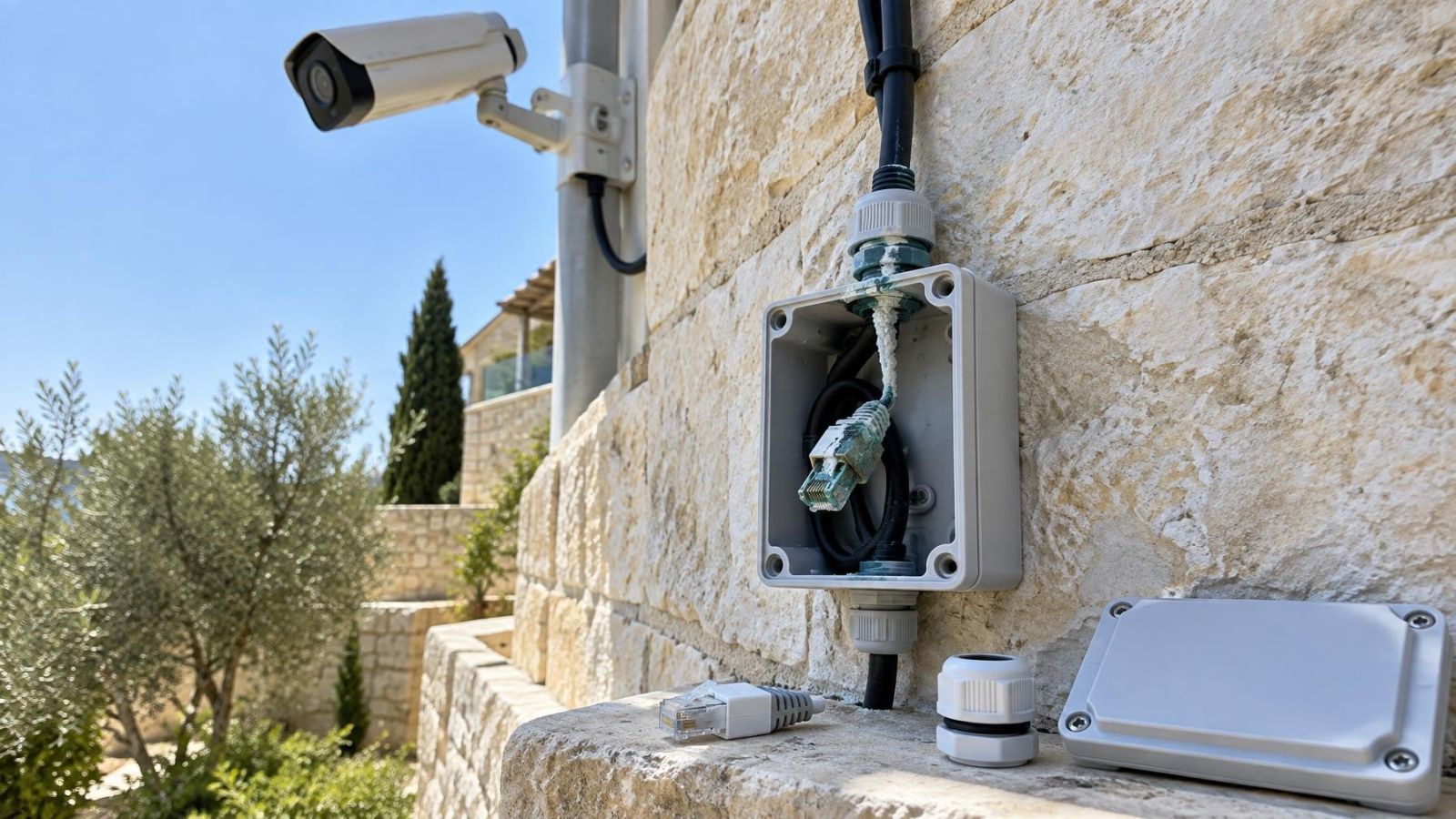
Physical conditions matter. Dust can block recorder ventilation, and an enclosed cabinet can retain heat. Coastal humidity can also be hard on exposed connectors over time. Recorders should have open airflow and should not be buried under papers, network equipment or other heat-producing devices.
In Israeli homes, network paths sometimes cross reinforced areas such as a mamad, where wireless performance can change sharply between rooms. If a camera relies on Wi-Fi, a live view that has recovered does not show whether the connection remained stable throughout the missing period. Fixed cabling is generally easier to diagnose because each camera has a defined data path.
For PoE cameras, check both network and power behaviour because the same cable may carry both. A marginal termination can interrupt the camera completely, cause repeated restarts or produce short communication losses. For separately powered cameras, inspect the data path and power supply as distinct possibilities.
Test Without Destroying Evidence
Troubleshooting should create a new, clearly identifiable recording without changing old storage. Choose a camera and a quiet test area. Note the recorder’s displayed time, walk through the field of view, pause, and leave. If motion-triggered recording is used, make the movement clear and remain visible long enough for the event to be processed.
- Take screenshots of the camera name, recorder time, storage status, recording mode and schedule before making changes.
- Perform the known movement test while watching the live timestamp.
- Wait for the configured recording process to complete, then open playback for the same channel and recorder time.
- Remove playback filters if the event does not appear. Search immediately before and after the expected point.
- Play the segment and verify moving video, not only an event marker or thumbnail.
- Repeat the test after any repair and retain the before-and-after notes until normal recording has been confirmed.
Avoid formatting, initialising, resetting or replacing storage during the first diagnostic pass. Do not delete channels or rebuild the recorder configuration unless the existing settings have been documented. These actions can remove recordings, indexes or configuration details that would otherwise help explain the fault.
If footage may be important, export any playable segments before deeper work. Keep the original export format where possible and check that the exported file opens. Copying a file is not enough if the player cannot read it or the selected interval was wrong.
Decide the Next Repair Step
The next action should follow the fault already observed. Avoid changing several unrelated settings at once. A single controlled change makes it possible to tell whether the repair altered recording behaviour.
| Finding | Appropriate next step |
|---|---|
| Recording appears at the wrong archive time | Correct the relevant clock or time-zone configuration, then test new recording |
| Schedule or action is missing | Correct the affected channel rule and verify playback |
| Storage is absent, read-only or reporting errors | Preserve accessible footage and arrange storage inspection |
| One network camera has repeated gaps | Diagnose its power, cable and network path |
| All channels stop together | Inspect recorder power, restarts, storage and shared network equipment |
| Settings and storage look normal but tests still fail | Escalate with exact channel, time and status details |
An installer can work more efficiently when given precise information: the camera channel, the displayed recorder time, the start and end of each gap, whether other channels were affected, the storage status, and what the controlled test produced. Screenshots are more useful than a general report that recording sometimes disappears.
Storage replacement may be appropriate when inspection identifies an unhealthy drive, but replacement should not be the first response to an empty timeline. Configuration, clock and playback errors can imitate storage failure. Network and power diagnosis is similarly guided by scope: one affected camera suggests a local path, while simultaneous gaps suggest shared equipment.
After any repair, verify both immediate playback and continued recording under the intended mode. Check continuous periods if continuous recording is required, and perform another known movement test for event recording. The repair is not confirmed by the return of live view alone; it is confirmed when the expected video can be found, opened and played from the recording archive.
Key takeaways
- A working live view does not prove that video is being written to storage.
- System time, channel selection and playback filters should be checked before hardware settings are changed.
- Recording schedules and motion-triggered recording actions must be checked together.
- Storage status should be verified without prematurely initialising or formatting the drive.
- A controlled movement test is complete only after the resulting video has been found and played back.